Step 1: Create the Document for Tracking (If needed)
- In the Admin Dashboard, select Doc Types
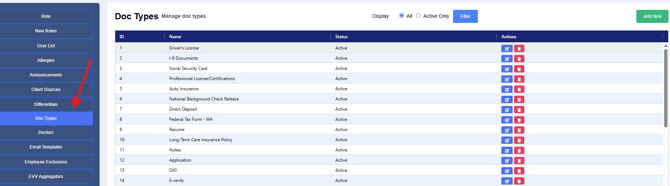
- Select Add New and create the Training as a Doc Type with information as needed.

- If you are not tracking the pay in eCaring for the training, additional steps are not required.
- For more information on how to create Doc Types visit Managing Doc Types
Step 2: Add a Service Type to Reflect the Training
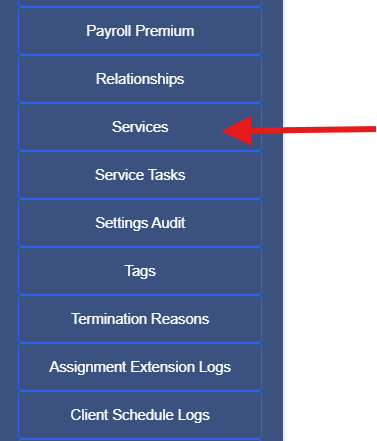
- Add the training service details for tracking in the Admin Dashboard
- Select Add New and complete the Service Details
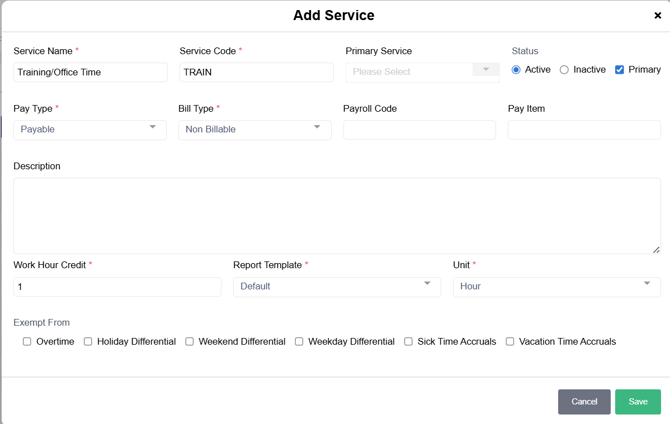
- The Service will also need to be added to the Private Pay Payor and Staff Payroll rates to allow scheduling for tracking.
Step 3: Create a Client Profile & Authorization
- Create a client profile to be used to track the training.

- Create the Authorization
Step 4: Create the Training as a Visit
- This visit can be manually completed by office staff, or if the training is completed in the office, the staff member can clock in and out to complete the visit.
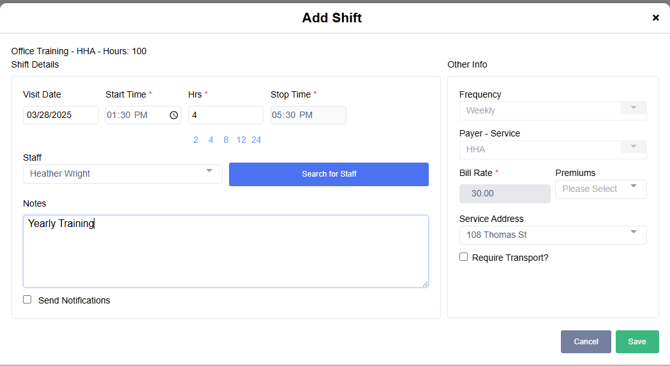
Step 5: Once the training is completed, update Doc in Staff Profile and Verify the Shift
- In the Staff Profile, access Certifications & Documents
- Select the Training Doc and complete the needed information and Save or Mark as Complete
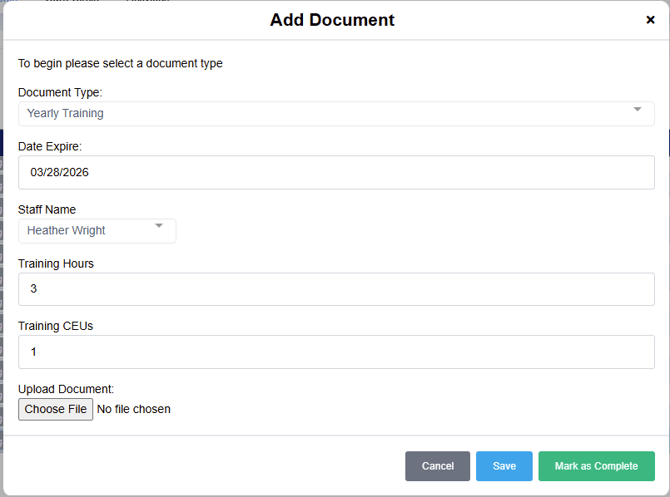
- Complete the shift by manually clocking in and out if needed
- Verify the information to ensure accuracy; verify to override any billing hours if needed, select Save and Verify
- For additional information on Visit Verification, visit How to Verify Visits
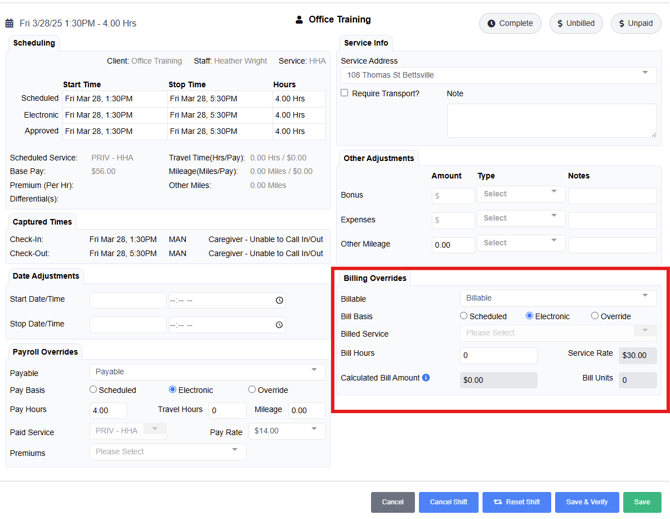
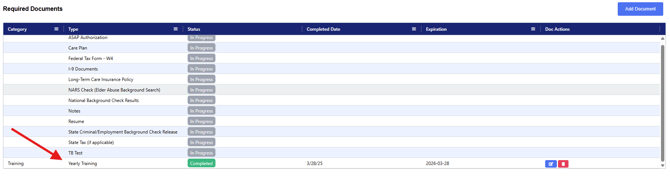
Once all steps are completed, you will see the training on the Verification Dashboard and the Staff Profile.
Verification Page:

Staff Profile- Certifications & Documents: