
When your site is created a list of seeder docs are entered. To edit or manage the pre-populated docs complete the following steps.
Access your Doc Types
- Access your Doc Type settings by selecting Admin on your menu bar

- On the left side menu scroll to Doc Types and select
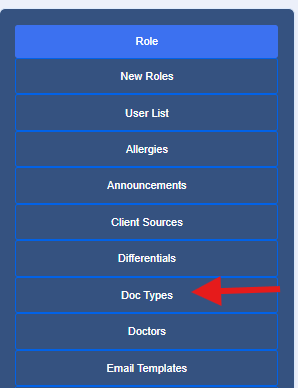
- Review the seeder Docs listed
Remove Docs
If you do not track a Doc listed you can remove the Doc from your list with two options.
Option 1: Preferred Method
This method allows you to easily restore the Doc Type if needed in the future.
- Select the blue pencil icon to the right of the Doc

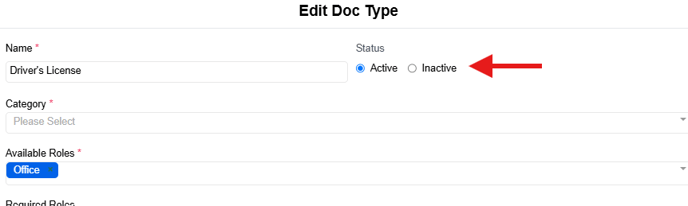
- Select the Inactive radio button
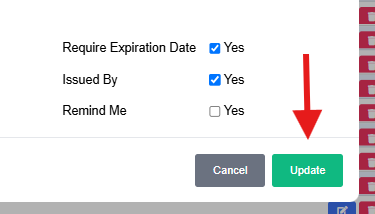
- Select Update to save changes
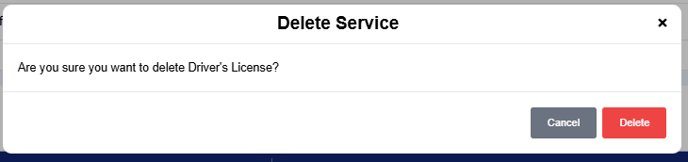
This method will delete the Doc Type, if needed in the future it will need to be created.
- To delete a Doc Type Select the red icon on the far right

- Confirm by selecting Delete
Edit a Doc Type
You have the option to edit the seeder doc types if you would like to change the set-up.
- To edit a Doc Type Select the blue pencil icon on the far right

- Once you select the blue icon, the Edit Doc Type will populate
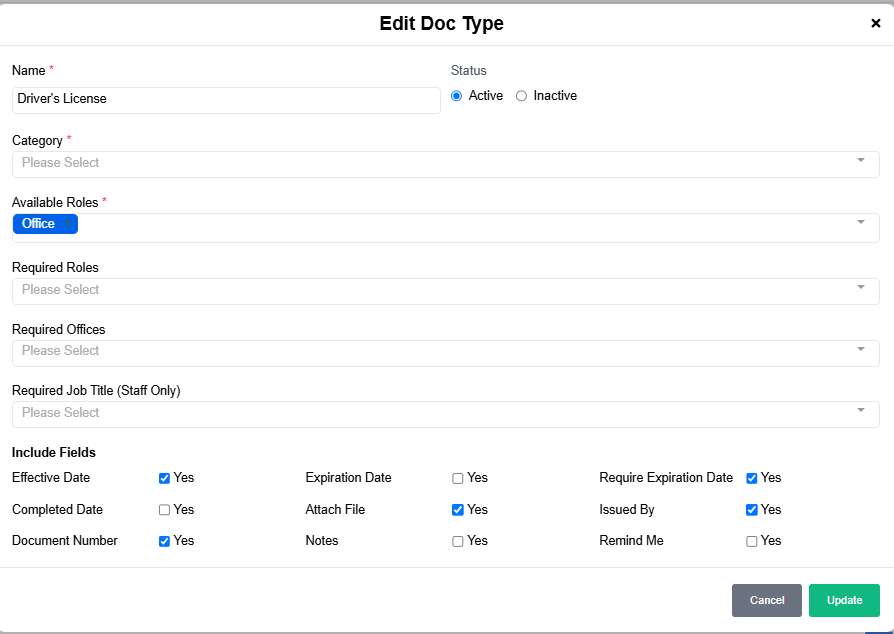
- In this area you will have the option to edit various areas.
- Name: The name you would like this Doc to be shown as
- Status: Allows you to easily switch between Active and Inactive
- Category: The drop down allows you to select a category for tracking
- Available Roles: Select the roles that this Doc Type should be assigned to (Client, Field Staff, or Office). The Doc will then be assigned to the profiles.
- Required Roles: Will require these Docs to be mandatory for the assigned role.
- Required Offices: This area will allow you to assign Docs based on the office that the profile is associated to.
- Required Job Title: This field is for staff only and is used to populate for specific roles. An example for this would be a required degree or license.
- The include fields allows you to include or exclude additional fields
- Once the information is updated select Update to save