
This article provides a checklist of items to review when staff cannot see tasks that should be completed during a visit.
Verify the service being scheduled
- Go to the client profile and select Authorizations to verify the service being offered; in this example, it is HHA

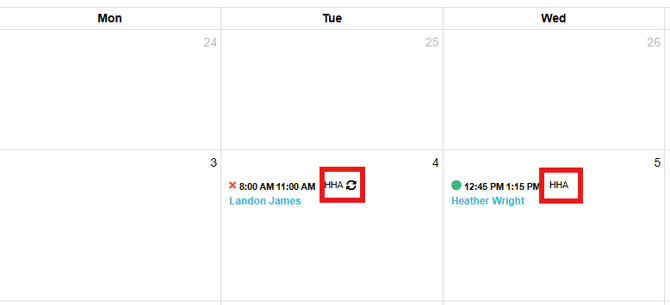
- You can also see this information on the schedule
Verify the Tasks
- Once the service type has been verified, navigate to the Care Plan Tab

The Task list will help verify that the task is set up for the correct service
type.
In this example, the HHA visit is configured to display only four tasks for staff to complete. If a task is listed here but is not appearing on the visit, verify that the task is assigned to the correct Service. The task must be associated with the service used on the visit in order to display in the Mobile App.
Other areas to verify:
- If the Tasks and Services are correct, verify the days in which the services should occur and the effective date.
- If the task is associated with a different service, for Authorization purposes, a separate shift may need to be created.
- Verify the Status has a green thumbs up to reflect the task is active
Once the information is corrected and saved, the staff will see the tasks in the Mobile App as visits will be updated.