
When you first log in to your eCaring tenant, you will be directed to the Main Dashboard. This dashboard serves as the central hub for navigating your tenant and provides important at-a-glance information to help you monitor daily operations, track key activities, and access essential features throughout the system.
At the top of the screen, you will find several navigation and account options that provide quick access to key features within eCaring. These options allow you to navigate throughout the tenant, access important tools, and manage your account settings.

Section 1: provides quick access to your user profile and account options. From this area, you can update or refresh your profile information, view email and text message communications sent through eCaring, and securely log out of the system when you have finished your work.
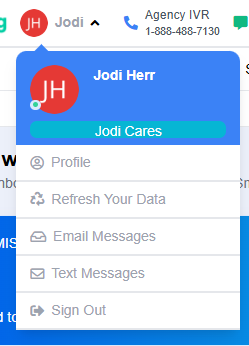
Section 2: This section displays the agency-specific Telephony phone number that staff can use to call in from the client's phone to clock in and clock out of scheduled shifts.

Section 3: This section displays the agency-specific phone number that will show when sending SMS messages using eCaring

Section 4: This section allows you to quickly search for profiles within your tenant using a first name, last name, email address, or assigned ID. Search results are displayed in real time, making it easy to locate and access profile information.

Section 5: If your agency has multiple offices, this section allows you to easily switch between office locations. Selecting a different office updates the information displayed throughout the tenant, enabling you to view and manage data specific to that office.

The next row provides quick access to the various dashboards and several helpful tools. From this section, you can navigate throughout the system, view recently accessed profiles, access message threads, review important agency alerts, and quickly open learning articles and other support resources.
To access other Dashboards, select on the title

To view Recent Lookups, select on the drop-down and choose the profile you would like to access

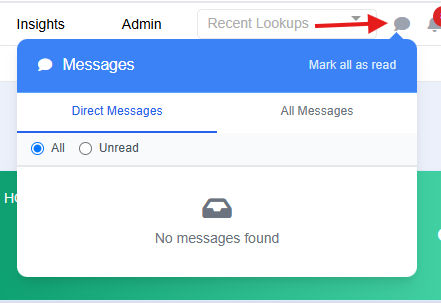
To review SMS Messages, select the Text Bubble
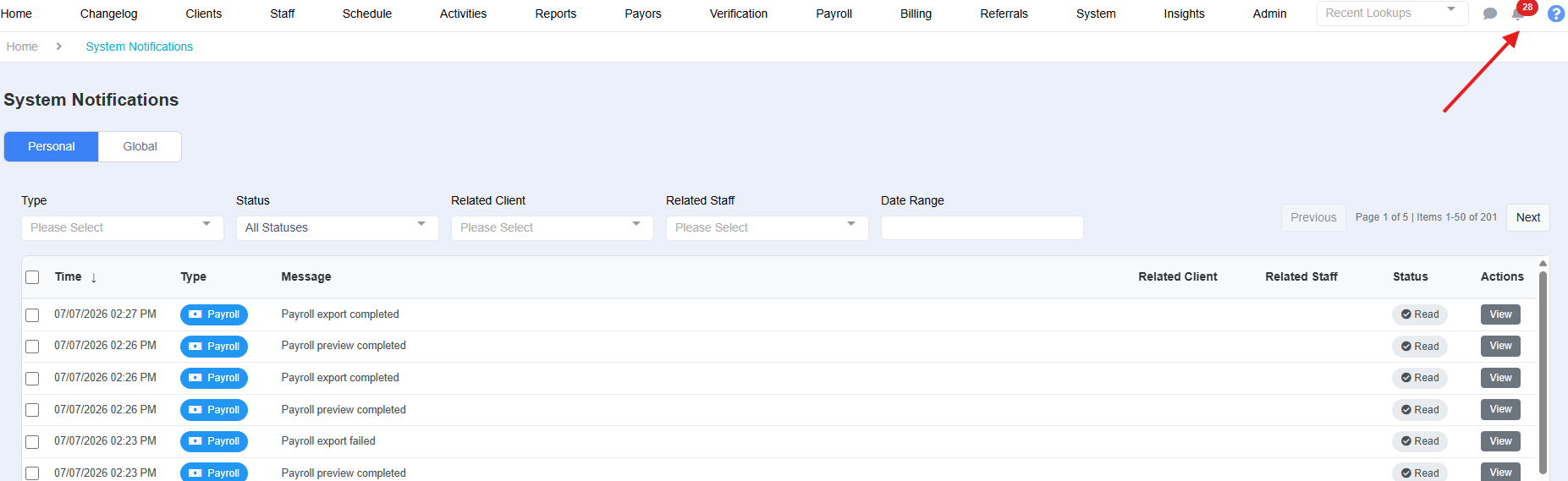
To view important agency alerts, select the bell icon
The final section of the Dashboard provides helpful agency metrics and summary data. This area allows you to review key weekly performance information, monitor trends, and gain insight into your agency's activity at a glance.
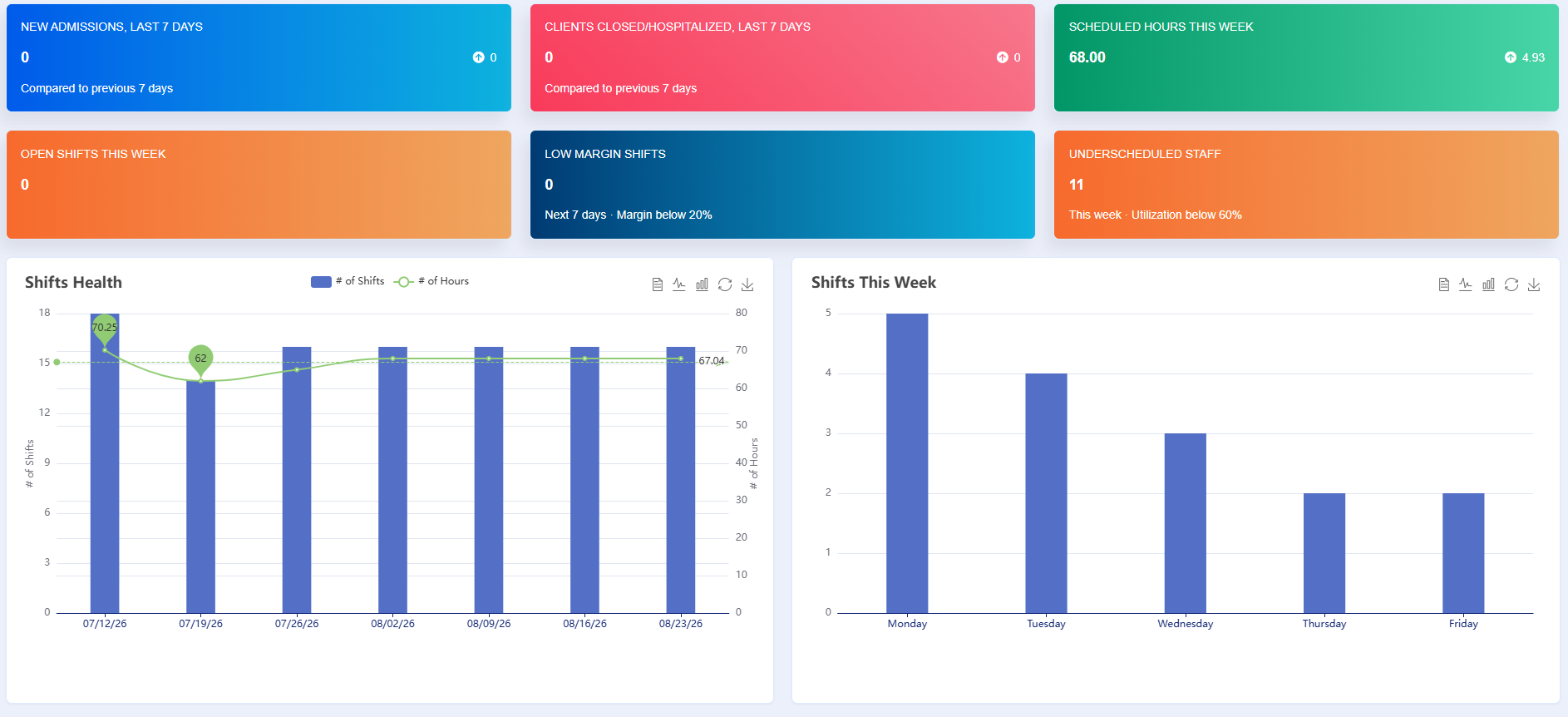
Please note: You can select either Low Margin Shifts or Underscheduled Staff directly from the Dashboard to be taken to the corresponding Insights Report. This provides quick access to detailed information, allowing you to review and address potential scheduling and staffing concerns more efficiently.
