
Text messaging is a great tool to utilize to communicate with your caregivers and other staff, and it is included with your eCaring subscription!
Sending a Text Message
Messages can be sent in various areas of eCaring.
To send a text message for a profile, follow the steps below.
- Any page displaying the yellow icon with the message bubble means you can send a message.
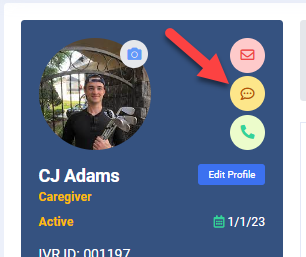
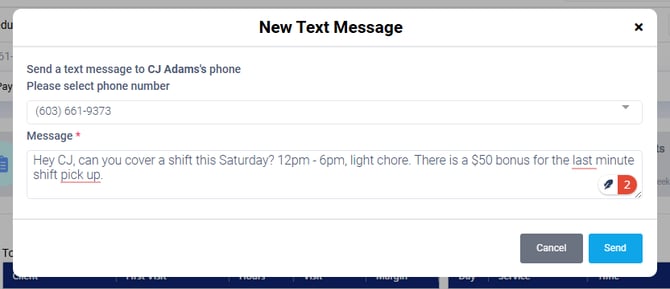
- Click the yellow message icon to open the New Text Message window.
- Select the phone number you wish to send the message to. You will only be able to send messages to numbers listed as Mobile. (See Troubleshooting in this article for more information about Mobile numbers.)
- Type your message in the message box.
- Click Send.
How to Send a Group Message or Message for the Staff or Client Dashboard
From the Staff or Client Dashboard, select the profiles in which you would like to message or use the Select All option.
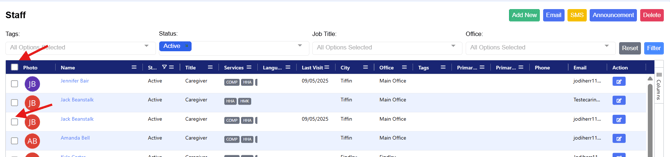
Once the desired profiles are selected, select the Email or SMS function and complete your message.
Viewing Sent & Incoming Text Messages
You can view text messages from one of two locations within eCaring.
- View a specific staff text message thread by navigating to the staff profile. Select Notes & To Dos then select Messages.

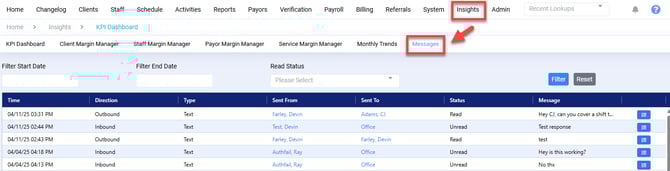
- You can view all messages in one location under Insights. Then select Messages.
- You can also view messages from the dashboard by selecting the chat bubble
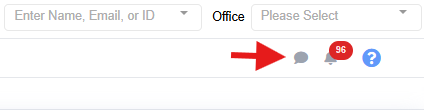
This icon will also show you both messages sent from your profile and by all office staff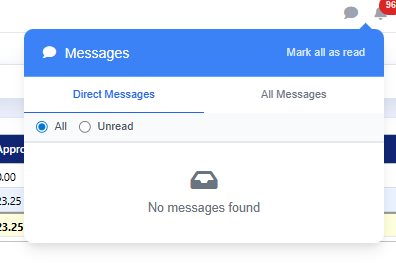
Troubleshooting
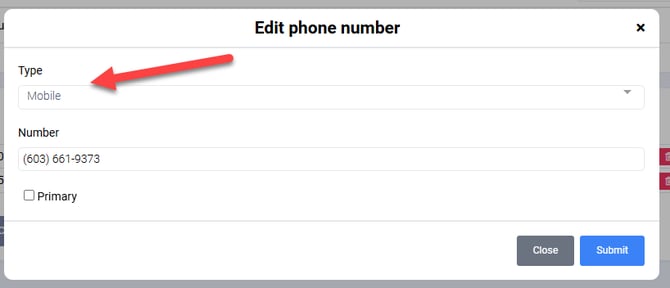
- If you do not see a yellow icon associated with the staff member you wish to text, check their numbers under their staff profile. Click Edit Profile then select Phone Numbers. Ensure that at least one phone number is labeled as Mobile.
- To update the phone number to Mobile, click the blue edit button and select Mobile from the Type menu.
If you are sending messages, but your staff are not receiving them or you are not seeing messages come through to eCaring please submit a help ticket ASAP.
Common Questions
Q: Who can see the text message I send from the admin portal?
A: Any admin with the role permissions to view client or employee messages can see all text message communication within the admin portal, regardless of who sends the text message.
Q: Why don't I see text message notifications?
A: We currently do not support notifications when a text message is received; however, that is an upcoming feature!
Q: Can caregivers see messages sent or received by others?
A: No, caregivers can only view the direct text messages between them and the admin. Since caregivers do not have access to the admin portal they do not have the ability to view other text messaging threads.