
Staff List
(View Client List information further down)
There are several actions you can perform from the staff list.
- Add a new staff member (click Add New, please see the How to Add a Staff Member for more details)
- Send an Email
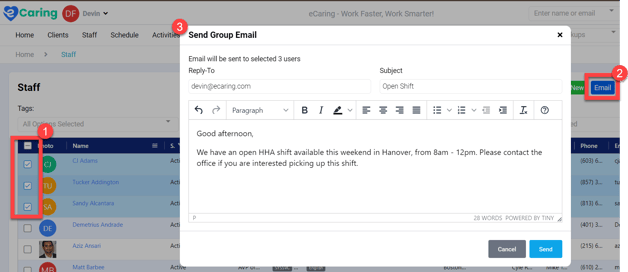
- Check off the employees you'd like to send an email to, then click Email located on the far right hand side. Clicking email will open up the Send Group Email window.
- Enter the subject line, then type your email.
- Click Send when complete.
- Send a SMS (text message)
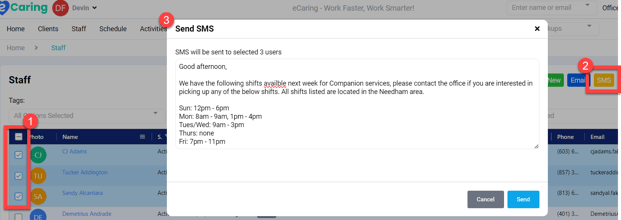
- Check off the employees you'd like to send a SMS to, then click SMS located on the far right hand side. Clicking SMS will open up the Send SMS window.
- Enter the SMS message you would like to send.
- Click Send when complete.
- Send an Announcement (this will be shown to your select staff members and/or roles)
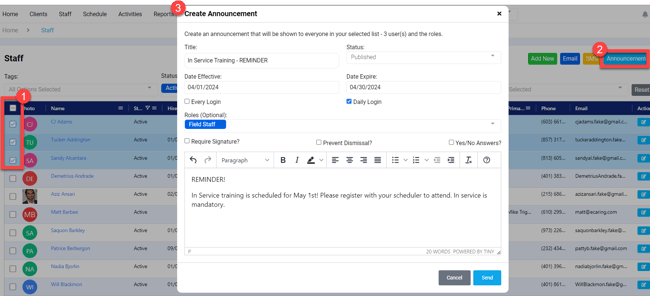
- Check off the employees you'd like to send a Announcement to, then click Announcement located on the far right hand side. Clicking Announcement will open up the Create Announcement window.
- Enter in the required information in the Create Announcement window and click Send when complete.
- If you have the appropriate permissions, you can also remove a staff profile from the list using the Delete button. You cannot delete a staff member with a current or past schedule.
There are five filtering options. These filters can be provided one at a time, two at a time, three at a time, or all at once.

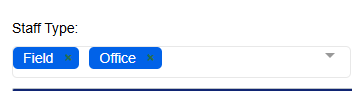
- Staff Type: Search for staff based on their role type
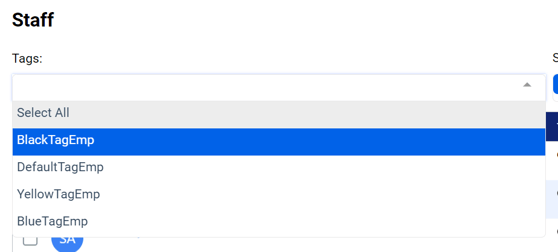
- Search for staff by using tags (tags can be added under Admin, and applied to staff under Edit Staff)
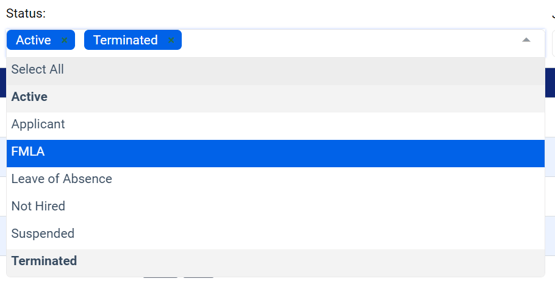
- Search by Status (you may select multiple options)
- Search by Job Title (you may select multiple options)

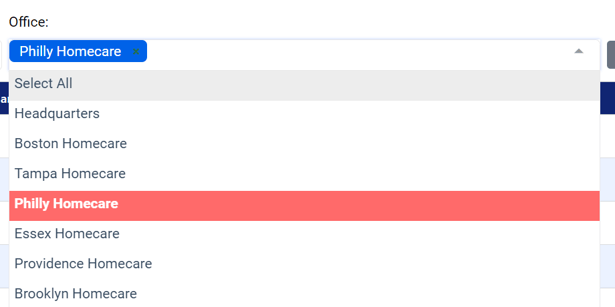
- Search by Office (you may select multiple options)
Once you've selected your filters, click Filter to apply them. This button is located on the far right hand side of your screen.
To clear the filters, click Reset. This button is located on the far right hand side of your screen, next to Filter.

Client List
There are a few actions you can perform from the client list.
- Add a new client (please see how to add a client for more information)
- Send a group email
- Check off the clients you'd like to send an email to, then click Email located on the far right hand side. Clicking email will open up the Send Group Email window.
- Enter the subject line, then type your email.
- Click Send when complete.
- If you have the appropriate permissions, you can also remove a client profile from the list using the Delete button.
There are four filtering options. These filters can be provided one at a time, two at a time, three at a time, or all at once.

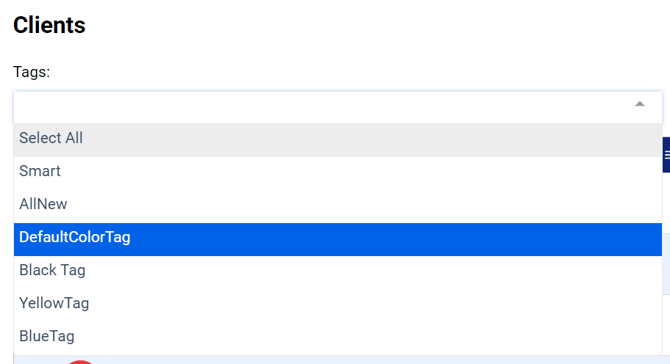
- Search for clients by using tags (tags can be added under Admin, and applied to staff under Edit Staff)
- Search by Status (you may select multiple options)

- Search by Risk Level (you may select multiple options)

- Search by Office (you may select multiple options)
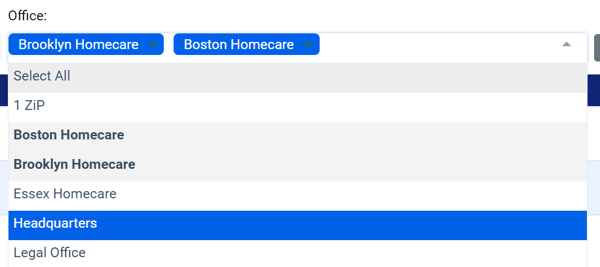
Once you've selected your filters, click Filter to apply them. This button is located on the far right hand side of your screen.
To clear the filters, click Reset. This button is located on the far right hand side of your screen, next to Filter.
