
Instances such as covering for another agency, a client emergency, or when hours are cancelled and could be made up another week, call for scheduling over the authorized hours.
Note: In the Payor Set-up, the box to allow scheduling over authorized hours must be checked.

This article will show you how to easily schedule over the authorized hours.
To review your client’s authorization, navigate to the client’s Authorization tab.
This client, Pauly D, has an authorization for Home Health Aide services, 10 hours per week.

You can also easily view Authorizations from the client schedule as well.
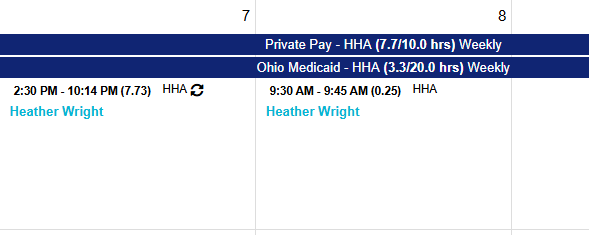
Navigate to the client’s schedule and the specific shift you wish to update.
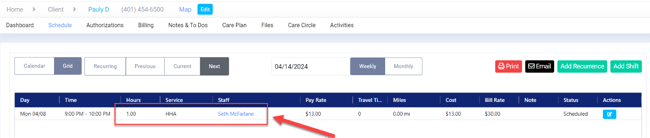
Once you determine the shift you would like to update, click the light blue edit button. This will open the Edit Shift window.
To add more hours to the shift, enter the amount under Hrs (you can make any additional edits needed at this time, such as start time and staff.)
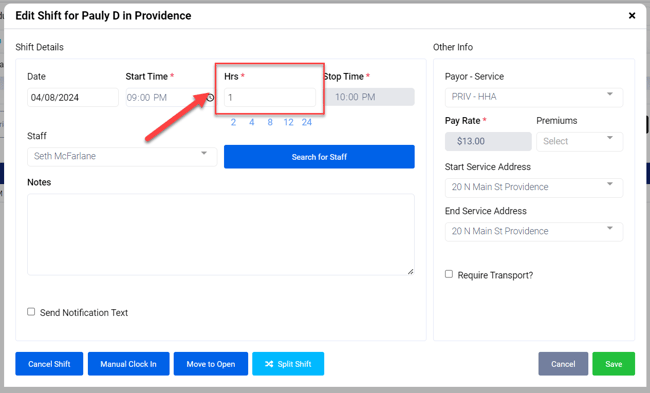
In this example, the shift will increase from 1 hour to 12 hours, which will bring the total hours for the week above the authorization of 10 hours.
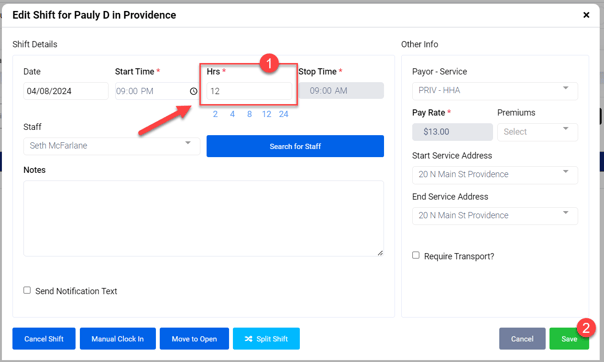
Click Save when finished editing the shift.
The following warning will appear to ensure that the increase in hours over the authorization was not a mistake.
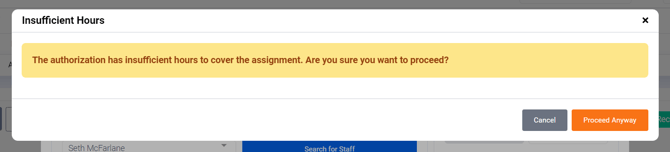
Click Proceed Anyway to save the changes and the shift will be updated with the increase in hours and any other changes entered.