
Main Menu
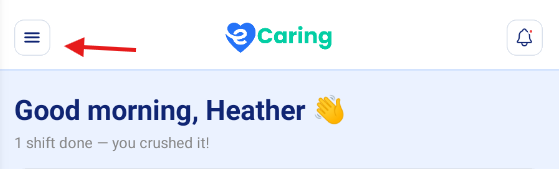
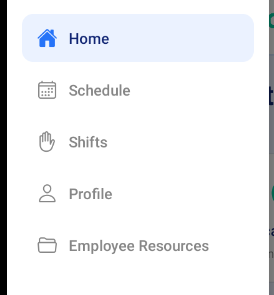
Main Menu allows you to easily navigate the mobile app, this is found at the top left side of the screen, these same options are also located at the the bottom of the app.
Schedule
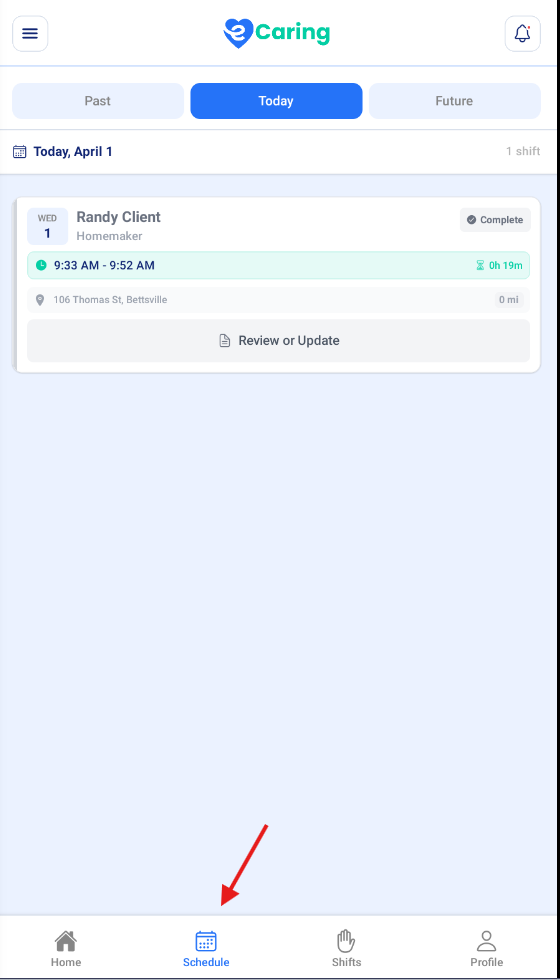
In this area you have the option to see your current, past and future shifts by selecting Schedule. This feature can also be found at the bottom of the screen as well.
Shifts
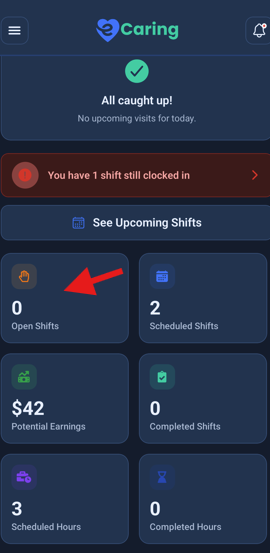
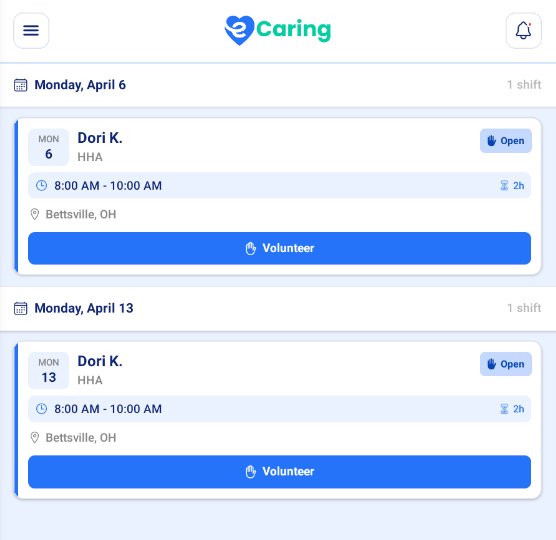
Staff can view open shifts that they qualify for by selecting Shifts from the menu or by selecting Open Shifts
In this area, you can review open shifts and volunteer for a shift. Staff cannot assign themselves shifts from the app. The coordinator in the office must approve the shift and update the schedule accordingly.
The aide can select the phone icon to call the office directly.
Profile
The Profile area allows you to view important information related to your profile on file with the office. This can also be located at the bottom of the screen
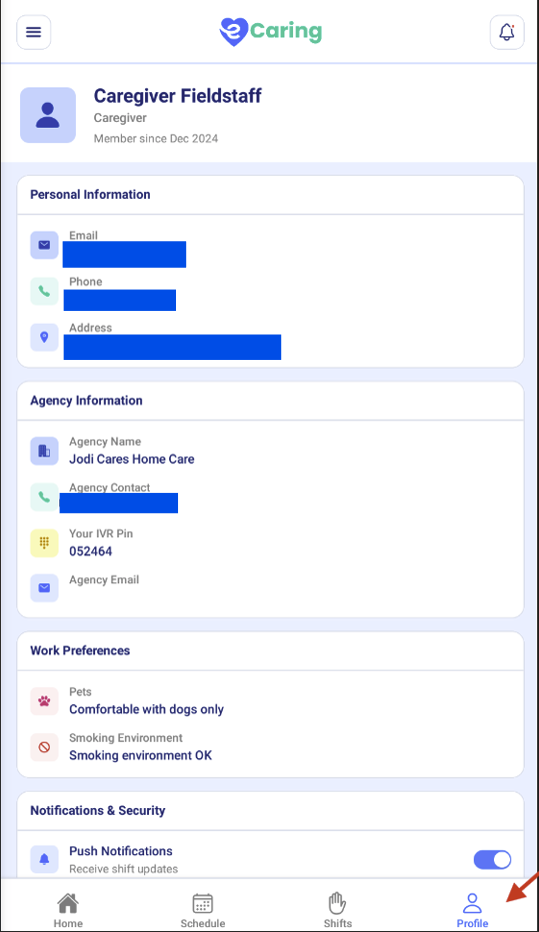
Push Notifications: This will allow you to receive important notifications
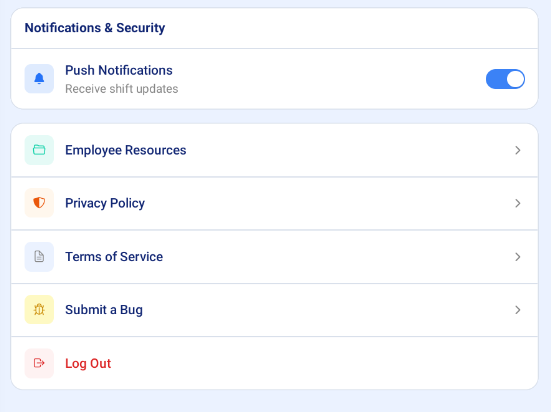
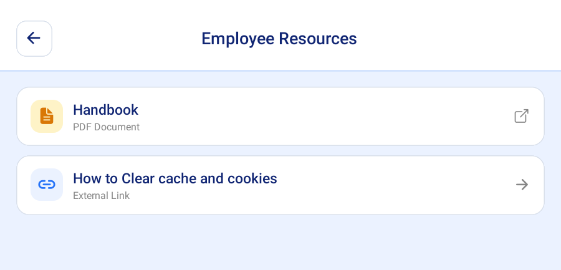
Employee Resources: In this area you will find important information posted by the office
Notifications
Be sure to check for important notifications at the top right of the screen, you will see an alert here; select on the icon to review the information.

Map Features
The Directions feature allows users to view driving directions in the app as needed. Within the shift details, select Directions to view the best route to your visit
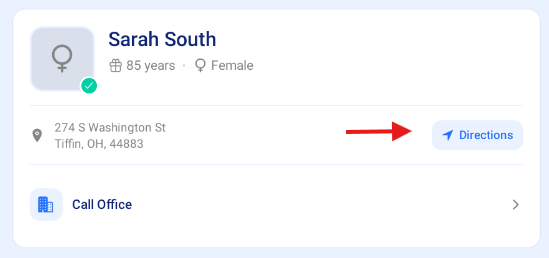
A browser will then open to provide the driving directions and a map to view potential parking, public transit, and general location.