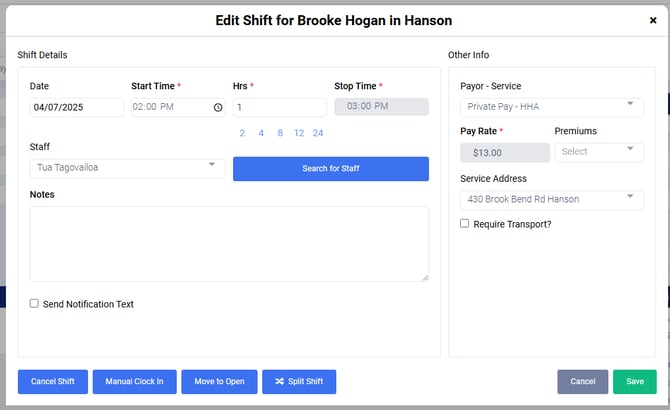
The Shift Monitor allows you to view all schedules for the current week based on the client or staff view.
To view the Shift Monitor, select Schedule from the toolbar.
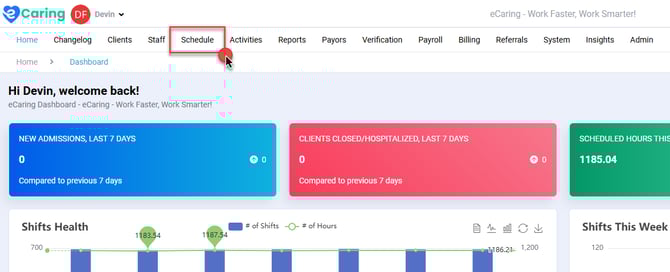
This will bring you to the main Schedule page.
Then select Shift Monitor from the mini toolbar.
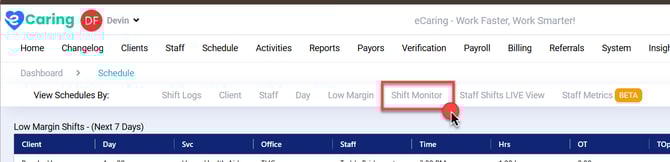
The Shift Monitor will open up, similar to below.
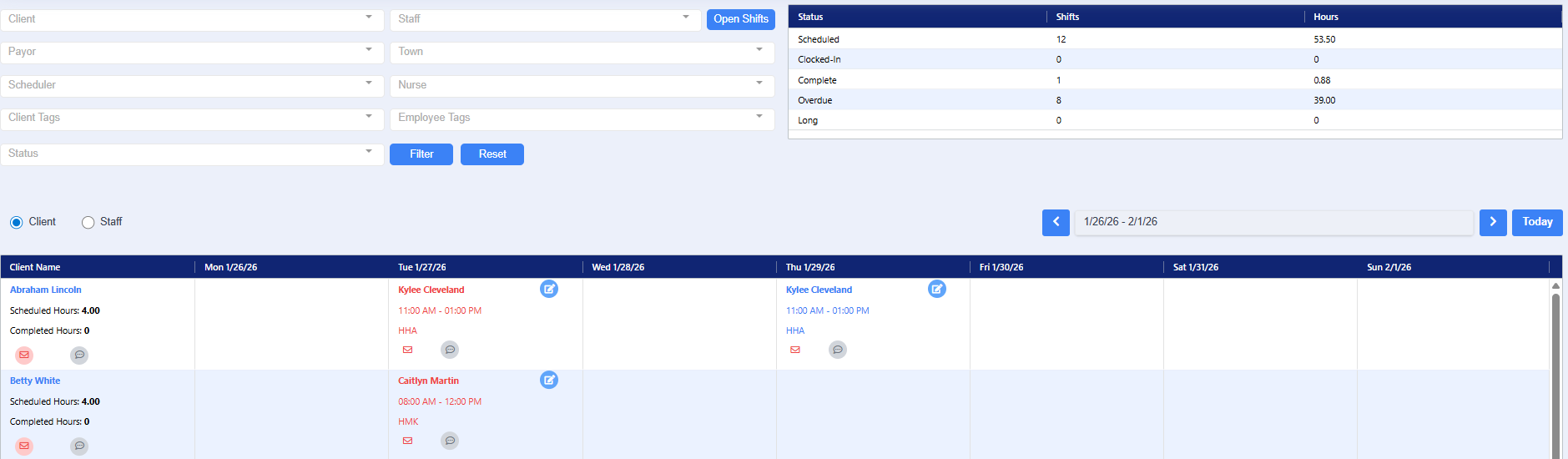
The first section allows you to apply a variety of filters based on client, staff, payor, town, scheduler, nurse, client tags, employee tags or status. 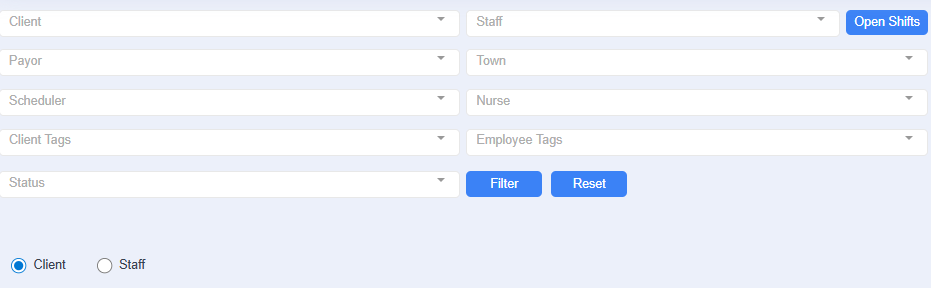
The second section allows you to filter the schedule based on the client's weekly schedule or the staff's weekly schedule. Please allow a few moments for the grid to update.

The third section is the all-encompassing schedule for the client or staff. This grid is alphabetical based on first name.

The color of the shift tells you the status.
Red = past due, incomplete visit
Green = completed shift
Blue = upcoming shift
Additional functions;
The Shift Monitor allows you to do a variety of actions:
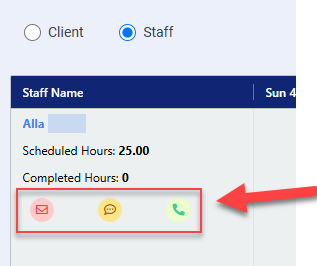
- Email, call or text the staff or client member
- Make one-time schedule changes by selecting the blue Edit button.
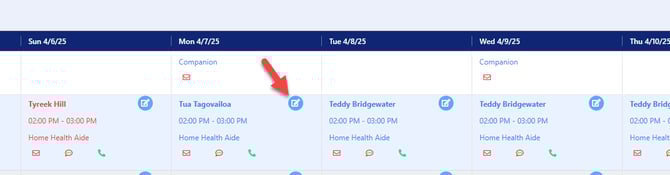
This will open the Edit Shift window.