
Add Sick Time and Vacation Time to Staff Profile
To Edit Sick and Vacation Time balances navigate to the staff's profile and scroll down to the bottom of the left hand menu.
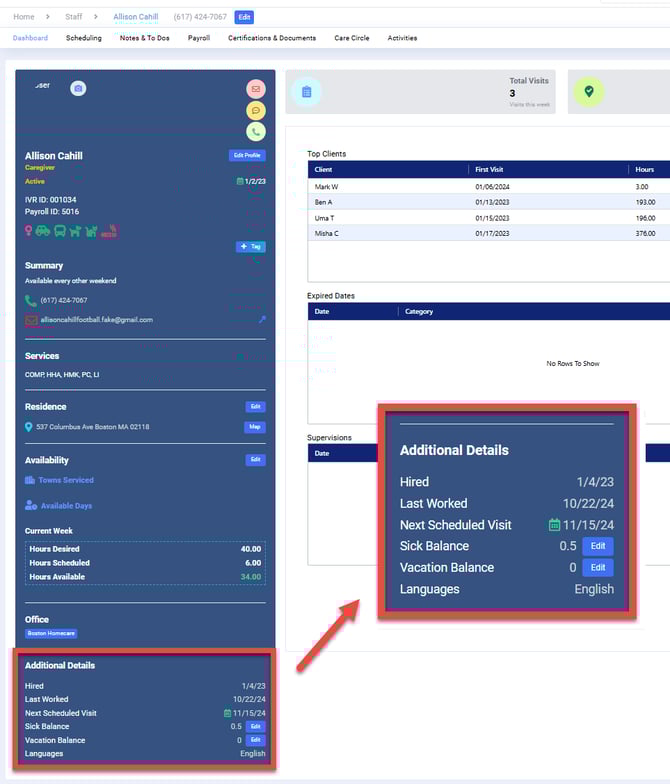
Under Additional Details you can Edit the Sick Balance and the Vacation Balance by clicking the Edit button.
This will open the corresponding Balance dialog box.
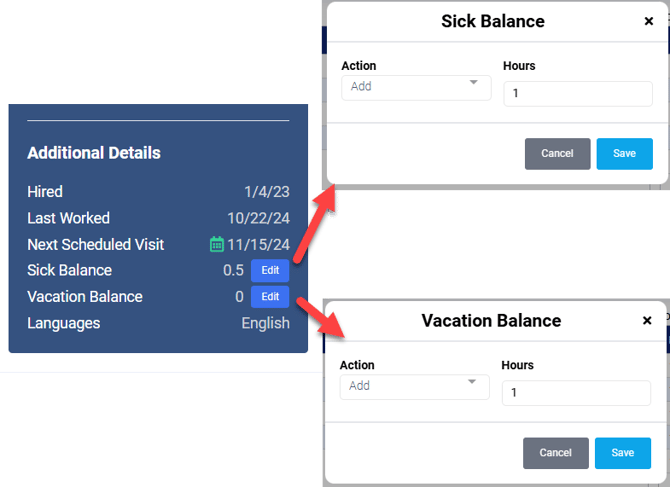
Select Add or Subtract from the Action menu (if you do not see Subtract you may need to scroll the menu down.)
Enter the amount of hours you wish to add or subtract from the balance.
Click Save.
The Balance will update accordingly under Additional Details.
You may manually set the Balance to exceed the capped hours set under Settings or go above the Rollover Cap if applicable.
IMPORTANT NOTE: Manual adjustments ARE allowed to override your accrual settings. If you make an adjustment that would cause the balance to exceed your Maximum Accrued hours, you will be given a warning message, acknowledging the warning will allow you to proceed.