
The Activities Dashboard provides a centralized location for viewing visit notes for both clients and staff without having to access individual profiles. From this dashboard, you can filter information by date range, search for specific clients or staff members, review documented visit activities, and download visit reports for reporting and record-keeping purposes.
How to View the Activities Dashboard
To access the Activites Dashboard, select on Actvities

How to Filter Results
When you first access the Activities Dashboard, recent activity records are displayed by default. To view activity for a specific date range, client, employee, or payor, enter the desired criteria and select Filter. The dashboard will then update to display only the records that match your selected search criteria.

How to Review or Edit Notes
To review a specific Visit Report, select the first icon displayed under the Action column. This will open the visit details, allowing you to review the visit note, documented tasks, clock-in and clock-out information, and any additional information recorded during the visit.
 The Visit Report will then open

How to Edit Tasks
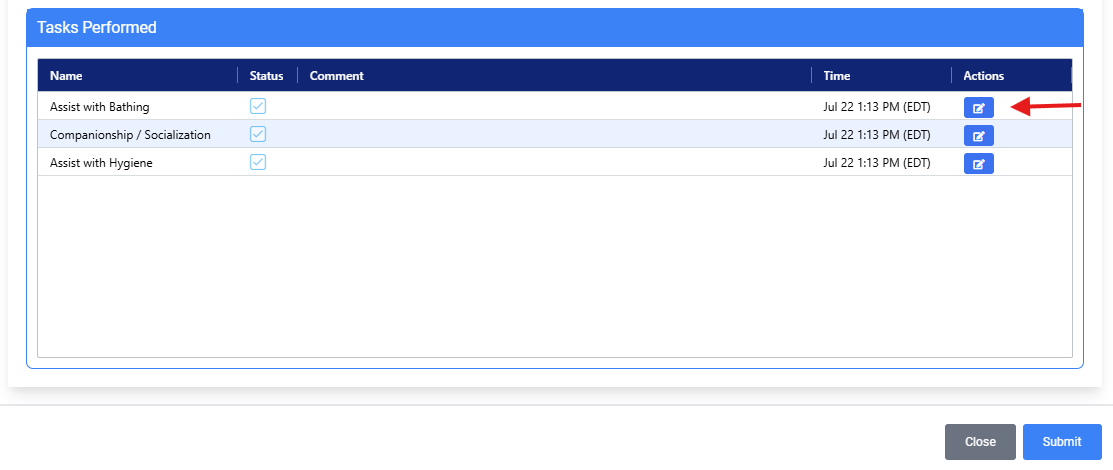
Once a visit is complete, it may be necessary to update the tasks performed. This can occur in situations where a visit was manually clocked out or when a task was marked incorrectly during the visit. To make changes, select the Edit icon in the Action column. From there, you can review and update the visit details as needed to ensure the visit record accurately reflects the services provided.

You will then be able to update individual tasks by selecting the Edit option next to the corresponding task. After making the necessary changes, save your updates to ensure the visit record accurately reflects the services that were provided.
How to Download Activity Reports
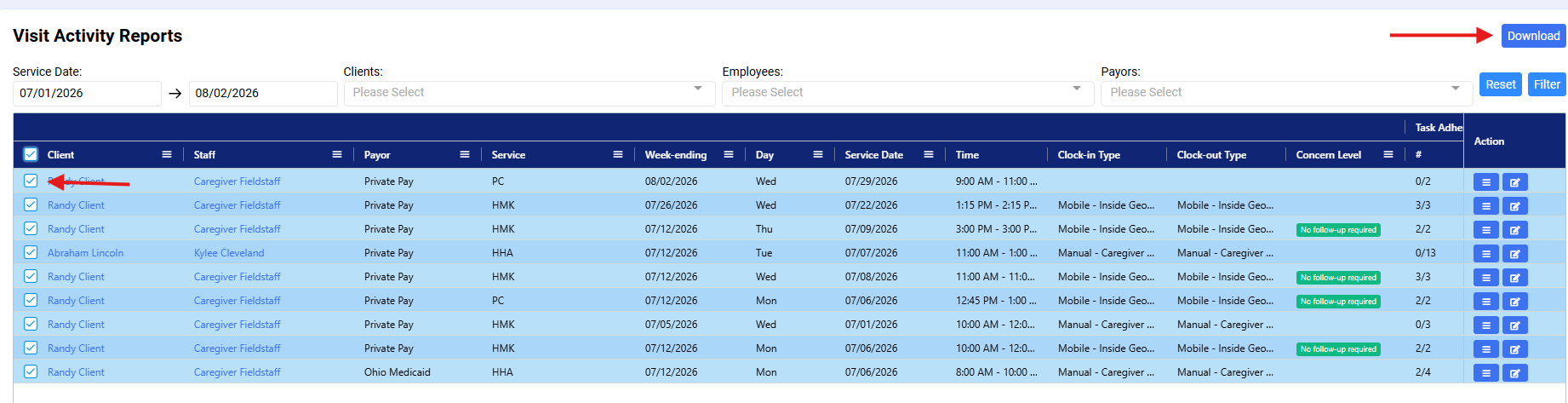
If you need to download Visit Reports, you can do so directly from this section. Select the checkbox to the left of the client name for the report(s) you would like to download, then select Download.
Please note: If you select reports for multiple clients, a separate PDF file will be generated for each client. This allows you to easily review, save, or share client-specific visit documentation as needed.
Once you select Download, an additional window will appear. From this window, choose the information you would like included in the report by selecting the appropriate options. After making your selections, generate the report to create a PDF containing the desired visit details and documentation.

Once you select Download, a zipfile will be created.