
We've introduced a new "Quick Action" pop-up. When you hover over a visit, you'll see a new pop-up menu with quick actions you can take. From here, you can directly send the client or caregiver a text message (as long as they have a "mobile" number), edit the visit or recurrence, Cancel the visit, or perform a Manual Clock-in/out.
Go to the profile schedule you would like to edit, cancel, or clock-in/out.

Hover over the shift you would like to edit. If it is a recurrence, select the date that the change occurs.
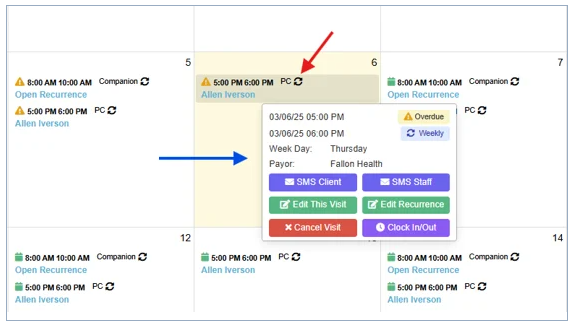
- When you hover over the visit, a pop-up will appear. In this pop-up you can select SMS Client or SMS Staff to quickly send a message regarding this shift
- To edit a single visit or recurrence, select the corresponding icon
Edit the visit or recurrence
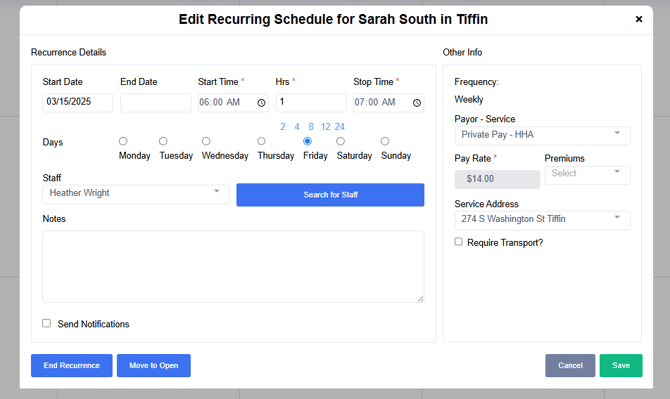
- Once the new pop-up box appears, make any changes needed to your shift and select Save.
- Note: When you edit a recurrence, it will not default to the original start date. If you are editing from a calendar or specific visit, it will use that date as the new start date. if you are editing on the "Recurrence" page, you'll need to manually choose a start date for your edits to be effective.
Cancel a Visit
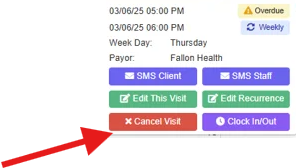
- To easily cancel a visit using the Quick Action function, hover over the date and select Cancel Visit.
- Select the Reason, enter a Note, and select Yes, Continue
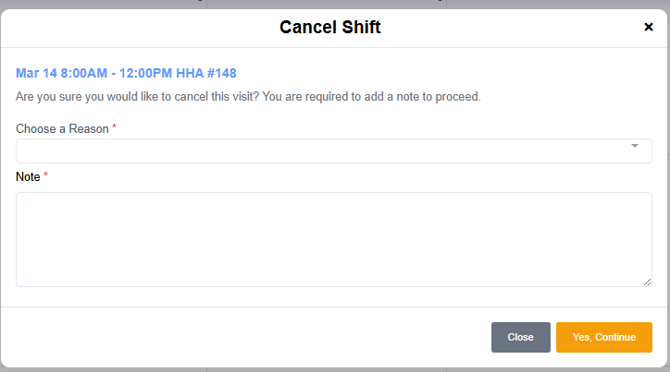
- The visit is now canceled
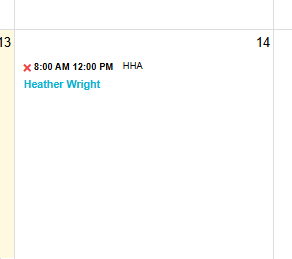
To Manually Clock-In and Out of a Shift
- Hover over the shift
- Select Clock In/Out
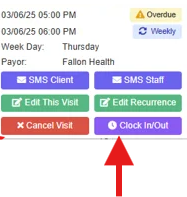
- In the pop-up, select the Reason and time and Save
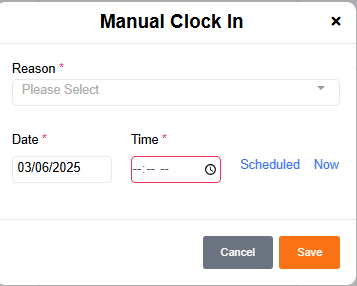
- Repeat the process if a clock-out is needed