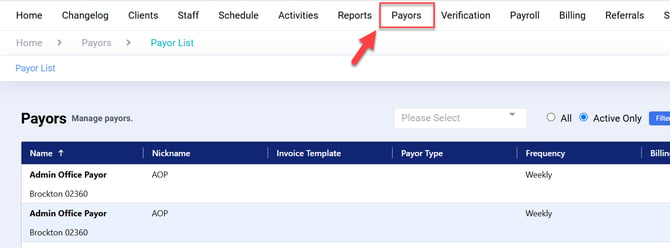
To begin updating a service rate, navigate to the Payor tab.
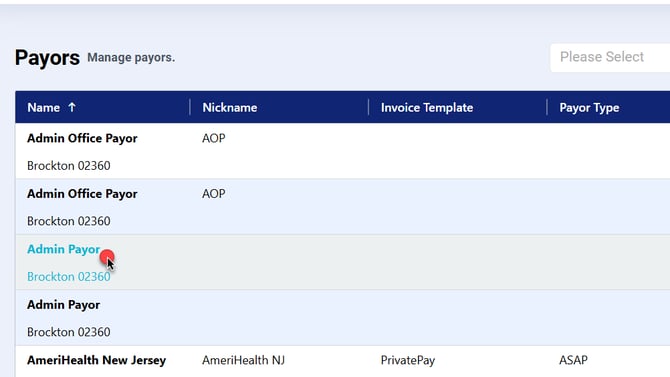
Click on the name of the Payor whose service rate(s) need to be updated.
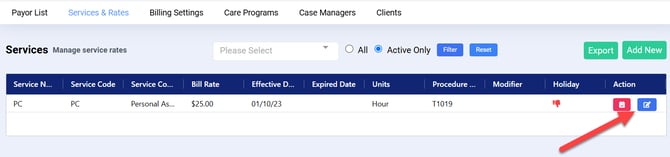
Click the blue Edit button to the right of the service you are updating. This will open the Edit Payor Service box.
Click Update to unlock the Bill Rate field.
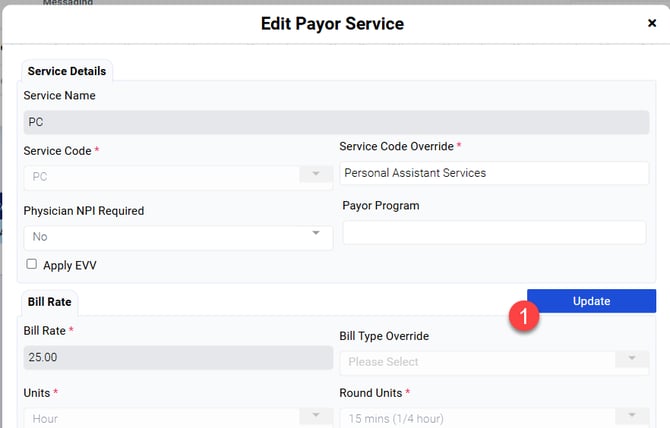
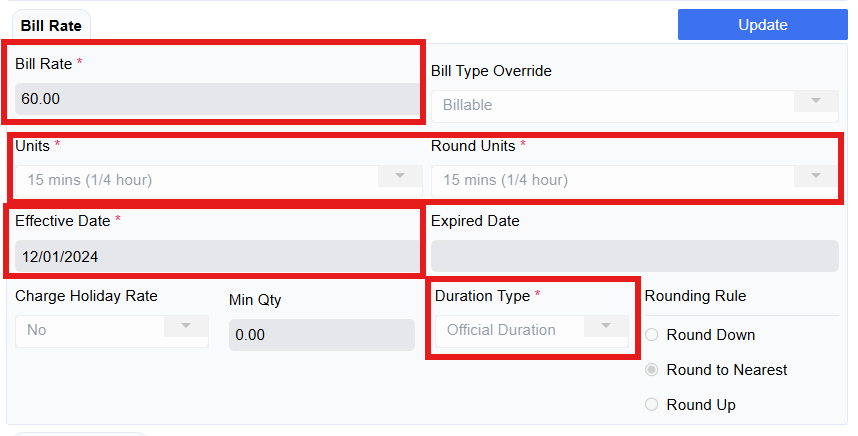
Step 1: Enter the new Bill Rate
Step 2: Select which rate update application applies best for you
Step 3: Enter the new effective date. (The previous rate will automatically populate with the expiration date per the new effective date)
Step 4: Select the Duration Type if an update is needed
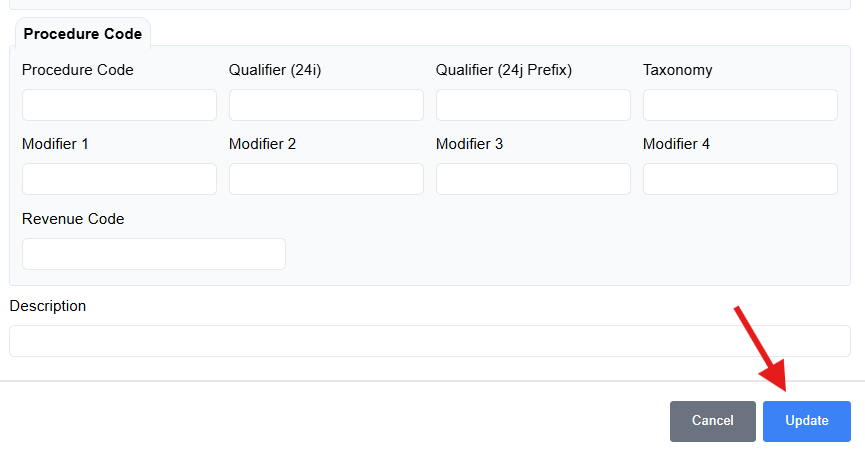
Step 4: Click Update at the bottom of the Edit Payor Service box.
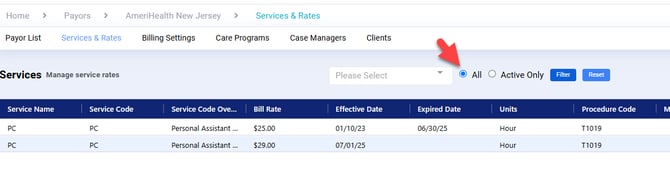
If your service is updated into the future, you will have to click All and filter to view the upcoming service rate changes.