
To Access the Referrals Dashboard, select Referrals

When you access the Referrals Dashboard, you can view all client profiles that are currently in a Pending status. This area also provides options to customize the table layout, add a new referral, and delete a profile when appropriate. These tools help you efficiently manage referrals and organize the information displayed on the dashboard.
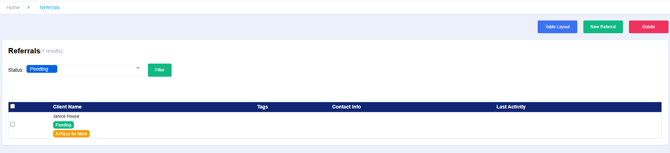
Table Layout
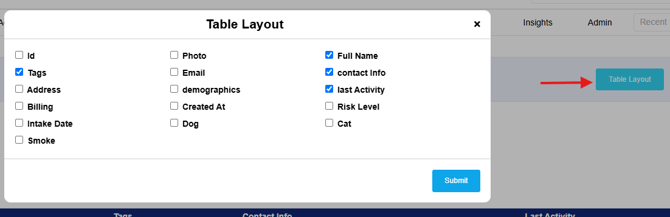
To update the table layout, select Table Layout. You will then have the option to choose which fields or information you would like displayed within the table. Customizing the table layout allows you to organize the information based on your workflow and easily access the details most important to you.
New Referral
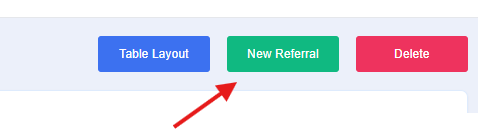
Select New Referral to add a new client profile with a Pending status. Enter the available client information and ensure the referral status remains set to Pending. This allows you to track the referral through the admission process and update the profile as additional information becomes available.
The same profile entry screen will populate as the standard client profile setup process. Enter the available client information in the appropriate fields and complete the profile details as needed. Once saved, the profile will remain in a Pending status until the referral progresses through the admission process.

Delete Option
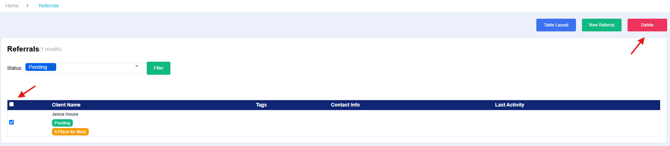
If a Pending profile was entered in error, you can delete the profile by selecting the checkbox next to the appropriate profile and choosing Delete. This will remove the profile from the Referrals Dashboard and help maintain accurate referral records.
Changing the Status from Pending to Active
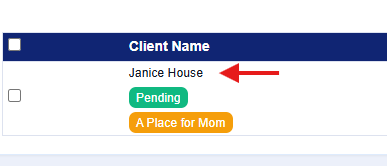
As you move through the admission process, you can easily access the client profile directly from the Referrals Dashboard. Once the referral has progressed and the client is ready to be admitted, select the client’s profile name.
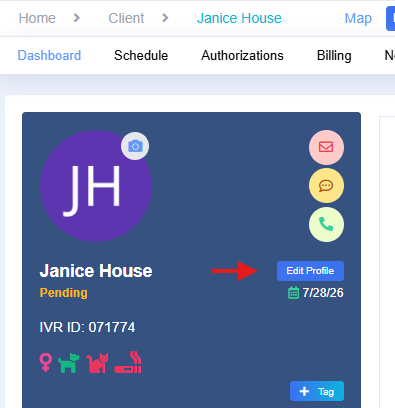
Select Edit Profile
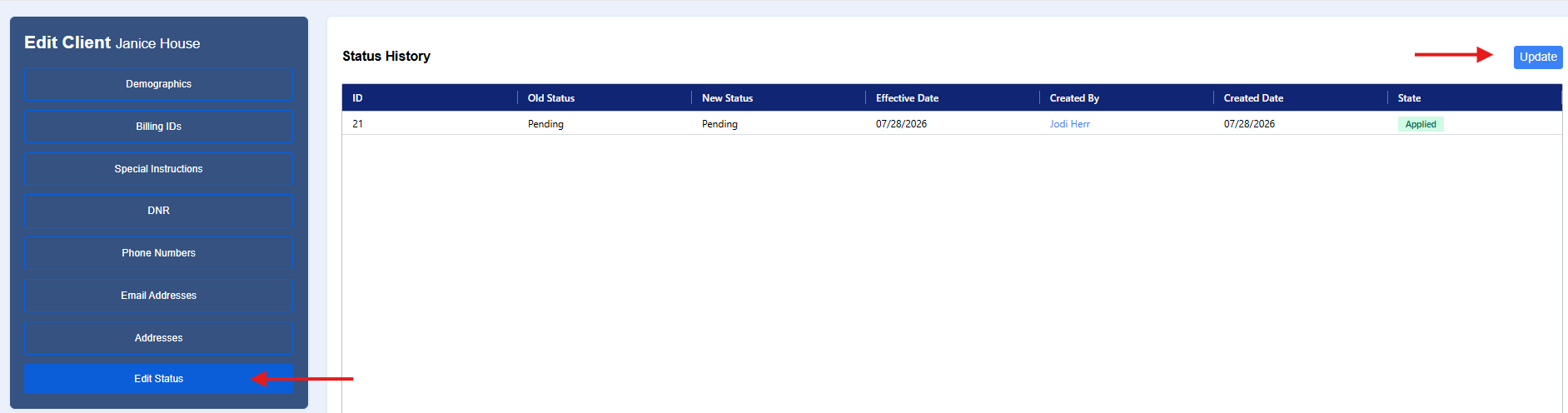
Update the Status to Active
Select the Active Status and the Date Effective
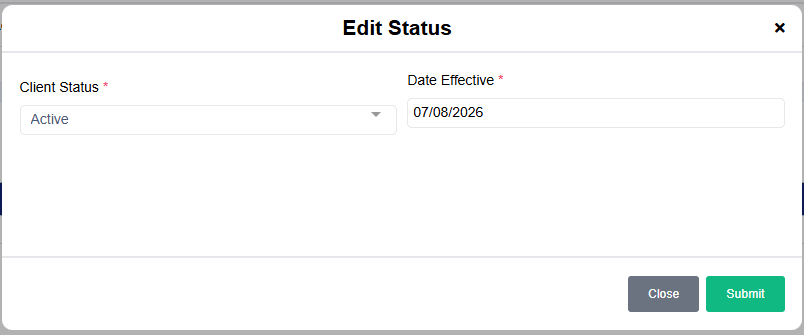
Changing the status to Active will move the client into the active client population and allow you to continue managing their services within eCaring as well as accurately track status changes.