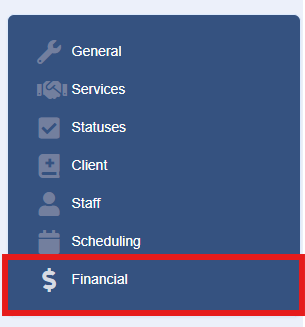
To access feature set-up navigate to the Financial Dashbord which can be found in your System Dashboard in the Financial Settings.

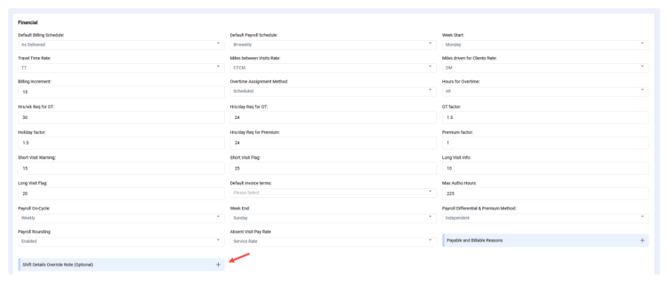
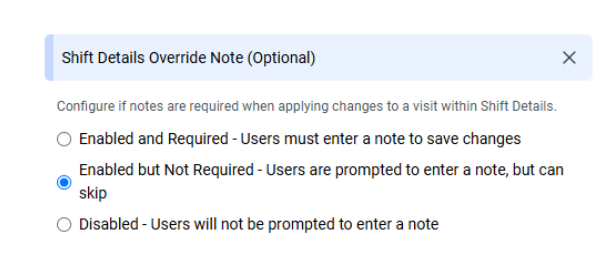
Select the Option you would like to utilize:
1. Enabled and Required
Users will be required to enter a note when applying an Override to a visit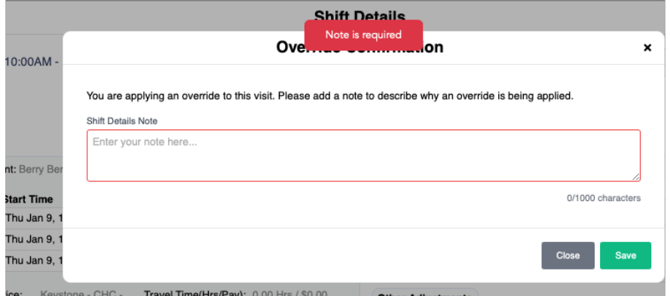
2. Enabled but Not Required
Users will be prompted to enter a note when applying an Override to a visit, but they have the option to skip the note modal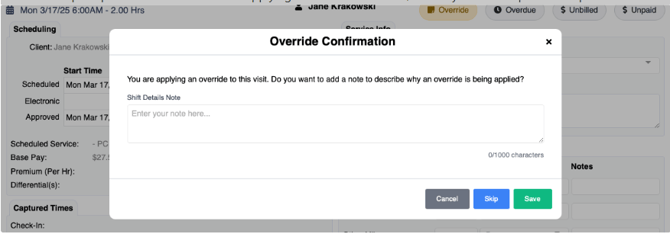
3. Disabled
If an Override is applied to a visit, users will not see the Override Note modal
Shift Override Note Workflow
-
Once a user clicks Save or Save and Verify on a visit, they will either not be presented with Override Note or be presented with the option to skip (based on settings).
-
After clicking Save or Save and Verify, an Override has been applied to a visit (regardless of any values being changed). At the top of Shift Details, users can select Visit Notes to review the note.
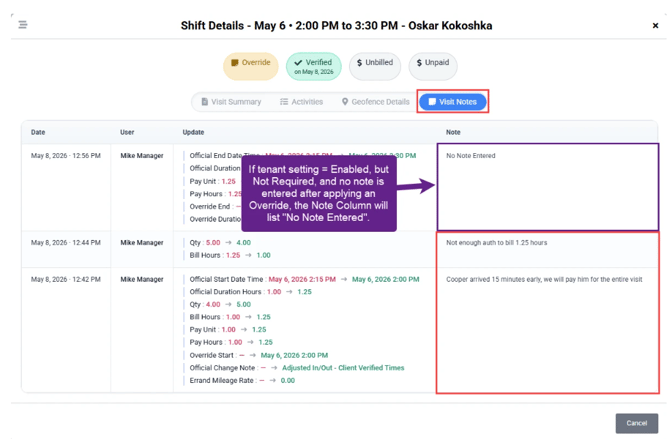
The most recently added note will be displayed first
-
The name of the user that added the note as well as the date and time will be displayed
-
Users can click to page through the notes
-
Users can also click Add Note to attach additional notes. Please note: If adding a note via the hover function, after adding the note, users should hit Cancel or Exit out of Shift Details; otherwise, if they hit Save or Save & Verify, they will receive the Override Note pop-up again
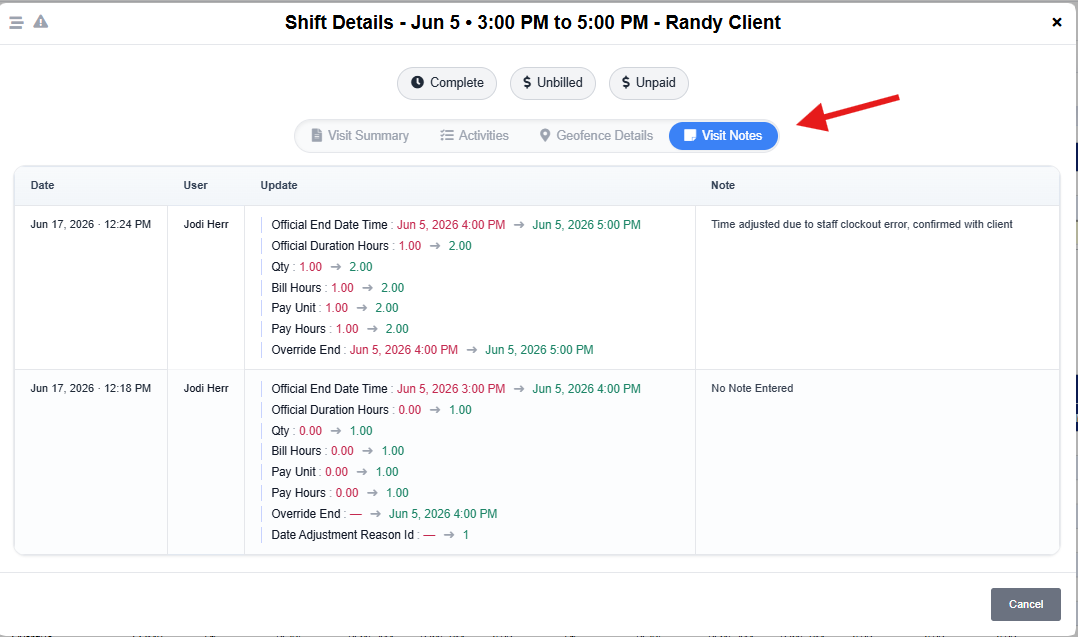
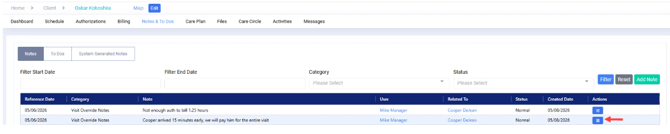
After an Override Note is added via Shift Details, a copy of the note will be added to the Notes & To Dos section for both the Client and Staff associated to that visit/note. Shift Override Notes will not be editable in the Staff or Client Notes & To Dos section.
-
Category = Visit Override Note
-
Status = Normal
-
Reference date = Date of the visit
-
Permission = Office Only
-
Note = the note entered within Shift Details Override Note
-
Created Date = the date the note was added via Shift Details Override Note
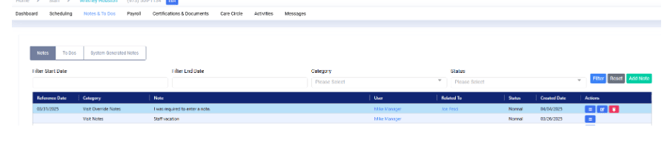
Visit Override Notes will be automatically added to the Notes and To Dos section of the Client and Staff associated to the visit. Each Override Note entered will have its own line item in the Notes & To Dos section.

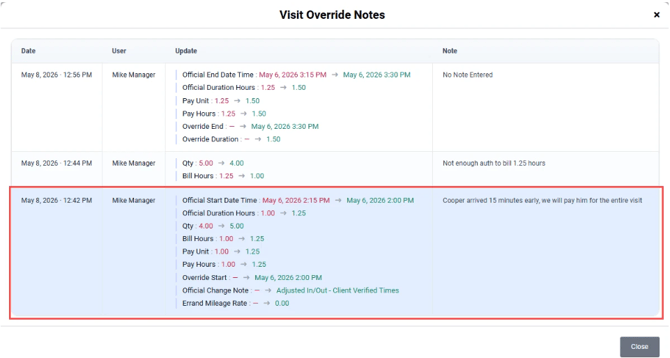
When you click on the form icon under Actions, you will see all Overrides and any associated notes for that visit. The particular Override/Note you selected from the grid will be highlighted in blue when viewing the notes.