
Scheduling time off can be completed in two different ways. Please review each scenario for the method best for situation.
Cancel Shift Method:
*Please note you cannot undo a cancelled shift; please verify the shift before selecting the cancel shift option

Hover your cursor over the shift the staff member would like to use time off for and select Cancel Visit.

Select either Staff Sick or Staff Vacation from the Choose a Reason dropdown menu.
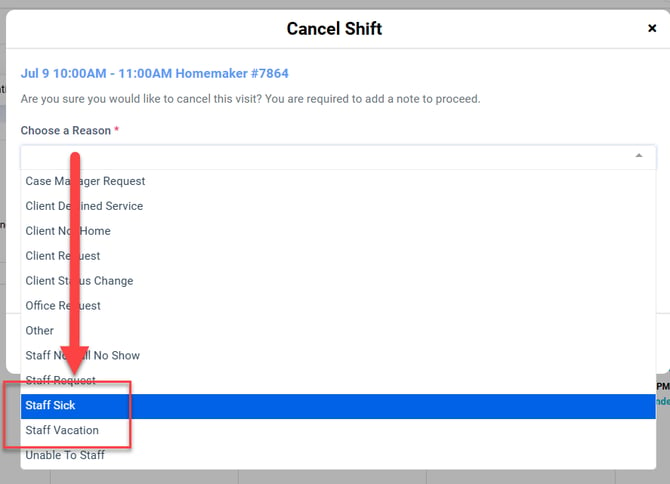
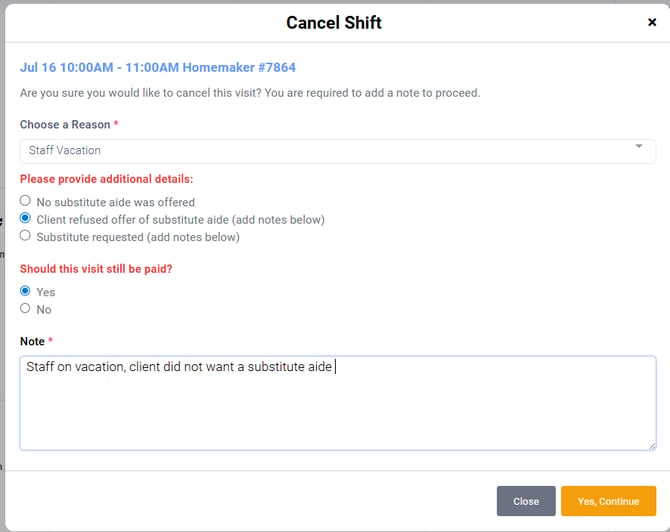
Once you select Staff Sick or Staff Vacation, you will be required to complete three sections.
Please provide additional details: Choose the option that best fits if a substitute aide was not offered, was declined by the client, or was requested by the client.
Indicate Yes or No if the visit will be paid. This will utilize the staff's time off balance.
You are required to enter a Note detailing the cancellation. If you are unsure what to enter please consult with your agency's admin.
Click Yes, Continue once complete.
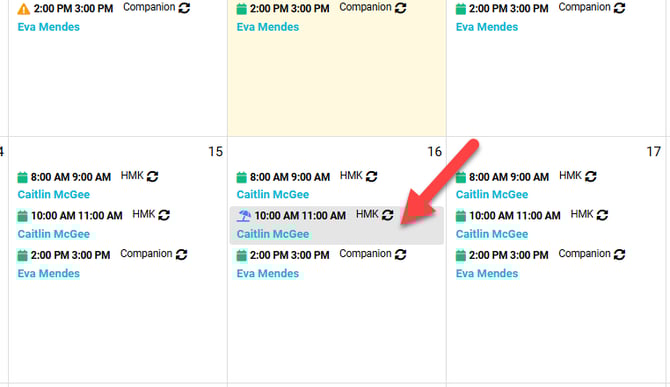
Staff Calendar View:
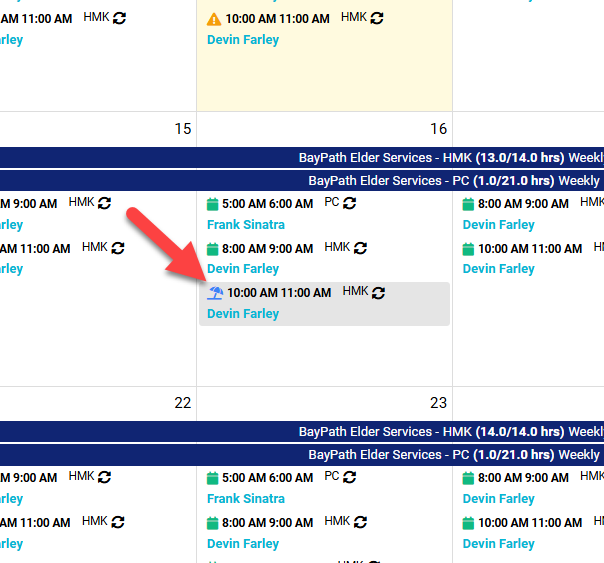
Client Calendar View:
Add Staff Availability:
Navigate to the Staff member's dashboard
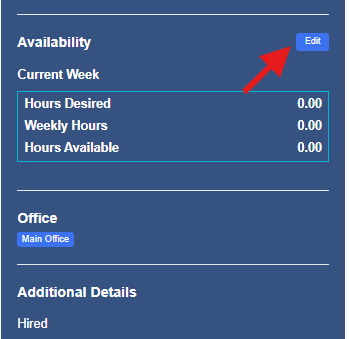
Select Edit by Availability
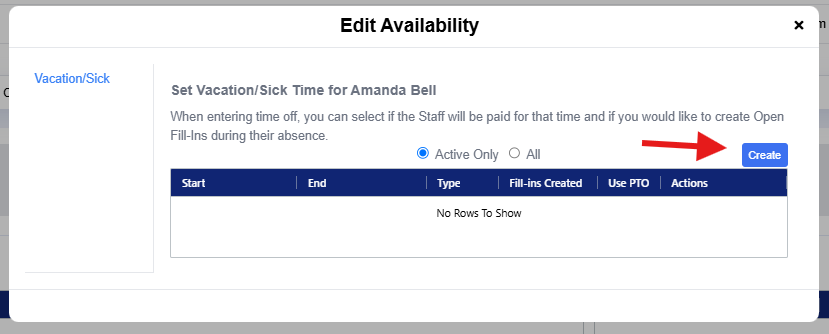
Create a new occurrence
Complete all areas of the form, including if the event should be Sick or Vacation and if a Fill-in is needed.
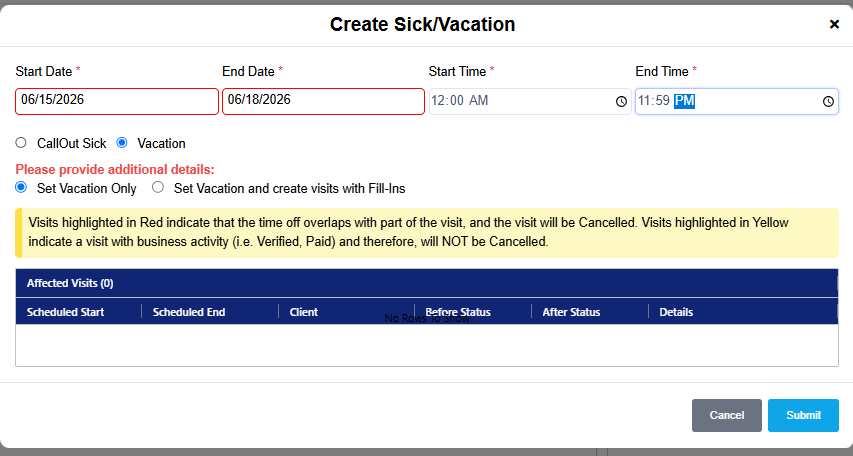
Select Submit to save