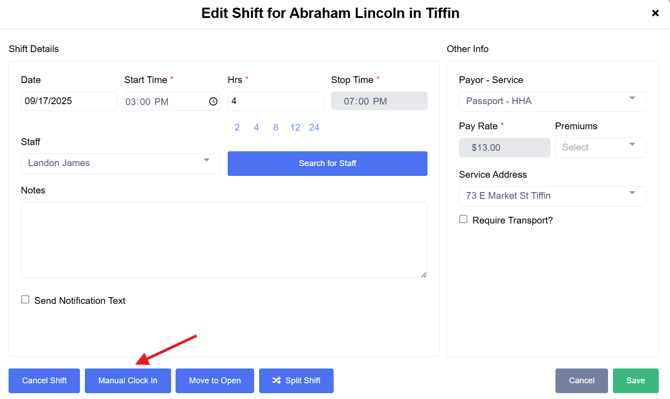
Manually clocking in or clocking out a shift can be completed from the client or staff schedule or Shift Monitor.
To Verify from a Client or Staff Calendar
Navigate to the desired client or staff schedule page.
Hover over the visit in which you would like to clock In/Out, a Quick Action box will populate
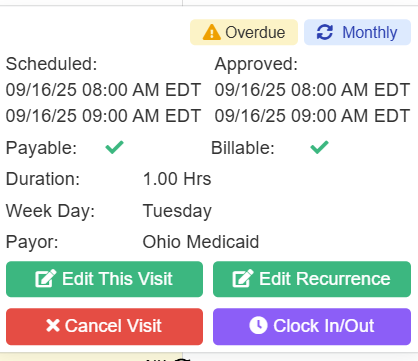
Select Clock In/Out
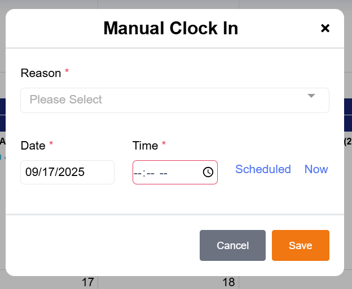
Enter the Reason from the drop-down and Time in or out, and save. Repeat the process to clock out
Another option from the calendar view is the Edit Shift option.
Select directly on the shift; the Edit action button will open the Edit Shift window.
Select Manual Clock In.
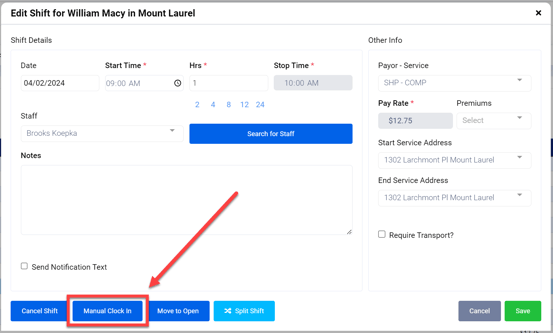
This will open the Manual Clock In window.
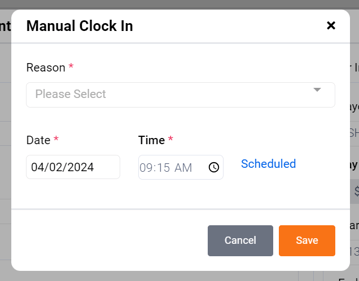
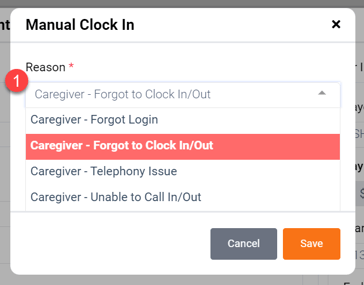
1) Select the reason for the manual clock in (scroll to view more options)
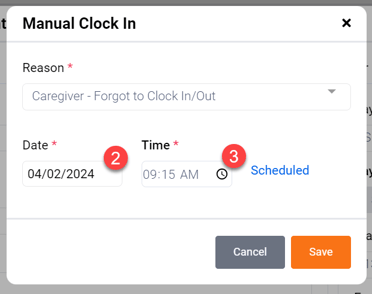
2) Select the date (you can select dates in the past)
3) Enter the time (click Scheduled to automatically populate the time with the original scheduled time of the shift)
Click Save when complete.
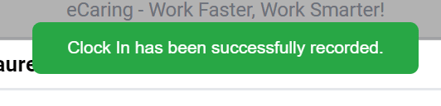
If the change is successful, you will see the green banner message pop up on your screen.
Click Save in the Edit Shift window, then close the window via the X in the right-hand corner.
The shift will now display as Clocked - In.
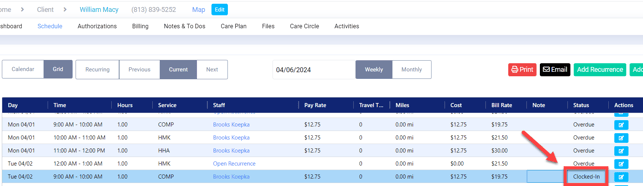
Manually clocking out for a staff member is the same process as clocking in. You can clock out a shift that you manually clocked in, or if the staff member clocked in via telephony or the mobile app.
Click the Edit action button of the shift you wish to clock out.
This will open the Edit Shift window. Select Manual Clock Out.
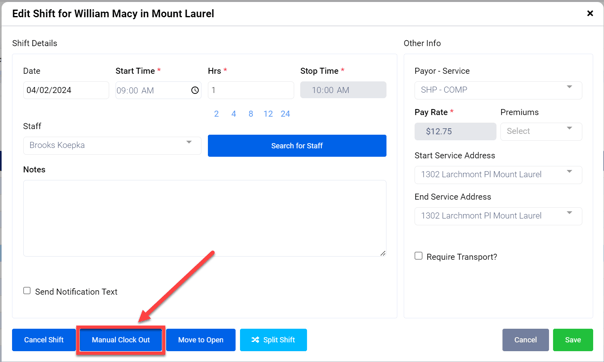
This will open the Manual Clock Out window.
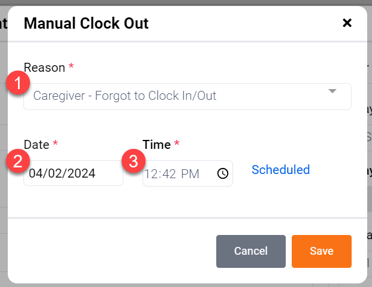 1) Select the Reason from the dropdown menu
2) Select the date (you can select dates in the past)
3) Enter the time (click Scheduled to automatically populate the time with the original scheduled time of the shift)
Click Save when complete.
If the change is successful you will see the green banner message appear on your screen.
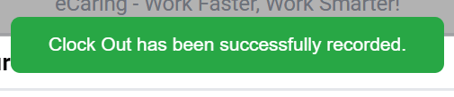
Click Save in the Edit Shift window then close the window via the X in the right hand corner.
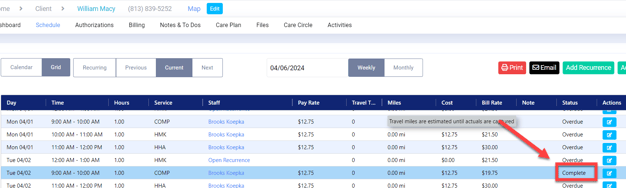
The shift will now display as Complete.
Clock In/Out from the Shift Monitor Page
To clock in/out from the Shift Monitor Page, select the Edit Icon
Complete the Manual Clock In and Out steps described above