
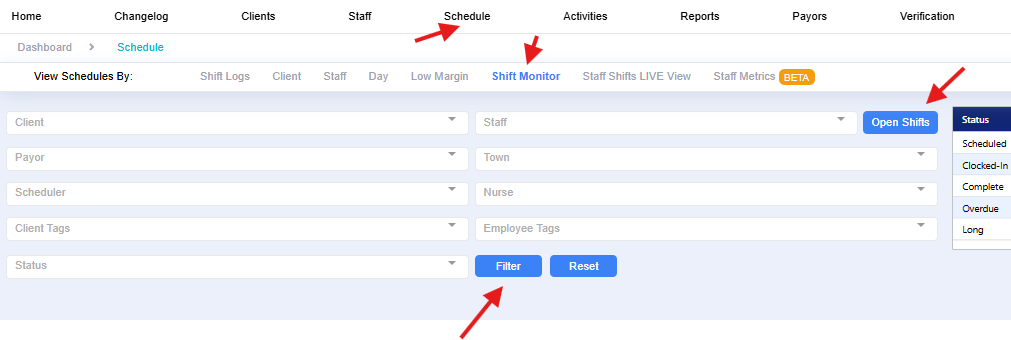
The first step in filling an option shift is locating the shift in either the client profile or in the Shift Monitor by selecting Open Shifts and Filter
To locate the shift in the Client profile- select on Schedule
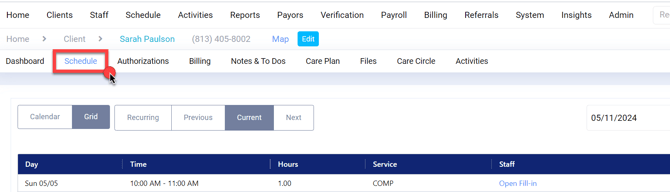
Navigate to the open shift you wish to fill.
Click on the Edit Recurrence to update the entire recurrence (note: you will need to complete this for each individual day of the recurrence)
If this is a one-time change, select Edit This Visit
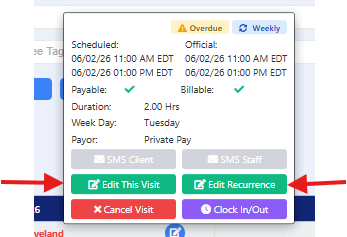
This will open the Edit Shift window based on the option you selected. The example shown is for only a single shift
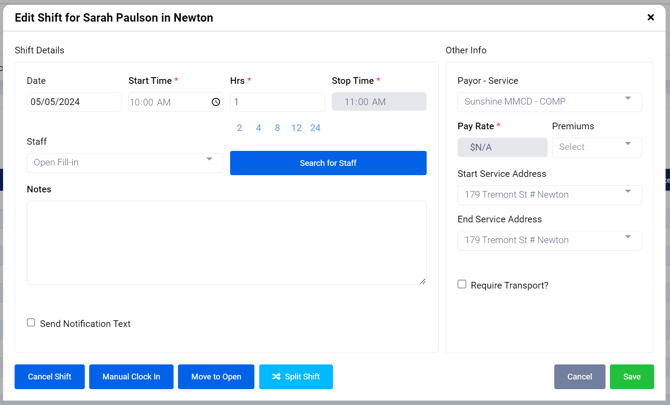
To enter a staff member's name, begin typing in the drop down menu under Staff.
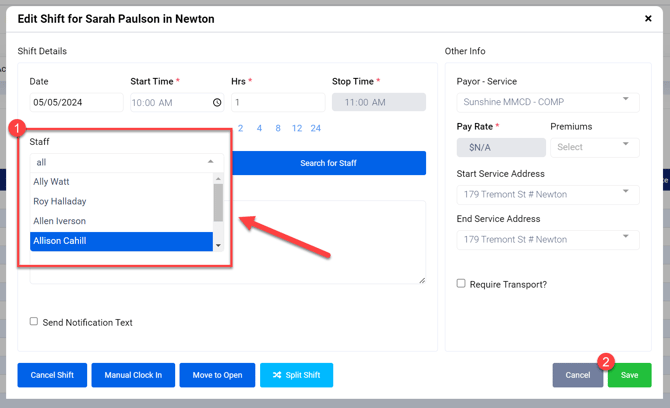
If you do not see your staff member's name, continue to type their full name until they show up in the drop-down menu. If you do not see their name verify the staff member has the corresponding service authorized and payroll rate in the profile.
Click Save once you select the staff member, and the shift will be automatically updated.