
Navigate to the staff member's profile.
Scroll down to Availability, located on the left hand side in the widget.

Click Edit. This will open the Edit Availability box.
This allows to you view Active Only time off requests, which will typically be current or future time off requests. To view past time off requests, select All to filter.
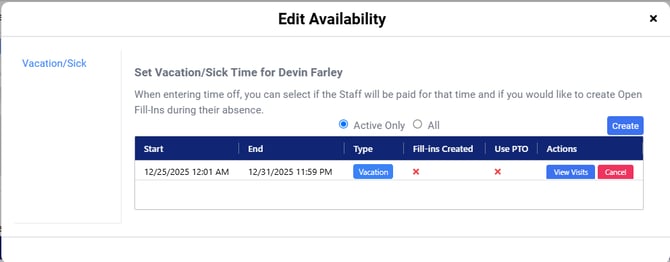
To enter a new time off request, click Create. This will open the Create Sick/Vacation box.
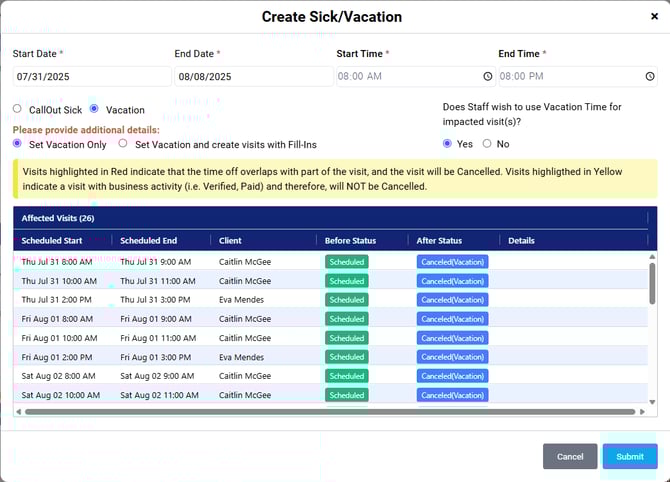
Step 1: Enter the Start Date and End Date
Step 2: Enter the Start Time and End Time
Step 3: Indicate the time off type by selecting CallOut Sick or Vacation
Step 4: Set the time off as Set Vacation Only (this cancels the visits the staff member is scheduled with.) OR set the time off as Set Vacation and create visits with Fill-ins (this cancels the visits the staff member is scheduled with and automatically creates corresponding open fill-in shifts.)
Step 5: Indicate Yes or No if the staff member wished to use Vacation Time for the impacted visits.
Step 6: Review Affected Visits grid. This will show you all visits that will be impacted by the time off request, including their Status before the time off, and their Status after the time off.
Once all steps have been completed, click Submit.
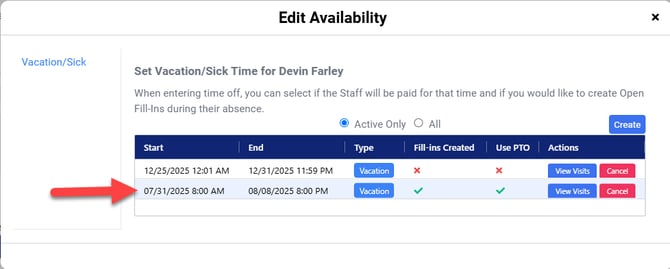
You then be automatically redirected back to Edit Availability which will display the recently added vacation time off.
Staff Calendar View of Vacation Time
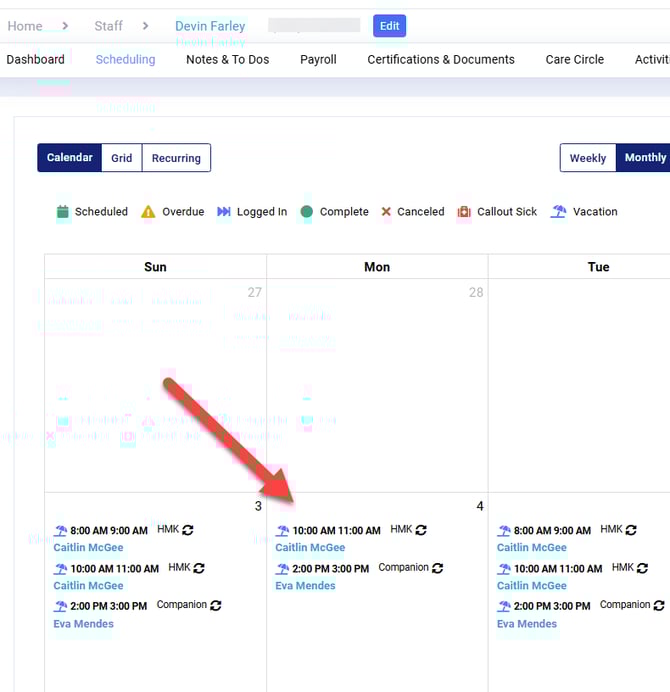
Client Calendar View of Vacation Time with Open Fill-Ins
