
In the event that a recurring shift needs to be updated, follow the steps below.
Note: If the client is being discharged for any reason, all schedules will automatically end once the status is updated.
Step 1: Access the Client Schedule
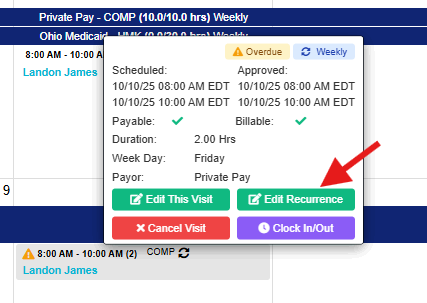
Step 2: Use the Quick Action Menu to select Edit Recurrence
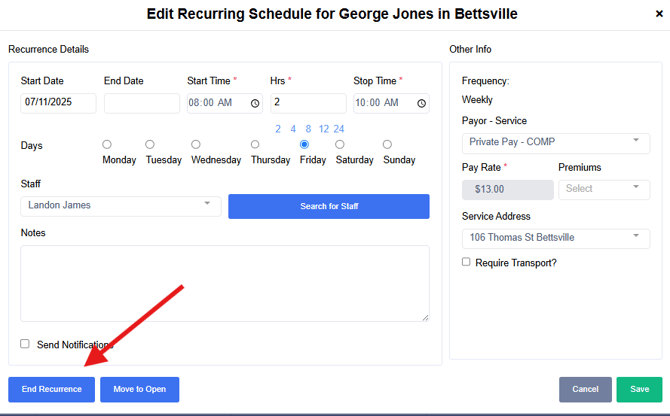
Step 3: Select End Recurrence
Step 4: Enter End Date and Select End. Repeat this process for each day of the week in the recurrence
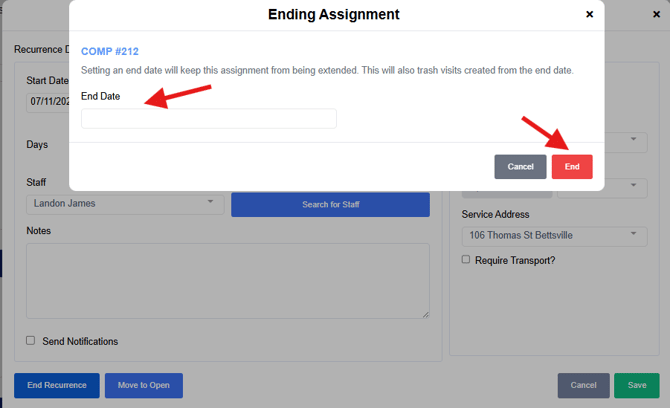
Note: You will receive an error if you are attempting to end a recurrence in the past with visits that are already completed. Be sure to verify the last date of service on that recurring shift prior to selecting a date.
The Recurring Shift will end at the date entered and will reflect on your tenant and Mobile App immediately upon saving.