
Navigate to the client and the schedule you wish to edit using the Schedule button in the client's toolbar. You can also edit shifts from the Shift Monitor as well.
This will bring you to the monthly calendar of scheduled shifts for your client.
Hover over the first shift in which the change should occur. A Quick Action box will populate.
Select Edit Recurrence
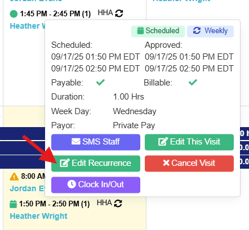
Note:
-
That the recurrence will populate by day of the week and additional edits may be needed. Make the changes needed to the recurrence and save
- When you edit a recurring shift, it will not default to the original start date. If you are editing from a calendar or specific visit, it will use that date as the new start date; if you are editing from the "Recurrence" page, you'll have to manually choose a start date for your edits to be effective.
You can also make changes to a recurring shift by selecting on the Recurring Calendar option
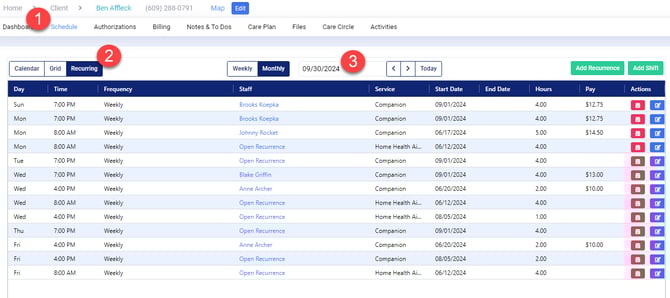
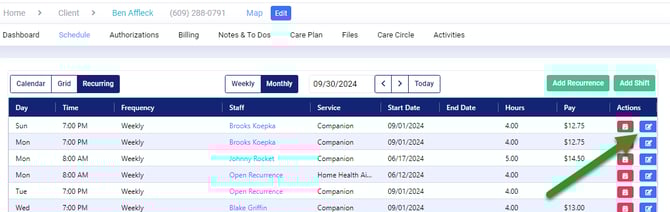
Identify the shift you wish to change the time of moving forward and click the blue Edit button under the Actions column.
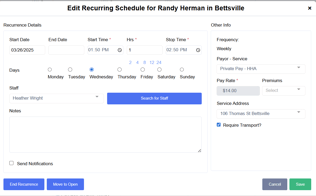
This will open the Edit Recurring Schedule window.
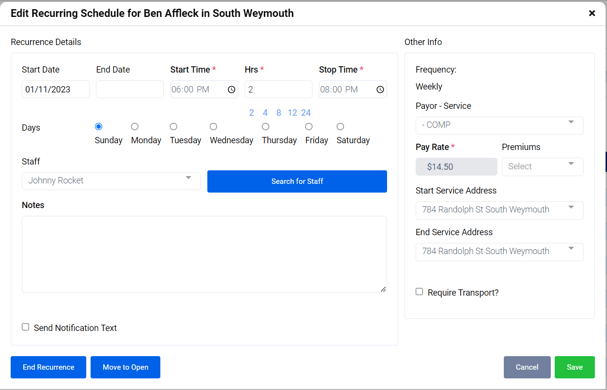
Select the start date of the change, which can be the present day or a future date You can also select an end date if this is not a permanent change (such as covering vacation or leave.)
You can edit the following;
- Start Time
- Hrs (Hours)
- Day of the week
- Staff member
Please note the following;
- You will receive a warning message if the change causes a shift overlap with another client
- You will receive a warning message if the change goes over the authorized weekly hours
- You will need to edit each day of the week
Click Save once complete, and you will see the updated recurrence information reflected in the schedule.