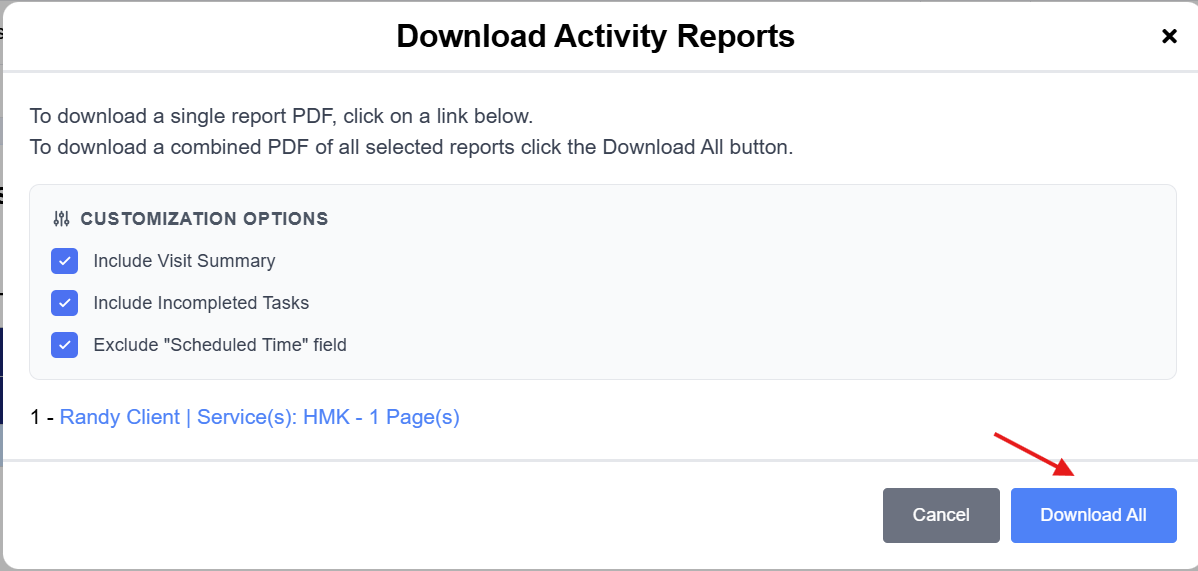
To access, create a PDF, or print an activity record, also known as a visit note, can do so easily from the client or staff profile as well as the Activites Dashboard. To access the activity record, complete the following steps:
Step 1: Access the profile and select Activities

Step 2: Complete the following optional fields:

Aide: Type in the specific aide if in the client profile; if accessing from the staff profile, select the client's name
Visit Date: This area allows you to select a specific range to view or download
Service: This will allow you to select a specific service type for this visit. If you would like to view all visits, leave this area blank
Concern Level: This is entered by the staff during the visit and can be used to filter visits
Step 3: Select Filter
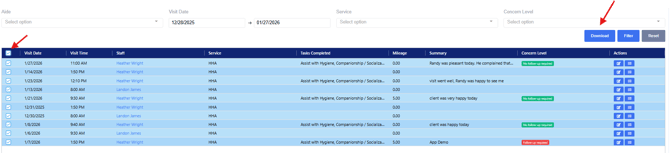
Step 4: Select all or the corresponding boxes that will need to be downloaded
Step 5: Select Download
Step 6: Determine the information you would like to include in the download and select Download All
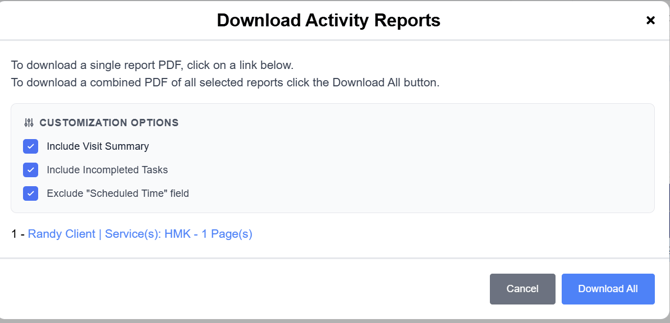
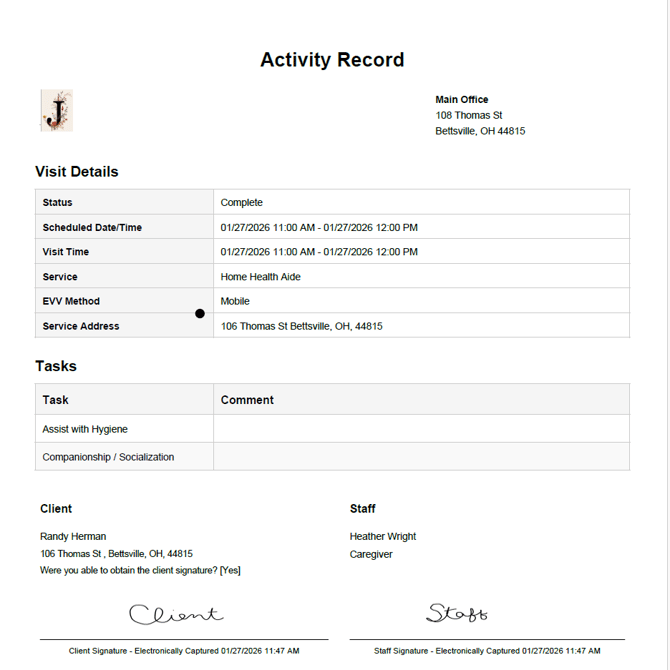
This will create a zip file for you to review, print, or email the activity notes as a PDF. An example of the record is provided below.
To Download Visit Activity Reports from the Activities Dashboard:
This process can also be completed by using the Activities Dashboard.

Complete the desired filters
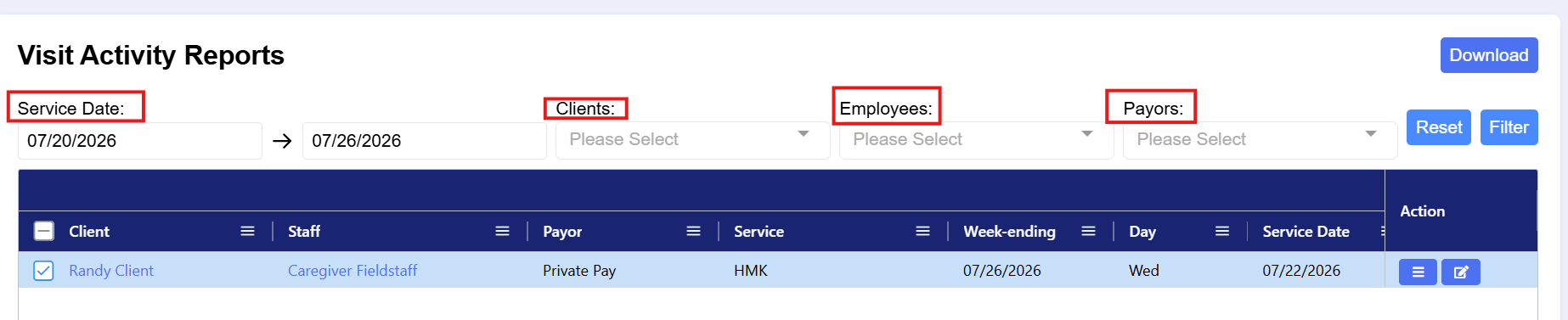
Select Filter
Check the Select All box and click Download

Determine the information you would like to include in the Activity Reports and select Download All