
To access, create a PDF, or print an activity record, also known as a visit note, can be easily done from the client or staff profile. As well as the Activities Dashboard. To access the activity record, complete the following steps:
From a Profile
Step 1: Access the profile and select Activities

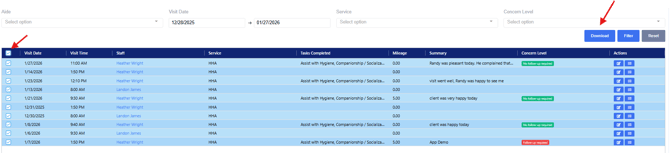
Step 2: Complete the following optional fields:

Aide: Type in the specific aide if in the client profile; if accessing from the staff profile, select the client's name
Visit Date: This area allows you to select a specific range to view or download
Service: This will allow you to select a specific service type for this visit, if you would like to view all visits, leave this area blank
Concern Level: This is entered by the staff during the visit and can be used to filter visits
Step 3: Select Filter
Step 4: Select all or the corresponding boxes that will need to be downloaded
Step 5: Select Download
Step 6: Determine the information from the Visit Activity Report you would like to include in the download
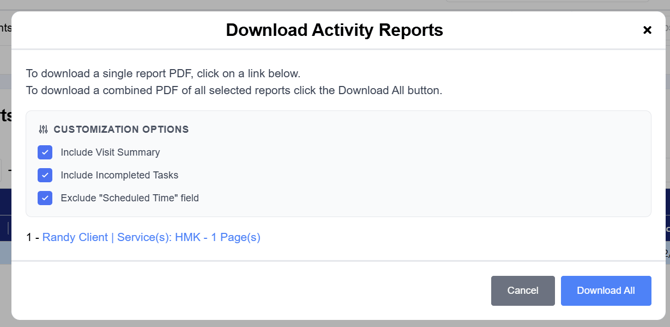
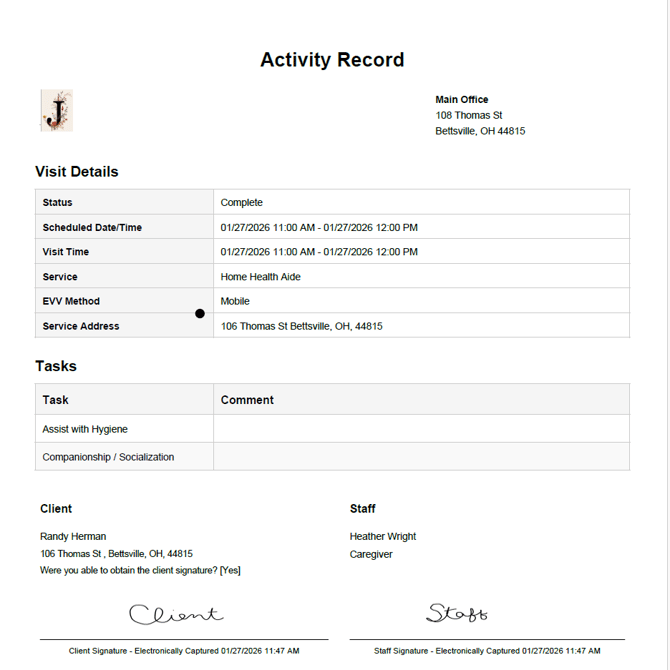
This will create a zip file for you to review, print, or email the activity notes as a PDF. An example of the record is provided below.
From the Activities Dashboard
This process can also be completed by using the Activities Dashboard.

Complete the needed fields and select Filter
 Select Filter
Check the Select All box and select Download

Determine the information from the Visit Activity Report you would like to include in the download
Select Download