
Service Tasks are associated to the client profile in the Care Plan. These tasks are assigned manually or by default (by service) in the client tasks area of the Care Plan for completion by field staff during visits.
Before adding Service Tasks to the client care plan for staff to complete during each visit it, it is important that the task list is reviewed and updated for the changes needed.
To access the Service Task Menu select on the Admin Dashboard
 Next, select on Service Tasks in the menu to the left
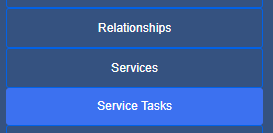
In this area you can update, change or add new services
For each task that will be assigned, select the blue edit icon next to the task

Once you select Edit, review the needed information
1. Task title
2. Status- if not using, select Inactive
3. EVV Task ID- Enter the EVV task ID if utilizing EVV
4. Default Services- If this task will occur for a certain type of service, select from the service drop-down menu and select the Service. Keep in mind, this task will then populate automatically for this type of visit. It can be removed if not needed per client in the individual Care Plan
5. Description- enter a description of the task if needed
6. Select Update to save the changes

To Add a New Task:
Select Add New

Complete the steps mentioned above
To remove a Task:
Select the Red Icon next to the Task you wish to make inactive

Select Delete
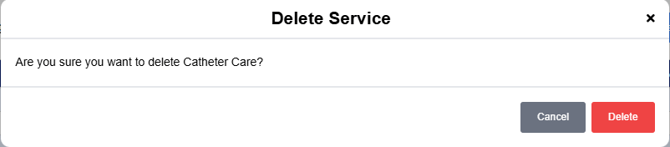
The Task will now show a status of Inactive, the task will be viewable on the dashboard, but will not be an option to add to the Client Care Plan

Complete the following steps to add a Service Task to the Client Care Plan
In the client profile, select Care Plan
Select Add New

Complete all required areas:
1. Task Name- Multiple tasks can be added at once as long as they occur on the same days and service
2. Task Services: Be sure to select the appropriate service for the visit type, as services will populate based on the service for the visit. If you are using the Service Task option by Default Service, a list will populate by service
3. Select the Days of the week these tasks should occur on, if a task does not occur on all days or specific days, enter those separate, as all tasks are required to be marked as completed or if not completed, marked as such with a reason before clocking out of the visit.
4. Effective Date by which the task should begin to appear on visits
Select Save
