
This article explains how to configure the dropdown to add Case Managers so their names appear in the system.
Steps to Add Case Managers to The Care Circle
Navigate to the Client's Care Circle and select Add to Circle
-
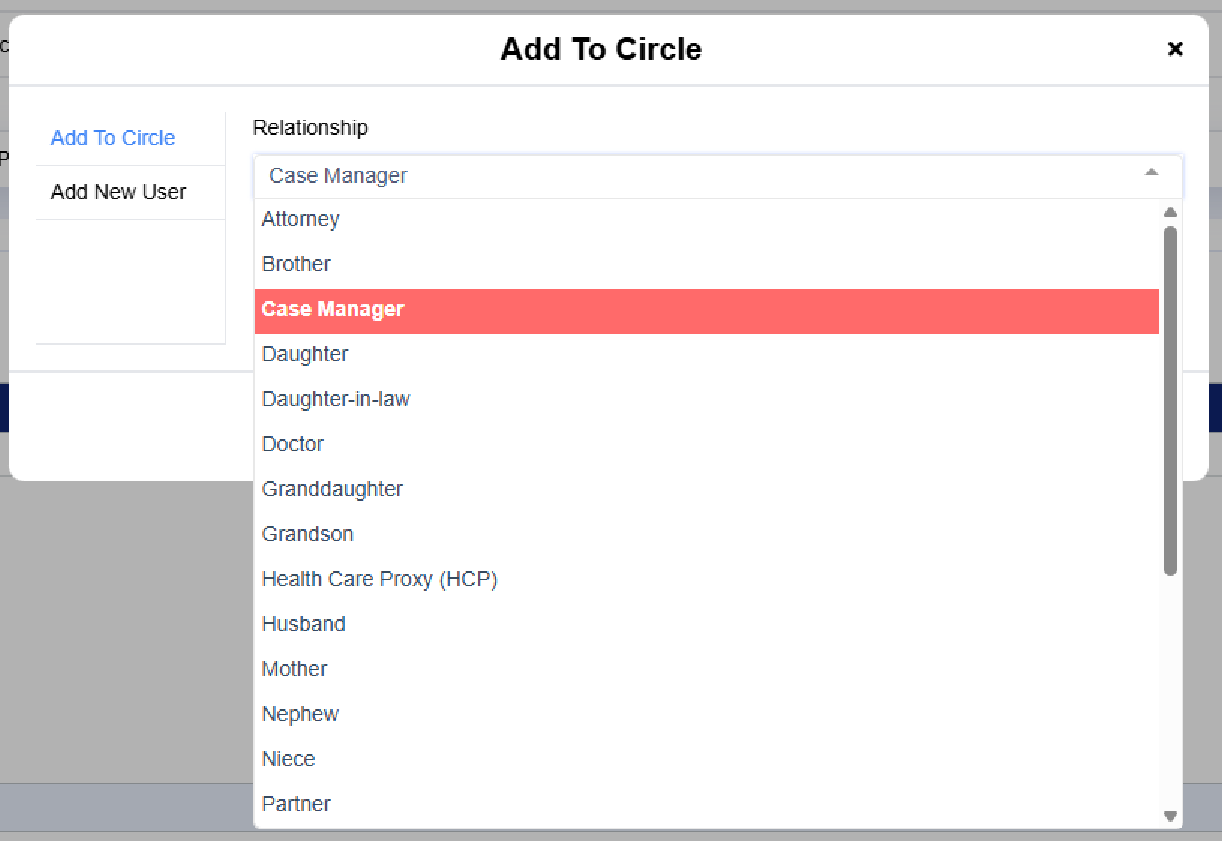
Select Case Manager: When adding a Case Manager as a contact, choose "Case Manager" from the dropdown menu.
-
Verify Existing Contacts:
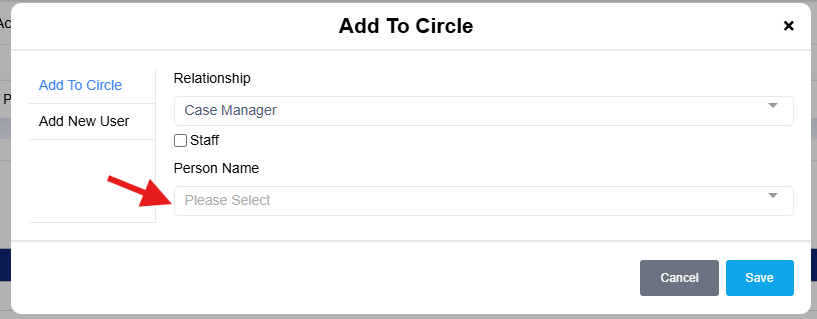
- Begin typing the Case Manager's name in the "Person Name" field to check if they are already in the system.
- If the name does not populate, proceed to the next step.
-
Add New User:
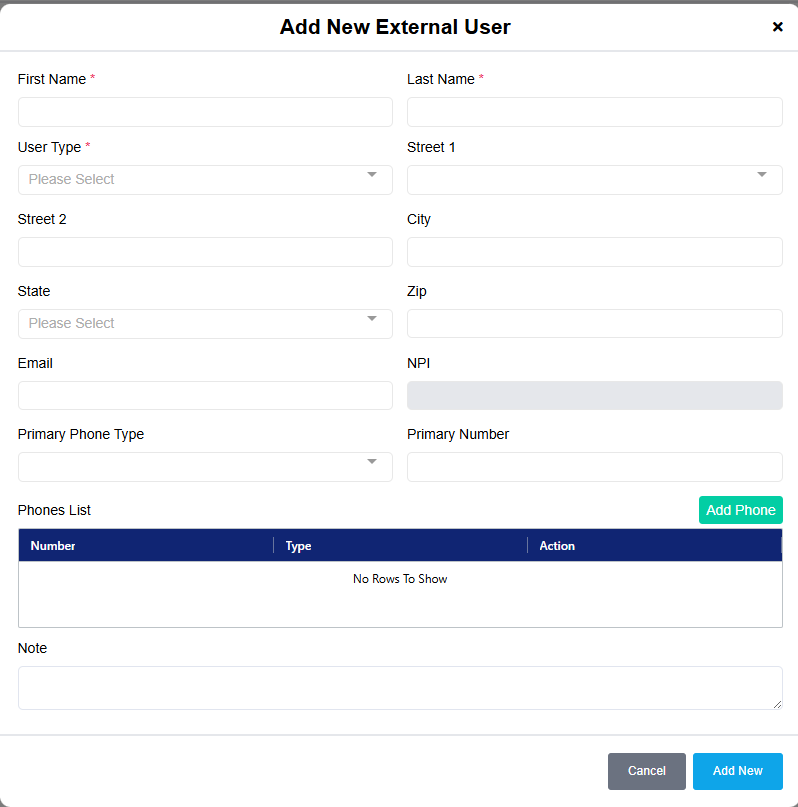
- Select "Add New User" to enter the contact information for the Case Manager.
- Fill in the required details and select "Add New" to save the information.
-
Avoid Duplicate Entries: Once a Case Manager is entered as a contact, you do not need to enter them again for future use.
Updating Client Information
- After adding a Case Manager, you can go back into the client's care circle to enter additional details.
- To update the information, select the edit icon next to the client's care circle.
Notes on Access and Notifications
- Entering contacts does not grant them access to the database or any sensitive data.
- You can add notes about the contacts, but these notes will only be visible when you click "edit" on the contact details.
By following these steps, you can successfully configure the dropdown to include Case Managers in the system. If you have further questions or need assistance, please reach out for support.