
Navigate to your client's Schedule by navigating to their profile and selecting Schedule, this same process can be completed the Shift Monitor Dashboard as well.
This will bring you to the default Calendar view.
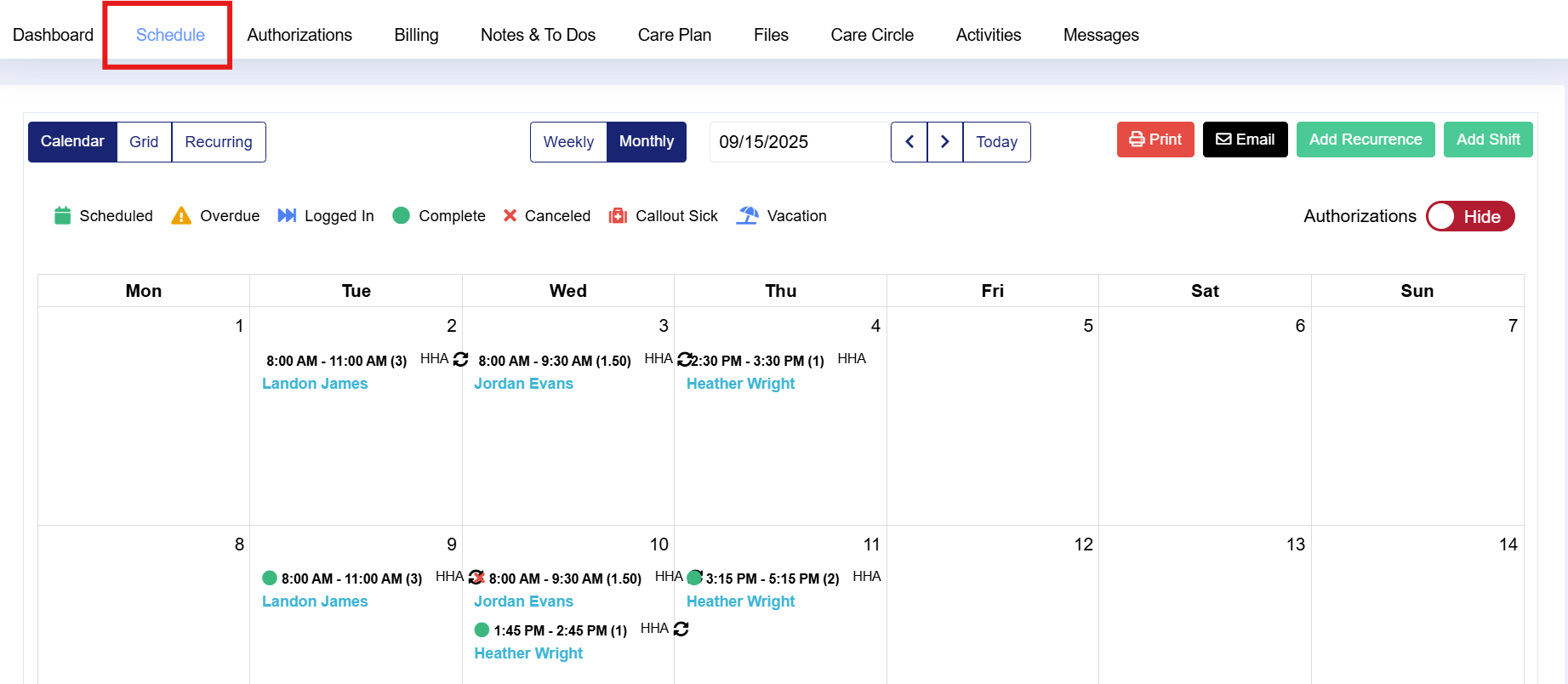
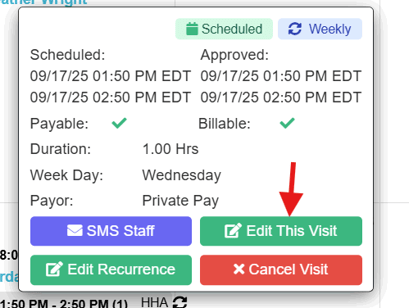
Hover your mouse over the shift you would like to edit. Select Edit This Visit in the Quick Action box will populate
The Edit Shift will populate
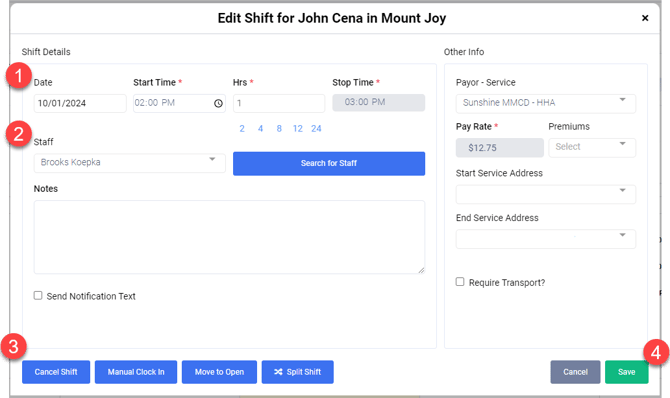
There are three sections to edit if needed.
1) Date, Start Time, and Duration
2) Staff Member
3) Cancel Shift, Manual Clock In, Move to Open, or Split Shift.
Click Save when complete
Ensure you are making a one-time change by double-checking the date.