
To cancel a time-off request, navigate to your staff profile and scroll down to Availability, located on the left-hand side in the widget.
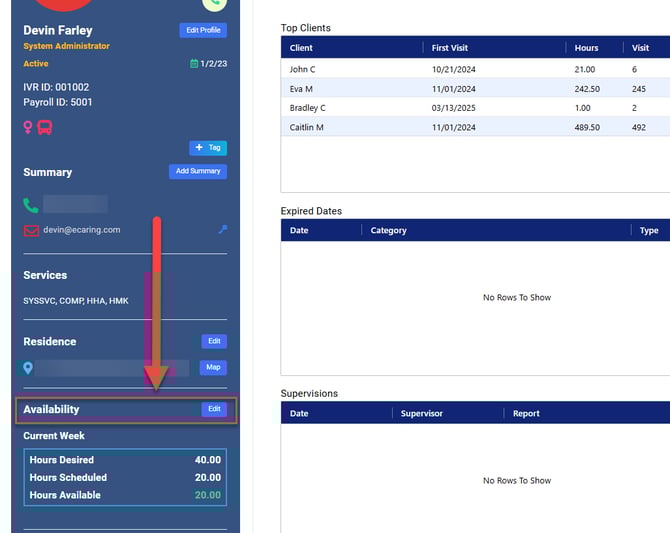
Click Edit. This will open the Edit Availability box.
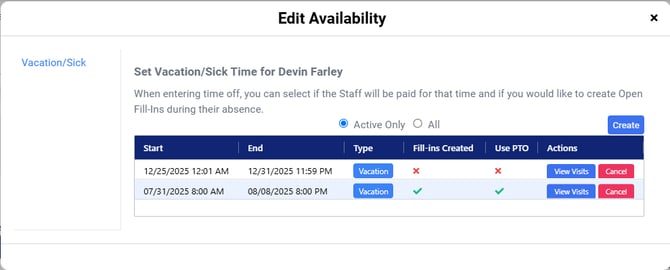
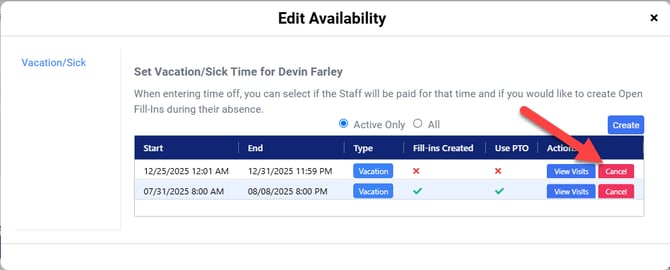
Click Cancel next to the time-off request.
This will open the Cancel Sick/Vacation box.
The top portion is not editable; this is strictly a review of the previously entered time-off request.
Click Submit to confirm cancellation.

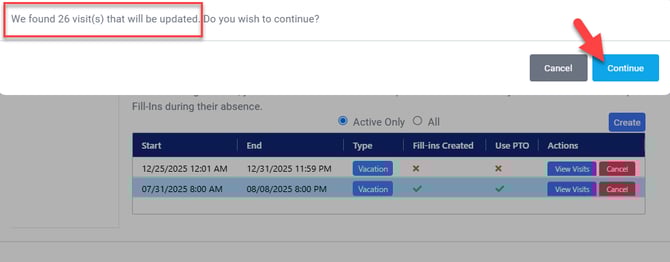
A confirmation message will follow with the number of visits impacted by the time-off cancellation. Click Continue to finalize the time-off cancellation.
Additional Notes:
If you cancel Sick or Vacation time through the dashboard AND NO open fill-ins were created, the visit(s) status will update to Schedule
-
-
If a visit was Verified during the original time off entry, the visit will remain in its current status and remain Verified
-
Both Client and Staff schedules reflect these changes
-
If a user cancels Sick or Vacation time through the availability feature AND Open fill-ins ARE created, the visit Cancellation reason will update to from Sick or Vacation to = Cancelled, Other.
-
-
If a visit was Verified, the visit will remain in its current status and remain Verified
-
The Open Fill-In visit(s) will remain untouched, regardless of staff being assigned to them or not
-
Both Client and Staff schedules would reflect these changes
-