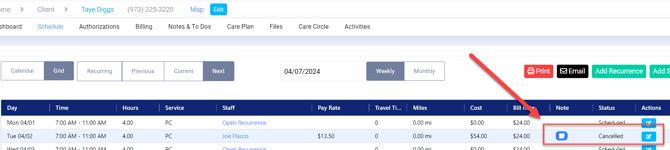
A shift can be cancelled from any area of eCaring where the hover quick action box or edit is located.
This first option to cancel a shift is to use the hover method or edit option from the staff or client calendar.
Navigate to the staff or client profile Schedule needed.
Hover over the visit; the Quick Action options will populate
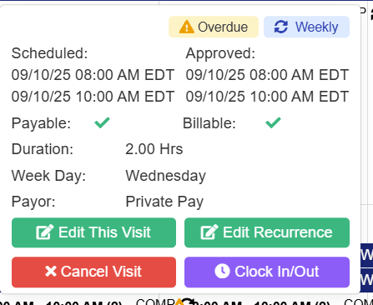
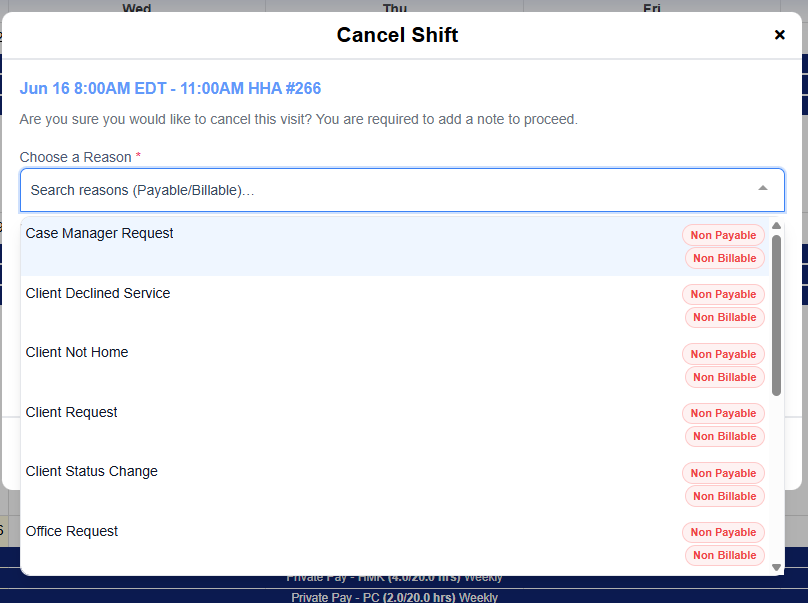
Select Cancel Visit, enter the reason from the drop-down
Add Note
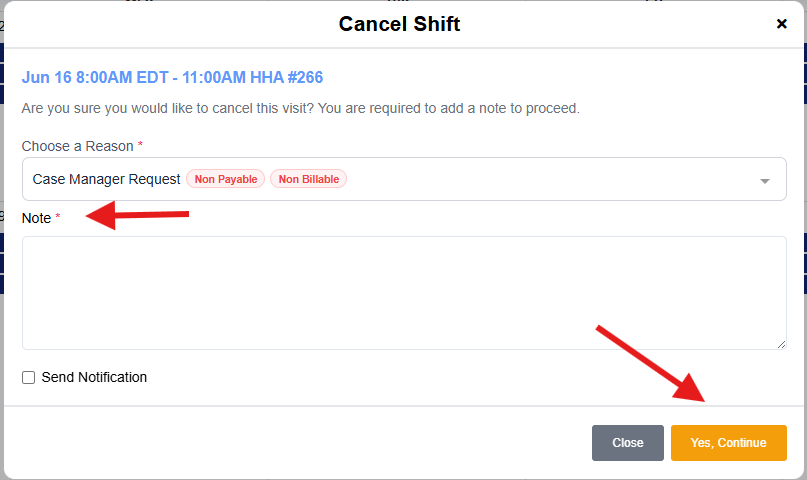
Select Yes, Continue
You can also cancel a visit anywhere the Edit Shift Icon is displayed (grid calendar view and Verification dashboard). This opens the Edit Shift window.
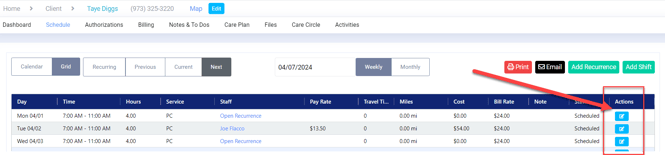
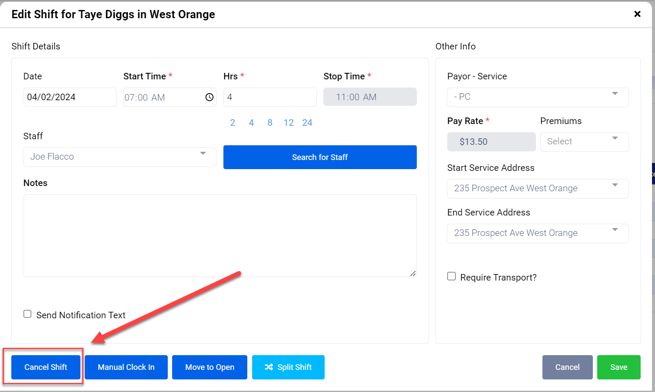
Click Cancel Shift.
This will open the Cancel Shift window.
Select a reason from the Choose a Reason dropdown window.
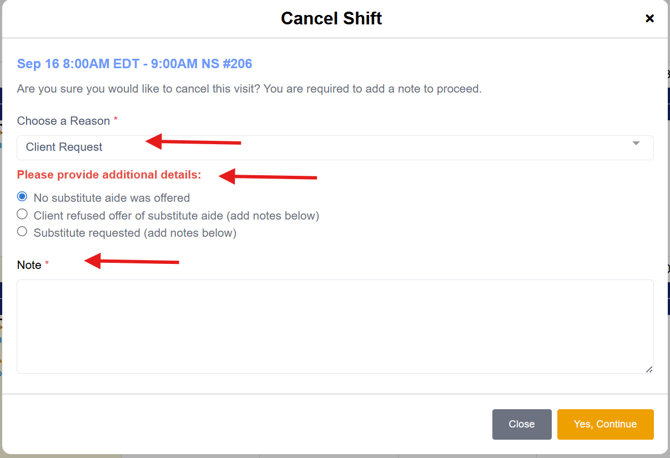
Next, select the Note area and enter the required Note.
Click Yes, Continue to save and apply the cancellation.
The shift will now display the status Cancelled. The Note icon will display the Note that was entered for the Cancel Reason.