
Step 1: Access Payor
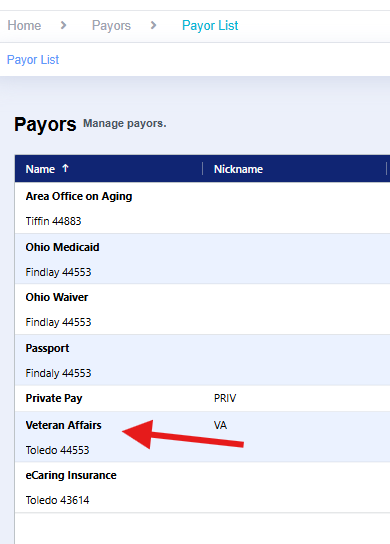
- Select on your “Payors” tab on the menu bar,
- Click on the name of the payor you would like to add services and rates to.

Step 2: Add New Service
- You’ll be brought to the “Services & Rates” tab by default
- In the top right corner of your screen, select the “Add New” button. The “Add Payor Service” pop-up window will appear

Step 3: Complete Service Information
- At a minimum, please add the following fields:
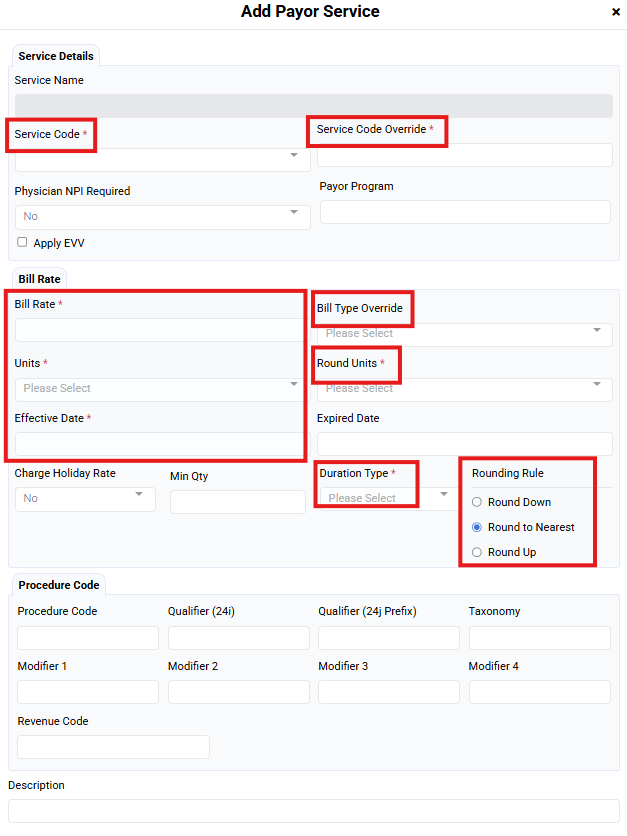
- Service Code: The abbreviation of the service you’d like to add (i.e Personal Care = PC)
- Bill Rate: The amount you bill per Unit for performing this service
- Bill Type Override: Sets the Default Value for all visits with this selected service.
- Billable
- Non-Billable
- Units: The unit of measure on how your bill rate calculates (per hour, per 15 minutes, etc.)
- Round Units: The rounding unit that applies to the billing duration.
- Rounding Rule: Determines how your "Rounding Units" are calculated.
- Effective Date: The date that the service rate applies to. We highly recommend making the effective date immediately or backdated. Applying a start date in the future will block users from scheduling for visits before this effective date
- Duration Type: Determines which time is used to calculate your billing units.
- Electronic Duration: Recommended for most EVV mandated services as EVV aggregators use the electronic times (unless an adjustment is added) to calculate the billing units for EVV visits and claims matching.
- Official Duration: Recommended when you want to match your payroll to your billing. Uses the Duration displayed in the "Official Time" of the visit, which is also used to derive payroll.
- Additional fields may be required for EVV submission; verify what information will be submitted and enter it in this area
- Example:
- Billing Unit: Hour
- Rounding Unit: 15 minutes
- Rounding Rule: Round to Nearest.
- Billing Duration: 2:08 (2 hours, 8 minutes)
- Billing Units calculated: 2.25
- 2 hours = 2 units.
- 8 minutes = .25 units (Round to nearest 15 minutes)
Step 4: Save Service and Repeat
- Once complete, select “Save”
- Repeat these steps for each service under each payor