
Why Add an Authorization to a Client Profile?
Adding an authorization to a client profile is necessary to:
- Schedule staff
- Pay staff
- Process billing for insurance or private pay clients
Without an authorization in the system, you will not be able to schedule shifts.
Prior to adding an authorization, Services and Payors will need to be created.
How to Add an Authorization
Step 1: Navigate to the Desired Client
- Navigate to Clients by clicking "Clients" from your menu bar.
- This brings you to your list of clients.
- Select the desired client for whom you'd like to add the new authorization.
- You can also use the Quick Search field at the top left of your screen to type in the client name

- Select Authorizations from the client menu bar. This will bring you to the Authorizations page.

- On the right-hand side, click Add New. This will open the "New Authorization" pop-up window.

- Fill in the information related to the new authorization. Enter as much information as possible; more information may be required if submitting to EVV. However, the recommended minimum information to be added includes:
- Payor Information
- Start Date of the authorization
- Amount of Hours and Frequency the service will be provided
- Select Services- Note: Select Apply EVV if needed; additional required fields will populate
- Under General- Select Office and additional information as needed
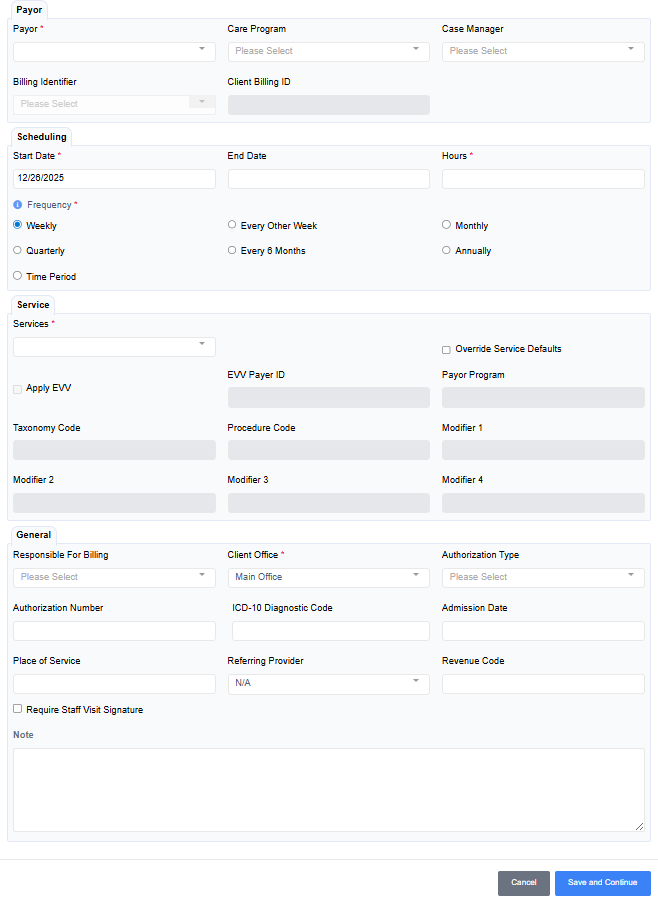
Step 5: Save and Continue Authorization
Step 6: Select Cancel to enter Authorization without adding a schedule

Step 7: Repeat steps for adding other service type authorizations