
There are two methods to add a recurring schedule to your client's authorization.
Method 1
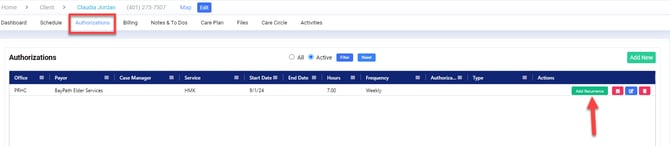
Step 1: Navigate to your client's profile. Select Authorizations.
Step 2: Select Add Recurrence to the right of the authorization. (If a client has multiple authorizations, ensure you are selecting the correct one.)
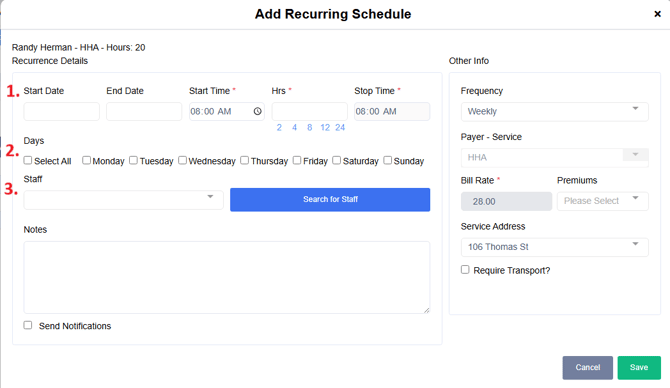
Step 3: Fill in the recurring schedule information in the Add Recurring Schedule window.
- Start Date & End Date (end date is only required if an end date is listed for the authorization)
- Start Time & Length of Shift in Hours
- Days of Service
-Assign Staff by typing in the staff name of by selecting Search for Staff
Click Save when complete.
Method 2
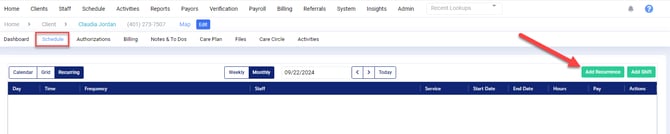
Step 1: Navigate to your client's profile and select Schedule.
Step 2: Click Add Recurrence in the right-hand corner of the schedule.
"
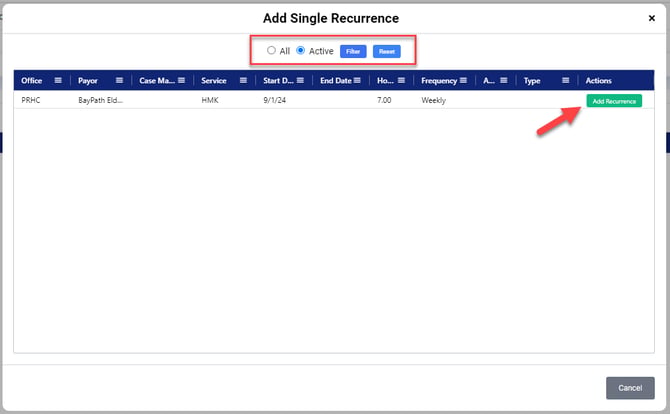
Step 3: Select the authorization you would like to add a recurrence to by clicking Add Recurrence. (NOTE: If you do not see the authorization listed, select All and click Filter. This default Active view only shows authorizations that are currently active.)
Step 4:
- Enter the start date of the recurring schedule. (Note: End Date is optional unless the authorization has an end date. In which case, the end date must be equal to or before the auth's end date.)
- Select the Start Time and Length in Hours (the stop time will automatically calculate)
- Select the day or days of the week
- Enter the Staff name by typing in the name or Search for Staff
- Click Save

Your recurring schedule will now appear within the Schedule tab.