
To access the Admin Dashboard, select Admin

Select Doc Types

- You will find a list of seeder doc types already entered for you in this area. To assign a Doc Type to Staff or to Edit an existing Doc Select the Blue Pencil Icon.
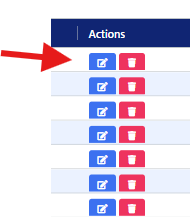
- Once the Pop-Up Box appears, you can make the changes needed to fit your agency's policies

- Select Update to Save
Staff Resources

Staff Resources allows you to create and upload resources for staff that will be viewable in the eCaring Mobile App
To add a resource, select Add New
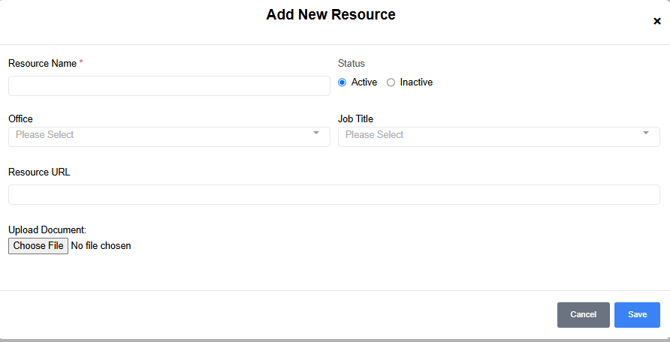
Complete information and Save
Hire Source
Select Hire Source to enter sources from which you receive staff referrals

- To enter a Hire Source, Select Add New and enter details
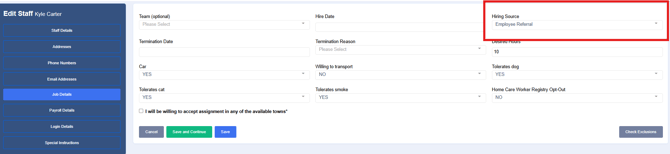
- Once the Source is entered, it can be added to a staff profile under Edit Profile- Job Details
Job Titles
- The Job Titles area houses over 30 seeder job titles created for your tenant.
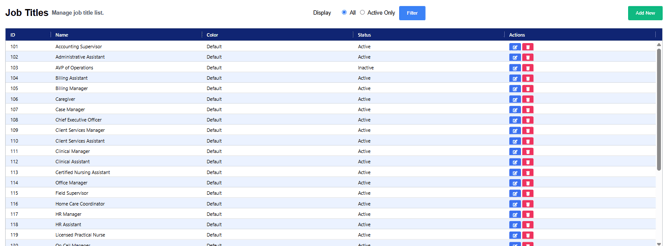
- In this area, you can remove and edit any seeder listed by selecting the corresponding icon. You can also add additional Job Titles if needed.
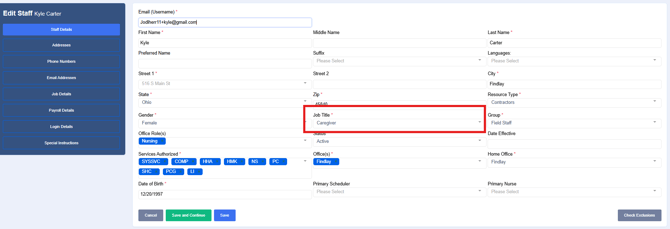
- Job Titles are associated with Staff Profiles under Edit Staff- Staff Details
Relationships
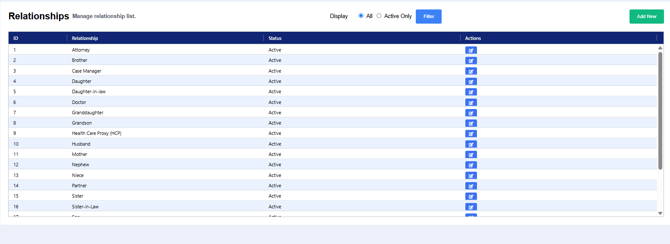
- The Relationships area contains the list of relationship options when adding a contact in the Care Circle. In this area, you can edit existing options or add new ones if needed. Prior to adding a new relationship type, check the existing list.


Services
The Services area is set up before entering clients and will not need to be edited for a New Staff Profile.
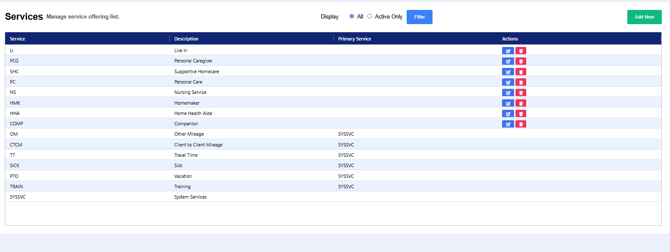
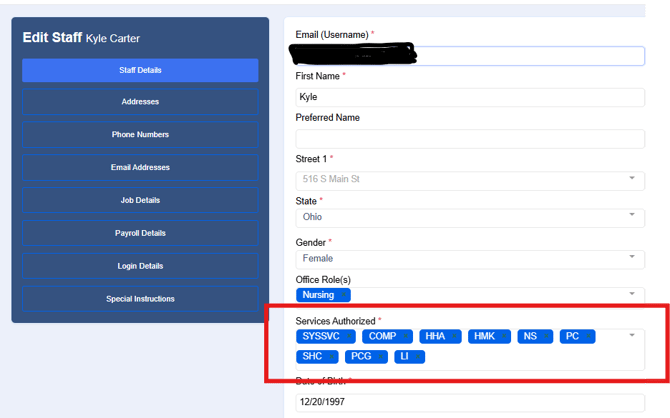
- The Services menu pulls the list of services staff members are qualified to perform and can be assigned to their profile.
Tags
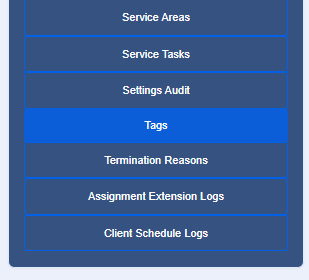
The Tags area is both Staff and Client-facing. In this area, you can add Tag types to be associated with Staff profiles for tracking, reporting, sorting and identification purposes.
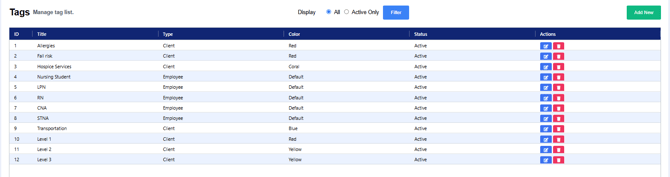
- To add a new Tag, select Add New and complete all areas and save

- To add a Tag to a staff profile, select the + Tag option in the Staff Profile

Terminations Reasons
The Terminations Reasons are created for you, and are housed in this area.


- Review the list carefully to avoid entering duplicate reasons
- Termination Reasons are used for termination on the Job Details
