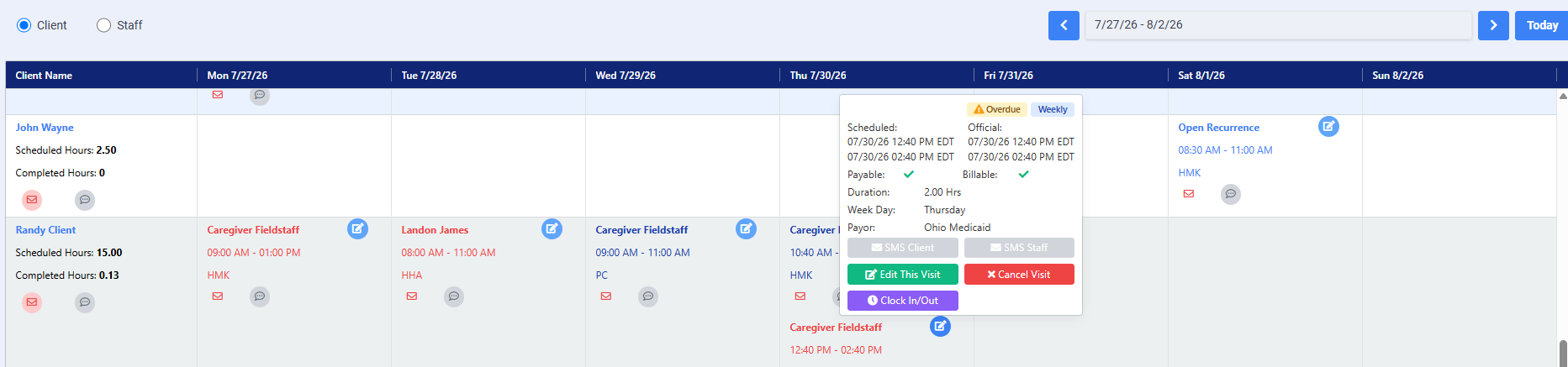
To access the Schedule Dashboard, select Schedule from the dashboard menu. This will open the Schedule Dashboard, where you can view, manage, and monitor schedules and related activities.

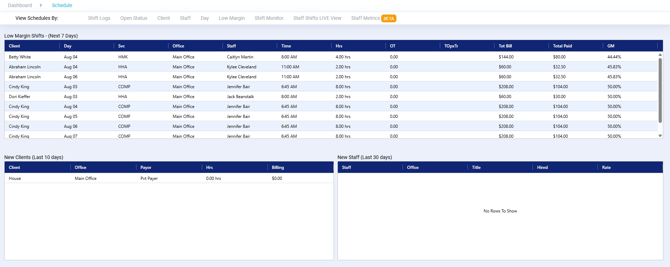
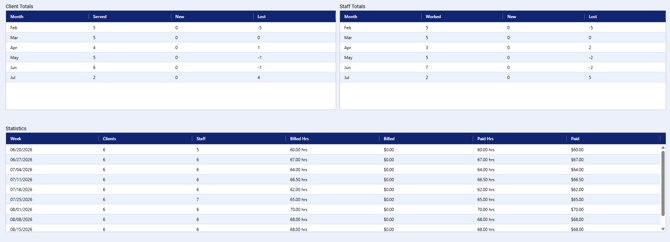
After selecting Schedule, you will be directed to the Schedule Dashboard. The dashboard provides a quick overview of important scheduling information, including:
- Recent Low Margin Shifts
- New staff and clients added within the last 10 days
- Total number of active staff and clients
- Key scheduling statistics to help you monitor staffing, scheduling trends, and overall operational performance
These areas provide valuable insights at a glance, allowing you to quickly identify areas that may require attention.
Shift Logs
The Shift Logs section displays the most recent clock-ins and clock-outs, allowing you to quickly review staff activity. You can also filter the results to locate specific shift records by client, staff member, or date, making it easy to find and review the information you need.

Open Status
The Open Status Dashboard allows you to view open shifts within a selected date range. By default, the dashboard displays all open shifts. You can also filter the results to view:
- Open Fill-In Shifts – Shifts that became available because a staff member called off, requested time off, or is on vacation.
- Open Recurring Shifts – Recurring shifts that are currently unassigned and need coverage.
These filtering options help you quickly identify and manage shifts that require staffing.

Client Dashboard
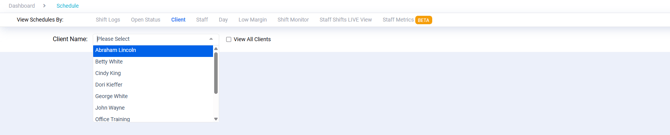
The Client Dashboard allows you to easily navigate to individual client calendars. To access a specific client’s calendar, select the client from the drop-down menu. This provides a quick way to review and manage client schedules.
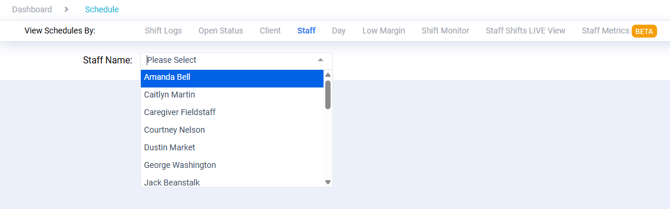
Staff Dashboard
The Staff Dashboard allows you to easily navigate to individual staff calendars. To access a specific staff member's calendar, select the staff from the drop-down menu. This provides a quick way to review staff schedules.
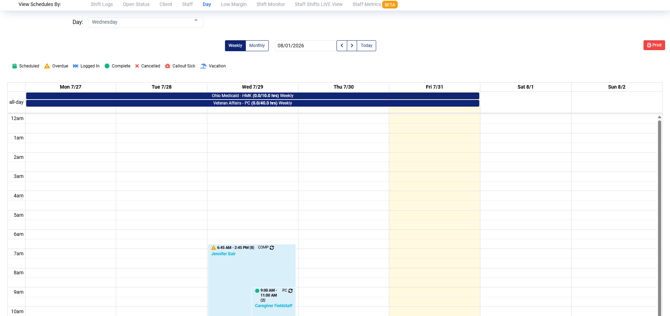
Day View
The Day option allows you to select a specific day of the week and view all schedules that occur on that day. This view provides a quick way to review scheduled visits and identify daily staffing needs.
Low Margin
The Low Margin Scheduling Report helps agencies identify scheduled visits that may have reduced profitability based on the difference between the payor reimbursement rate and the caregiver pay rate. By monitoring low-margin shifts, agencies can make informed scheduling decisions, verify rate accuracy, and address potential financial concerns before visits are completed.
The reports can help :
- Identify visits with low profit margins or negative margins.
- Review which clients, payors, services, or caregivers are associated with low-margin shifts.
- Determine whether caregiver pay rates, shift differentials, or payor reimbursement rates need to be adjusted.
- Make informed scheduling decisions to improve overall profitability.
- Monitor trends and ensure services are being delivered in a financially sustainable manner.
This area allows you to customize the data you are viewing by date range, margin values, and additional features.
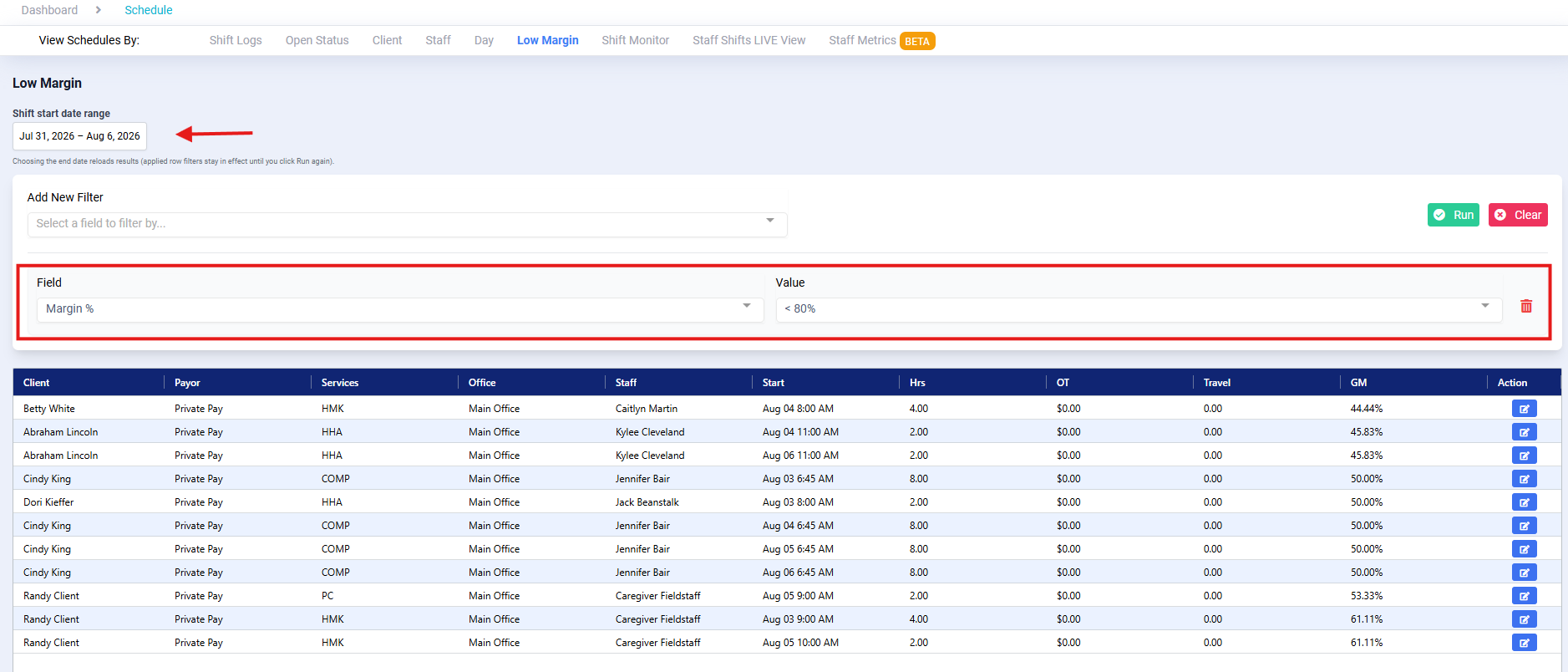
If you would like detailed information on this page Visit the Article on How to Use Low Margin Dashboard
Shift Monitor
The Shift Monitor page displays scheduled visits within a selected date range. This area provides multiple filtering options to help you quickly locate specific schedules, including filters for:
- Client
- Staff
- Payor
- Town
- Scheduler
- Nurse
- Client Tags
- Employee Tags
- Shift Status
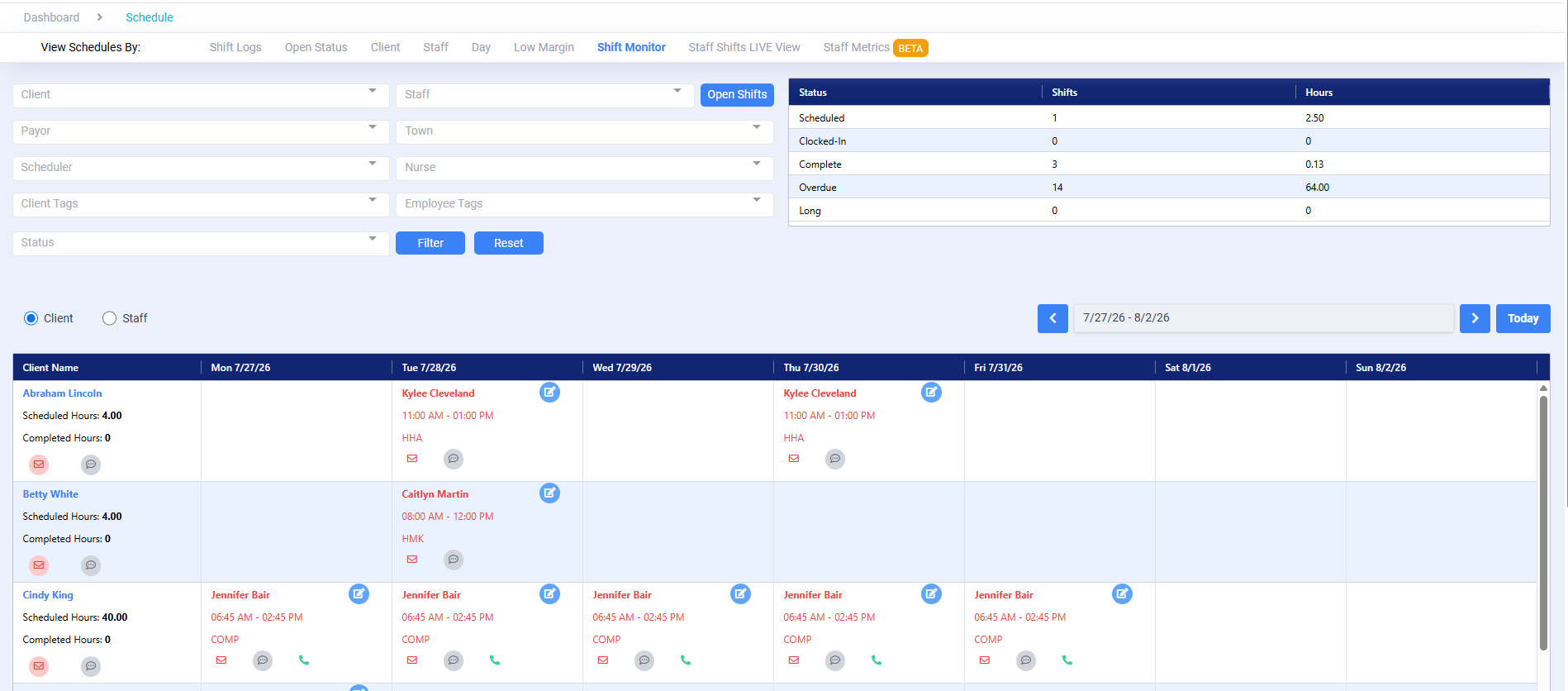
The Quick Action feature is also available in this area to allow you to efficiently manage schedules directly from the Shift Monitor. Available actions include editing shifts, canceling visits, manually clocking clients in or out, and sending messages.