
eCaring allows users to easily modify and update a status within the client profile and review any status changes made. Follow the outlined steps to check for status updates:
Client Profile:
To view status changes from the client profile select Edit Profile
Next, select Edit Status
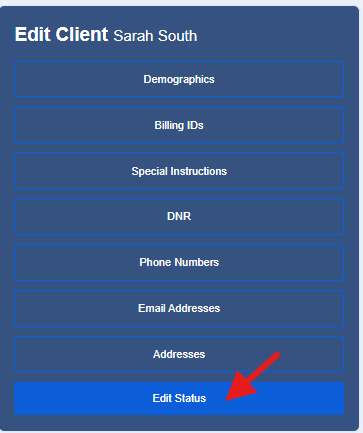
In this area a status history will be viewable.
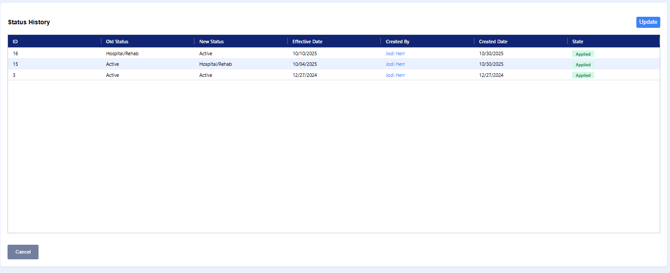
ID- Change ID
Old Status- allows you to view the status prior to the change
New Status- current or updated status
Effective Date- The actual date on which the change takes effect, as changes may be applied retroactively.
Created By- Office staff that entered the change
Created Date- Date status was updated in eCaring.
State- status of the change
How to Update a Status:
Select Update

Select the appropriate Client or Staff Status
Enter the Effective Date and Submit
If changing the status to any inactive status for a client, the client's schedule will be removed from the calendar.
When deactivating a staff member to a corresponding inactive status, the schedule will then change to open.