
Once a visit is completed, changes cannot be made to the schedule; however, make some changes using the Shift Details screen.
Review the following steps to make changes:
Select the edit option on the completed shift from any view in eCaring

The Shift Details will then populate.
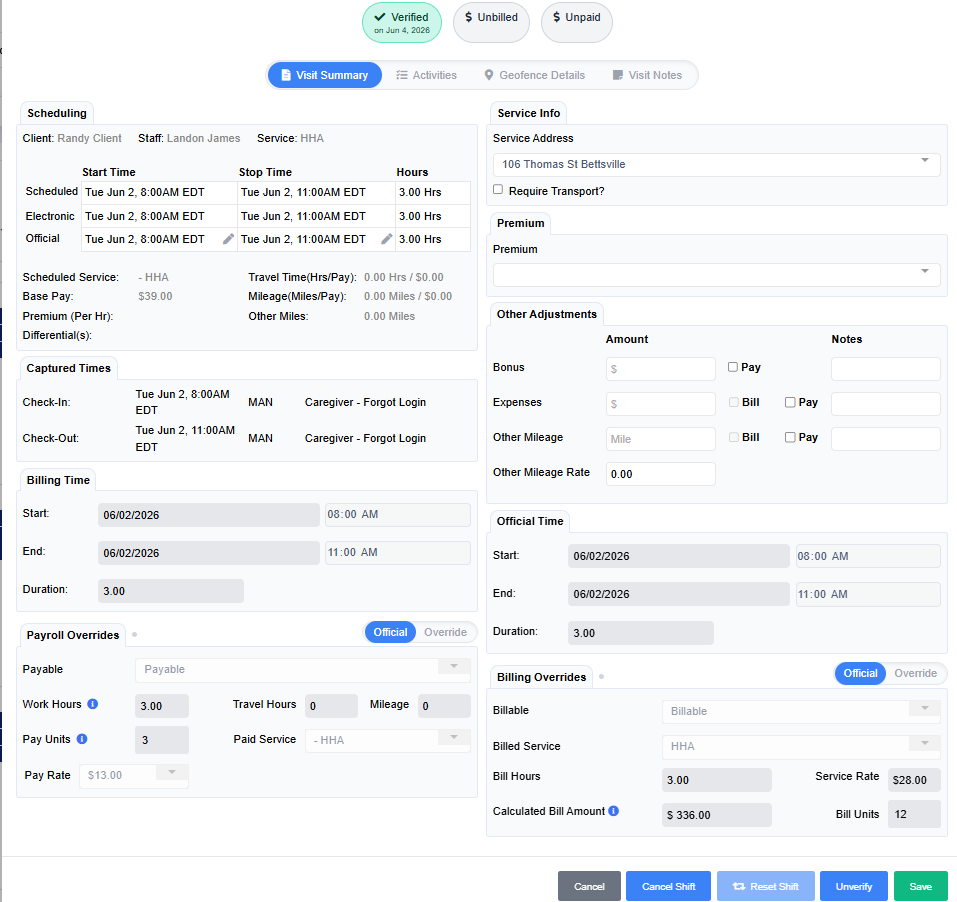
Please note: Depending on the payor and payor setup, you may not have the option to edit all settings.
If you need to make a change to a date or adjust times, enter the information in the Scheduling Tab
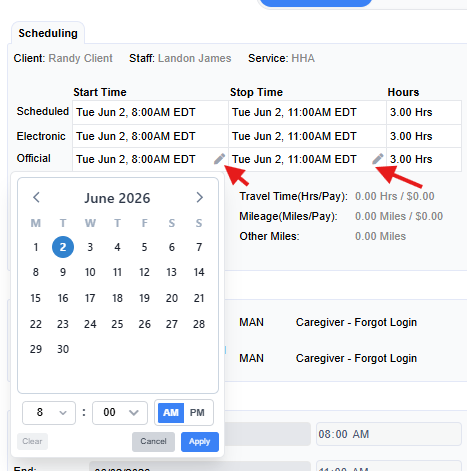
Next, enter the reason for the change
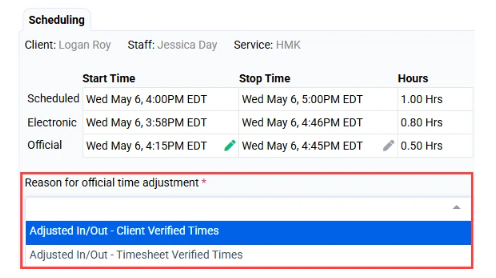
Select apply
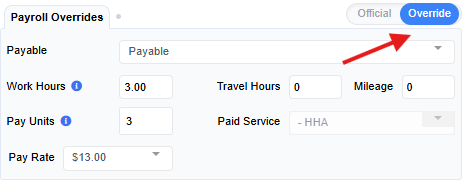
In the Payroll Overrides area, visits can be switched to Payable or Non-Payable, the Pay Basis can be adjusted, as well as Travel Hours, Milage and Premiums added to the shift
If the date and time of the visit has changed select the override option to reflect the change.
Premium:
If a Premium is included in the shift, it can be added during this time as well
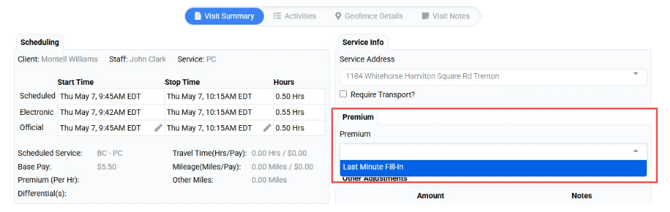
In Other Adjustments area allows any Bonus amounts, Expenses and Mileage to be manually added if needed (if you are unable to select Bill in this area, your Payor is not set up to bill mileage)

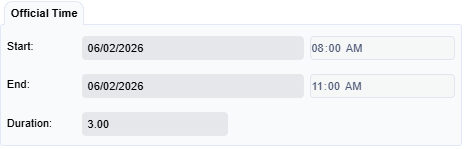
Offical Time
This area will display the Official Time of the visit regardless if Override was selected
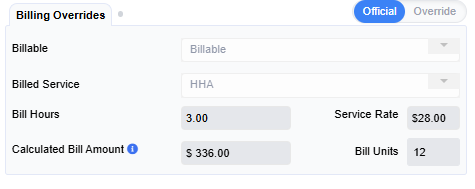
Billing Overrides allow the visit to easily be switched from Billable to Non-Billable and Bill Basis can be adjusted from Official to override-based if that adjustment is also needed in this area.
Remember if you made any changes, select Save & Verify or Save