Overview
- Configuring Sick and Vacation Time settings
Functionality Included
- Allow Staff to accrue Sick and Vacation Time
- Set accrual rate
- Max amount that can be accrued
- What happens to balance at end of year
- Balances can be manually adjusted
- Ability to report on number of Paid Sick and Vacation hours
Configuring Sick and Vacation Time settings
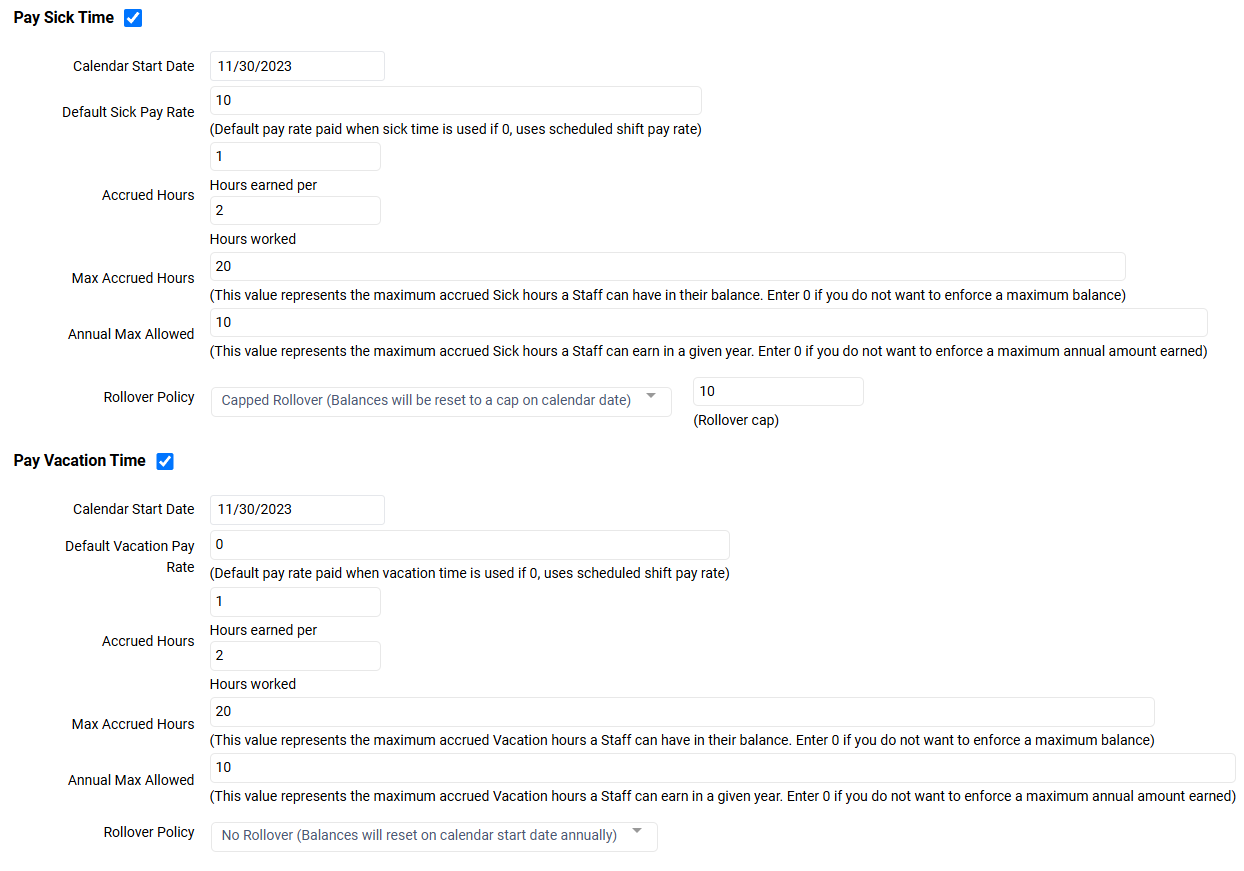
- Within System > Financial, agencies can enable or disable Pay Sick Time and/or Pay Vacation Time
- When enabled (indicated by check mark next to field) the agency will implement the configured rules for the section(s)
- Calendar Start Date represents the month and date each year when accrual Rollover Policies take effect (i.e. capped rollover, full rover, no rollover)
- Sick and Vacation accrual hours will start to accrue once the Pay Sick Time or Pay Vacation Time setting is enabled
- Default Pay Rate determines what rate staff should be paid for Vacation or Sick time
- If an agency has entered 0 as Default Sick Pay Rate or Default Vacation Pay Rate, the Vacation or Sick visit will be paid at the staff’s rate for the scheduled service of the visit(s)
- If an agency has entered a value other than 0 as Default Sick Pay Rate or Default Vacation Pay Rate, the Vacation or Sick visit will be paid at the rate entered on the associated Default Pay Rate field
- Accrued Hours is where agencies configure X hours earned per Y hours worked
- For example, 1 hour earned for every 40 hours worked
- Max Accrued Hours represents the maximum accrued Sick or Vacation hours a Staff can have in their balance.
- Agencies can enter 0 if they do not want to enforce a maximum balance
- Users can manually edit balance to exceed Max Accrued Hours but they will receive warning message and must acknowledge this will surpass that maximum
- Annual Max Allowed represents the maximum accrued Sick or Vacation hours a Staff can earn each year
- Agencies can enter 0 if they do not want to enforce a maximum annual amount earned
- Users can manually edit balance to exceed Annual Max Allowed but they will receive warning message and must acknowledge this will surpass that maximum
- Rollover Policy determines what happens to the Vacation and/or Sick balance each year of the calendar start date. For example, if calendar start date is 1/1/24, on 1/1/25 the Rollover Policy will be applied
- Capped Rollover, the balance should reset to the Rollover Cap value effective the Calendar Start Date
- For example, if Calendar Start Date = 8/23/23, and Rollover Cap = 10 and as of 8/22/24 Employee A has 15 hours accrued, and Employee B has 7 hours accrued, on 8/23/24, Employee A balance would reduce to the cap of 10, Employee B remains at 7 hours because their accrued balance was less than the cap at Calendar Start Date.
- No Rollover, the balance should reduce to 0 effective the Calendar Start Date.
- For example, if Calendar Start Date = 8/23/23, and Rollover Cap = No Rollover, and employee has 10-hour balance as of 8/22/24, on 8/23/24, that balance would reset to = 0.
- Full Rollover, no balance adjustments are necessary on the calendar start date; all hours would remain in the balance.
- This value should not exceed the Max Accrued Hours (if there is a value other than 0, as 0 means no max).
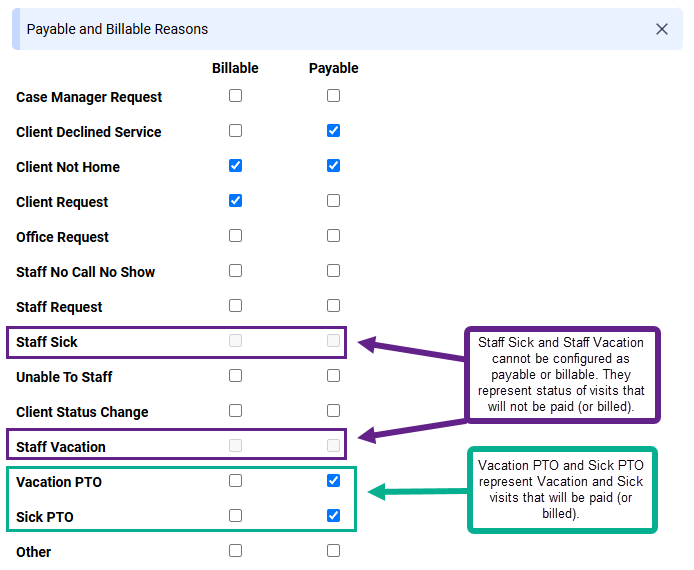
- Within System > Financial > Payable and Billable Settings, agencies can configure to treat Vacation and Sick visits as Billable and/or Payable
- By default, Vacation PTO and Staff Sick PTO will be configured to be payable and non-billable
- Vacation PTO and Staff Sick PTO status represent Vacation/Sick visits that will be paid
- Vacation and Staff Sick status represent Vacation/Sick visits that will not be paid
- These statuses cannot be configured to be payable or billable
- Capped Rollover, the balance should reset to the Rollover Cap value effective the Calendar Start Date