
Sign In Page:
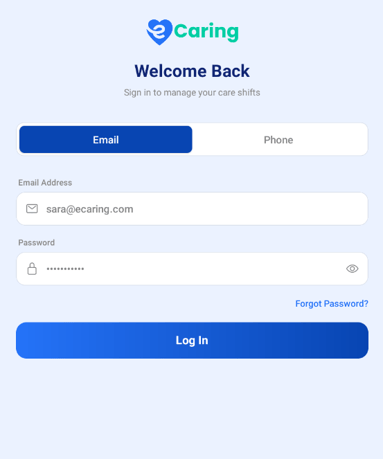
After downloading eCaring Staff v2 from the app store complete the following steps to log in and complete your shift.
Enter your email and password. If you forgot your password, click Forgot Your Password and follow the instructions sent to your email.
Home Page
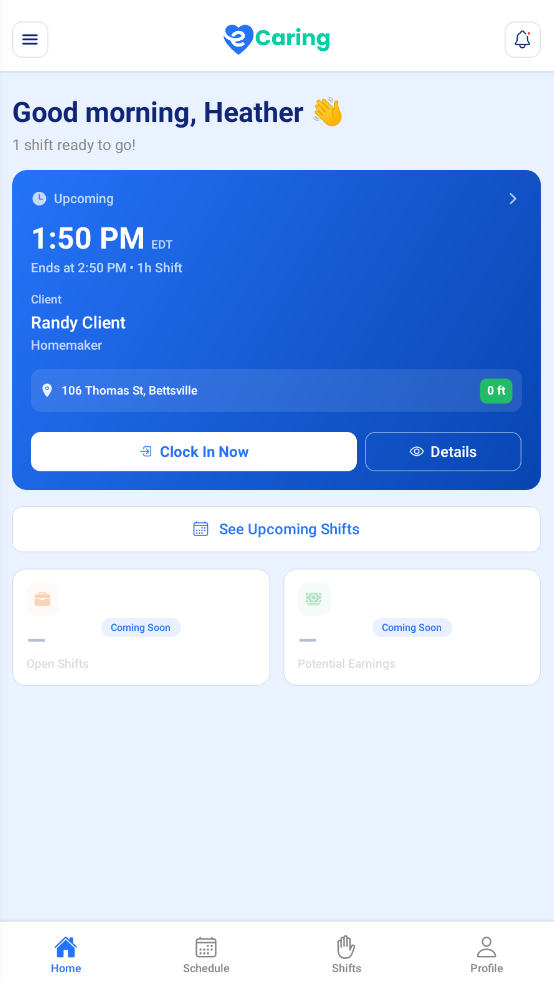
The page displays a variety of information, but most importantly, this is where to find your schedule and complete your shift.
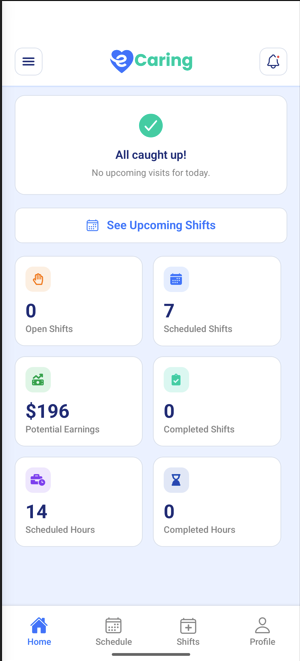
The screen displays your greeting, "Hello!" and a summary of your scheduled shifts for the week.
Open Shifts allows you to view shifts that need staff assigned. Please note if you are interested in a shift, contact the office or select the volunteer option.
Potential Earnings is strictly an estimate. This does not take into account taxes, healthcare, etc.*
Scheduled Hours allows you to view how many hours are scheduled for the week
Shifts Scheduled is the total number of shifts scheduled for the week
Completed Shifts will show you how many shifts were completed for the week
Completed Hours is the total hours you have completed this week
See Upcoming Shifts:
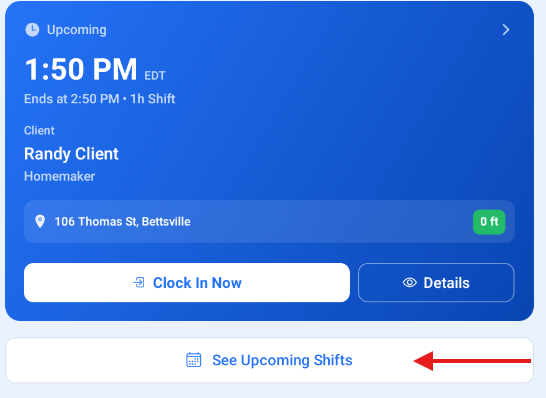
Select See Upcoming Shifts to view future shifts
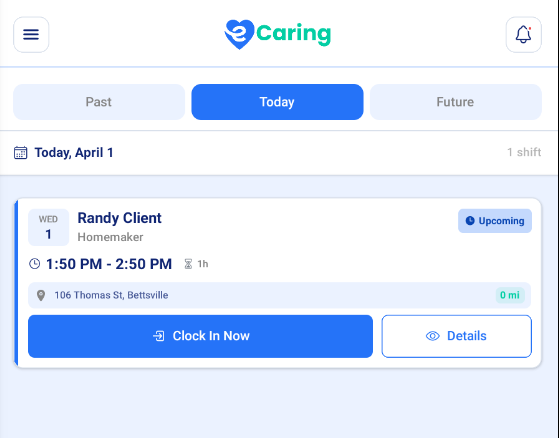
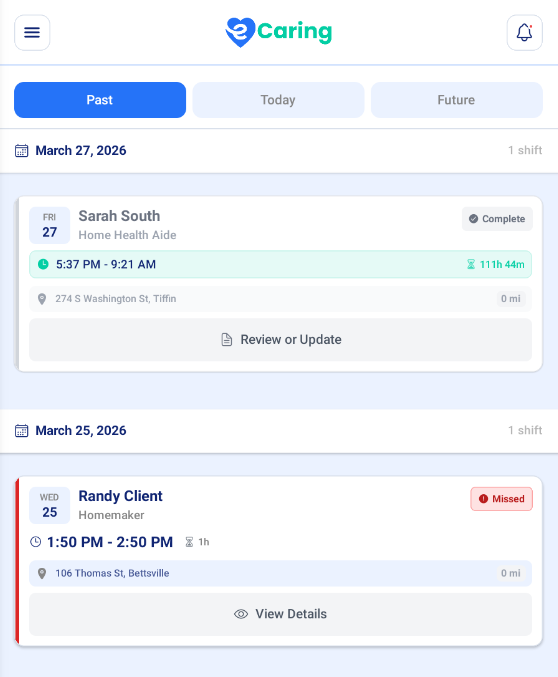
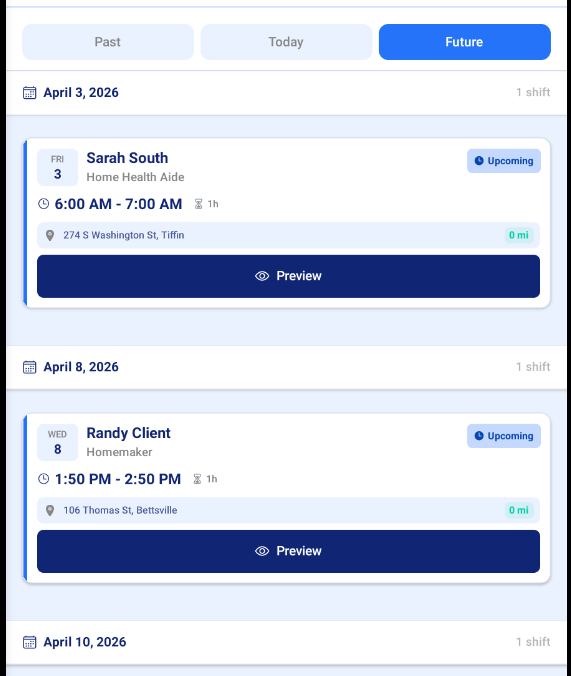
In this area, you have the option to view Past, Today, or Future shifts.
If selecting Today, you will see any visits for the current work day
Past Shifts View allows you to see past visits and the shift information
Future View allows you to view upcoming scheduled visits
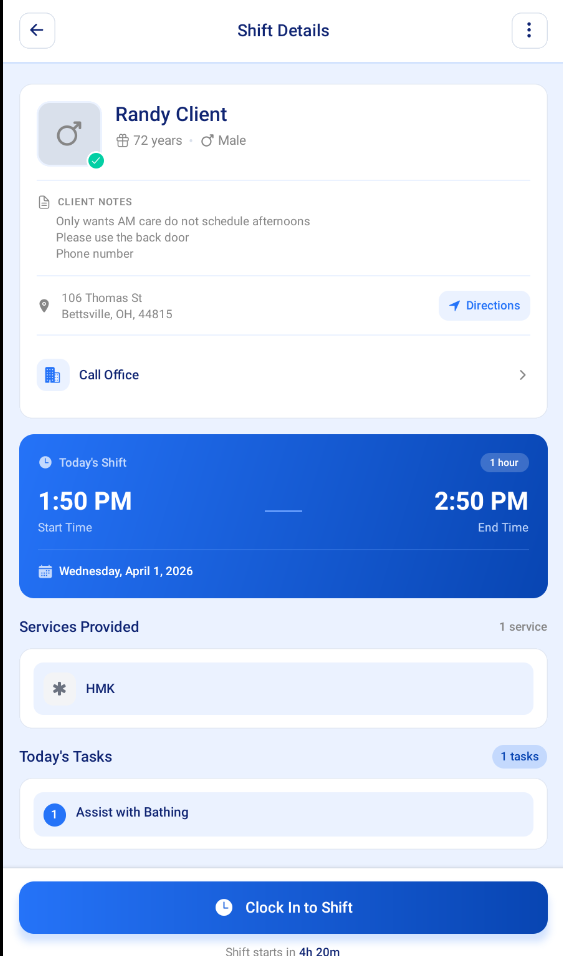
To View Shift Information, select the visit
You can view the following information for each shift on this page:
-
Client's Name, Address, and see driving directions
-
Client details
-
Clock In and Clock Out Time
-
Service to be Provided and tasks
There are four statuses for visits.
1. Clock-In
2. Overdue: Shift is past the start time
3. Not within Range: Aide is outside of the geofence or the app does not have permission to access Location
4. Unavailable: The shift is not able to be clocked in because it is occurring on a different day.
Clocking In and Documentation
To clock in to a shift select the Overdue or Clock In Now option.
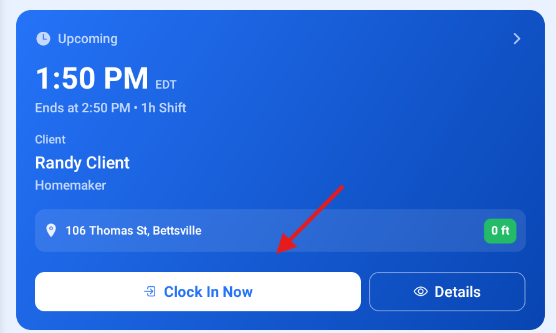
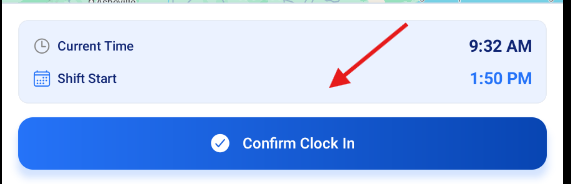
You'll be prompted to confirm that you want to clock in for this shift.
Select Yes, Clock In. (Close will cancel the clock in)
You'll be prompted to review and complete the Client Assessment. This does not need to be completed until the end of the shift.
To complete the shift (activities) note:
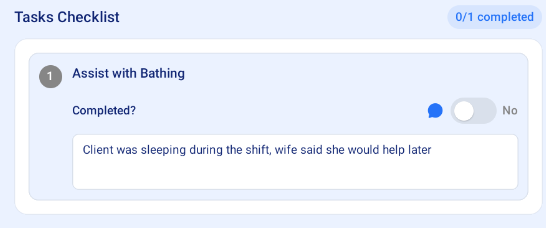
Tasks (Required): Select Tasks to open the assigned tasks to be completed. Toggle the tasks that have been completed and add a comment to the tasks that were not completed.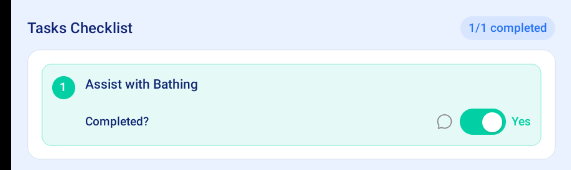
Each task must be marked Yes or No to clock out.
If a task is marked as "No", a reason as to why will need to be added to the task
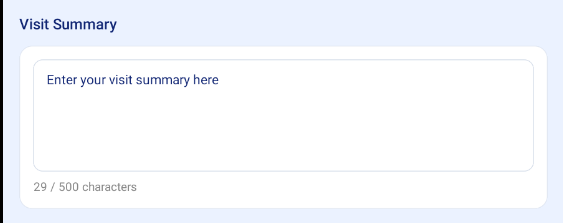
- Visit Summary (required): Enter a summary of your visit according to your employer's requirements. There must be something entered in this note.
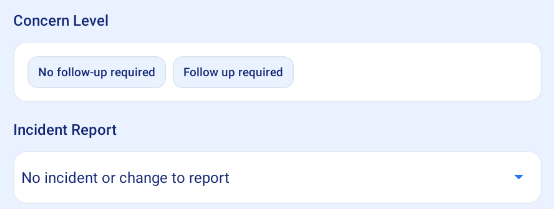
- Concern Level (required) and Incidents (optional): Select a Concern Level and if any Incidents occurred, select Incident, then choose from the menu you are provided.
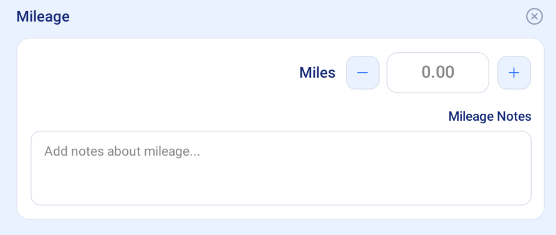
- Miles (optional): Enter the number of miles you traveled during your shift if you are eligible to be reimbursed. You can elaborate on your mileage in the Notes section underneath.
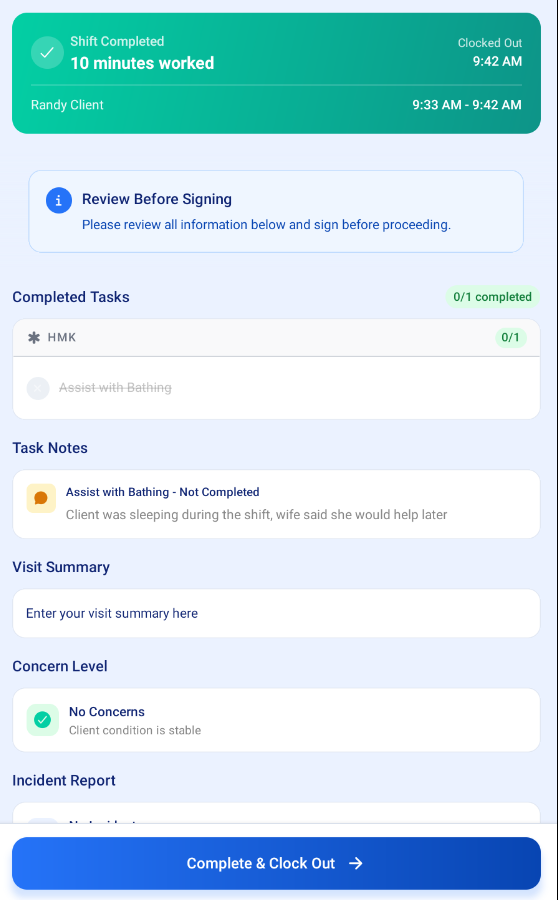
Once this information is completed, select Clock Out to proceed to signatures; you also have the option to Save Progress and return to the shift later to complete.

- Review the shift details: Scroll through the shift details to review for accuracy. If any changes need to be made, you can update at this time.
- Staff Signature (required): Select Signature to sign your note. Tap on the box to sign, use your finger to sign your name. Click Save and Continue when complete.
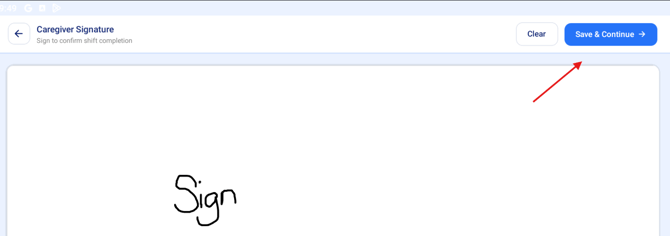
- Client Signature (required): If you are unable to collect a client signature, toggle the button to indicate it as such.
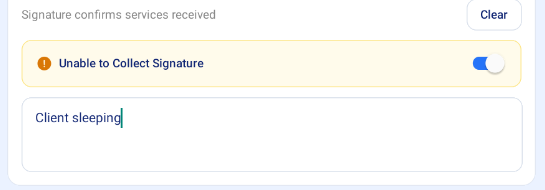
- If you are collecting a client signature, complete the same steps as Staff signature.
- Select Complete and Clock Out
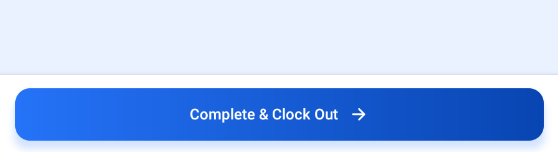
Confirm Clock Out
When you select Complete and Clock out you will be directed to this page:
- Select Confirm Clock Out
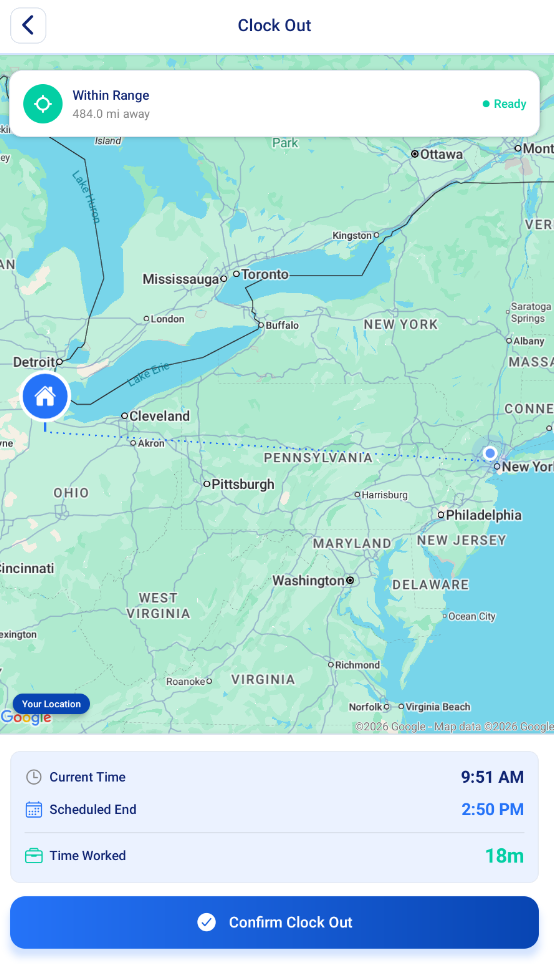
You will then be directed back to the Home Screen and your shift is complete.