
There are 2 steps to getting started on the eCaring mobile app.
Step 1: Set up your password through an email invite.
- Your employer will send an invite via the email you provide. The email will appear as below:
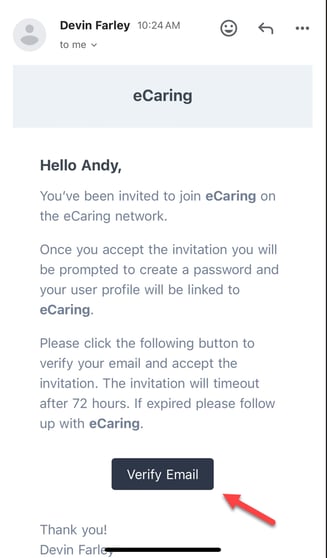
- Click Verify Email to set up your password, you will automatically be brought to Setup Your Password in your web browser. This appears as below:
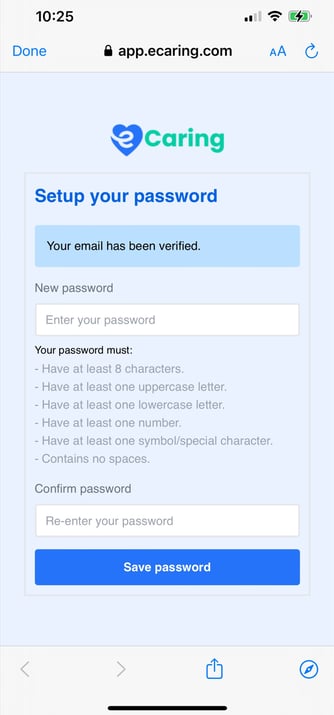
- Enter your new password, and ensure it meets all criteria.
- Click Save password.
- You'll be brought to the webpage to sign in, DO NOT SIGN IN. CLOSE this page, and move on to Step 2.
Step 2: Download the eCaring 2.0 Mobile App
- To download the app from either the Google PlayStore (Android) or AppStore (iOS) search for the app, eCaring Staff or visit app.ecaring.com/launch
iOS App Store View

Android Google PlayStore View
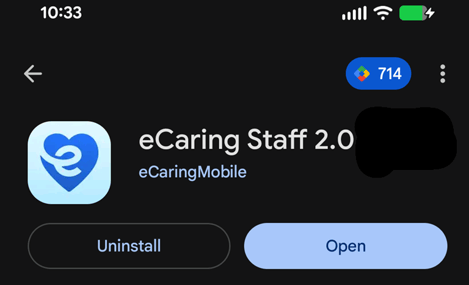
- Download the app.
- Open the eCaring Staff app and you will be brought to the sign-in page.
- Enter the email you provided to your employer and enter the password you set when you received the email invitation to the app.
- Once logged in you'll be brought to the eCaring homepage!
Please see the article eCaring Mobile App - How to Use (Android or iOS) to review step-by-step guidelines on how to use the app and its various features.