
How to Set Up Differentials
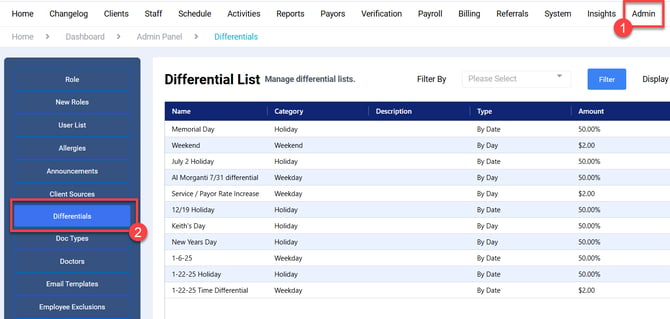
Select Admin from the toolbar and then select Differentials from the left hand menu.
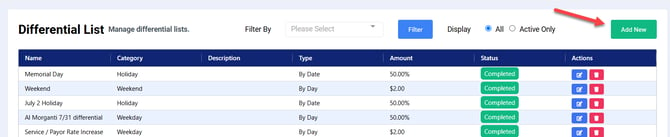
Select Add New in the right hand corner.
Complete the Add Differential information:
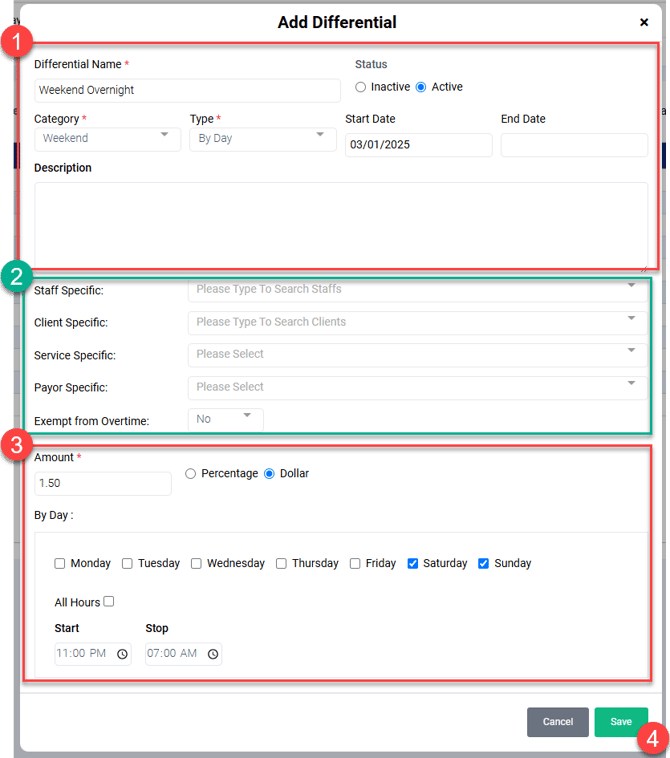
Section 1:
- Enter the Differential Name
- Select the Category from the dropdown menu
- Select Type, either by Day or by Date. Date is used for holidays, while Day is used for a specific day of the week, such as weekend differentials.
- Enter dates: Holidays the date of the holiday will be entered in both the start and end date fields. For Weekends or Evening differentials, only a start date is required.
- If desired, you may add a description of the differential
Section 2:
If this differential is specific to certain staff, clients, services, or payors, you can apply that constraint here. This prevents differentials from being mistakenly applied to clients or staff who are ineligible. You may also exempt this from overtime.
Section 3:
- Amount. This may be a percentage (such as time and a half, or 150%) or a dollar amount. This is applied based on the hourly rate.
- Select the days of the week this differential will be applied.
- Select the hours, either all hours of the specified day(s) or a specific time range.
Click Save when complete.
Differentials are automatically applied to payroll and can be viewed under Verification.
