
When accessing the client dashboard you will find important at-a-glance information.
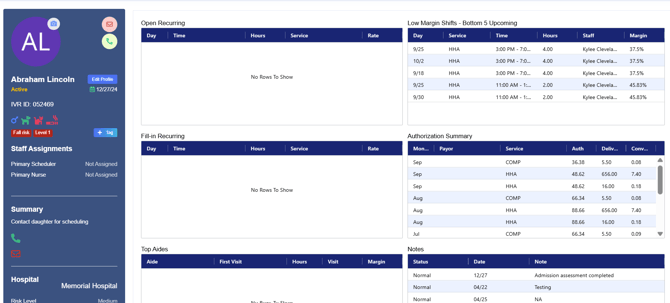
At the left side of your screen you will find your client information.
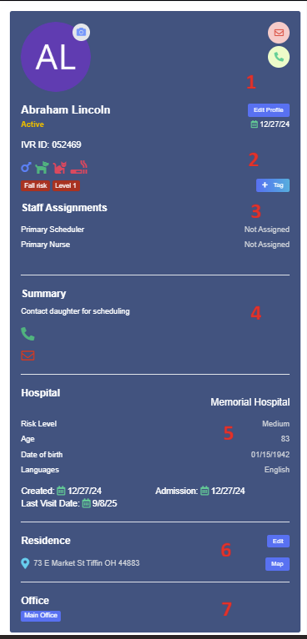
- 1: The top section includes the Client’s name, their current status as well as the date their status was last updated. When the client’s name is white, that indicates communication is allowed. When the client’s name is red, that indicates contact with the client is not permitted.
- 2: The IVR ID is a system generated ID # utilized for telephony. This ID cannot be changed. The symbols below indicated gender if applicable, and if there are dogs, cats, or smoking in the home. Green = Yes, Red = No
- 3. Staff Assignments displays the Primary Nurse and Primary Scheduler if assigned
- 4: Under Summary is contact information, as well as additional information entered under Summary when the client profile is edited.
- 5: Client’s preferred hospital is displayed here when chosen under Edit Profile. Risk level and other basic demographic information is displayed here, when the client profile was created, their last visit date, and their admission date.
- 6: This is the Primary address shown and the default address used when scheduling. The office this client belongs to is listed here, also known as the Home Office.
- 7: Will display associated office
Additional information on this page includes a grid to the left side
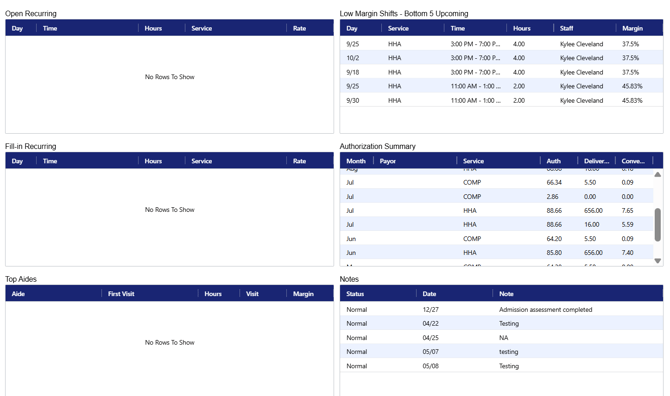
The various grids provide a quick view of key client information, including open scheduled shifts, upcoming low-margin shifts, and any fill-ins for recurring shifts. It also displays the authorization summary, top aides assigned to the client, and the most recent notes entered.