
If you are experiencing issues with the eCaring Staff app in Android not loading correctly, crashing, or you are unable to update please follow the steps below.
Step 1: Navigate to your eCaring App.
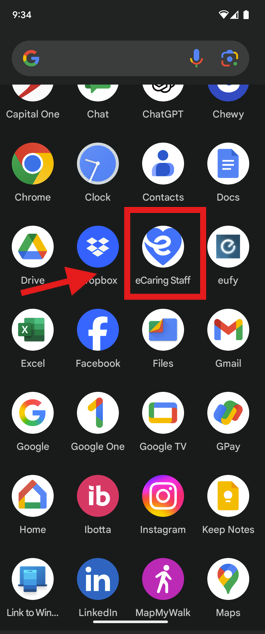
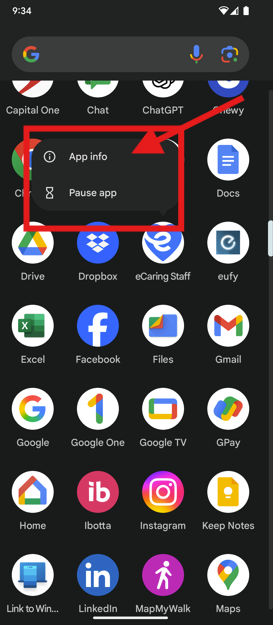
Step 2: Select on the app until a pop-up box appears, select App infor
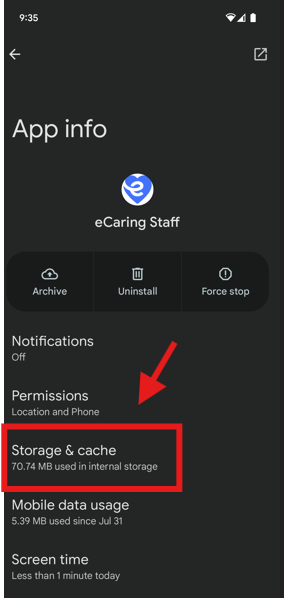
Step 3: Select Storage & Cache
Step 4: Select Clear Storage
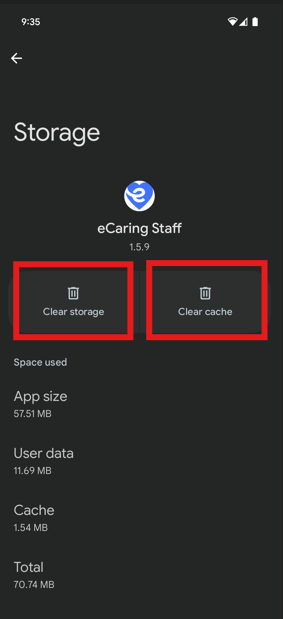
Step 5: Select Delete
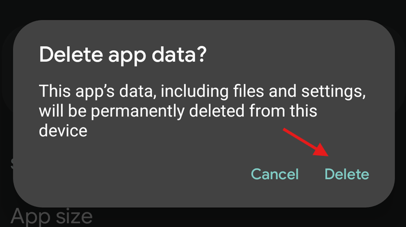
Step 6: Follow the same steps to Clear Cache
If these steps do not resolve the issue, it maybe necessary to complete the steps again, delete the app and reinstall.
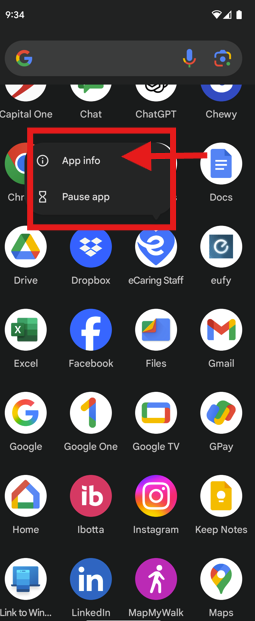
To Delete the App, select on the app and hold down until the pop-up box appears.
Step 1: Select App Info
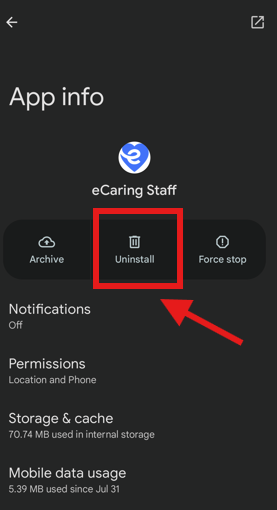
Step 2: Select Unistall
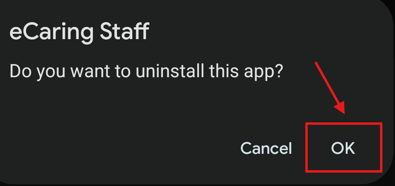
Step 3: Select OK
Step 4: Reinstall App by visiting the Play Store