
Available Alerts
Missed Clock-in: Alerts when a caregiver fails to clock in on time for their scheduled visit.
Missed Clock-out: Alerts when a caregiver fails to clock out after completing their shift.
Follow-up Required: Alerts when a visit is flagged for follow-up by the caregiver.
Configuring Alerts
To configure alerts, navigate to Admin > Alerts and Notifications.
Each alert type can be enabled or disabled using the toggle switch in the upper-right corner of each section.
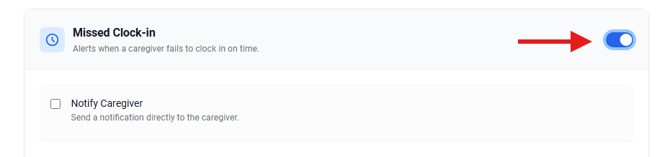
Missed Clock-in Configuration
Notify Caregiver
When enabled, the caregiver will receive an SMS notification if they miss their scheduled clock-in time.
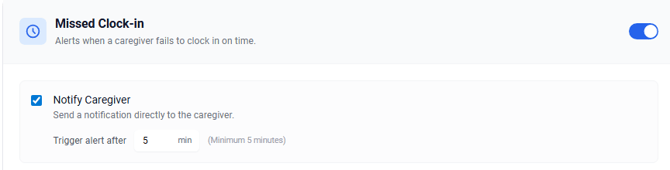
Trigger alert after: Set the number of minutes after the scheduled start time before sending the notification. The minimum is 5 minutes.
Example: If set to 5 minutes and a shift starts at 9:00 AM, the caregiver will receive a notification at 9:05 AM if they haven't clocked in.
Notify Administrative Staff
When enabled, designated office staff will receive a notification in their notifications dashboard.
Recipients: Select who should receive notifications:
- Primary Scheduler - The client's assigned primary scheduler
- Primary Nurse - The client's assigned primary nurse
You can select one or both recipients. If a client doesn't have an assigned primary scheduler or nurse, all users with scheduling permissions will receive the notification.
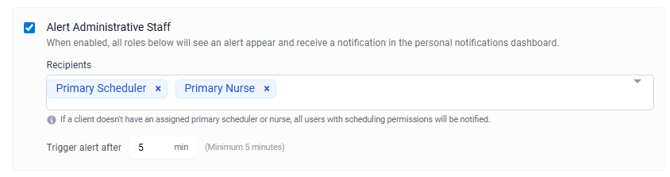
Trigger alert after: Set the number of minutes after the scheduled start time before sending the notification. The minimum is 5 minutes.
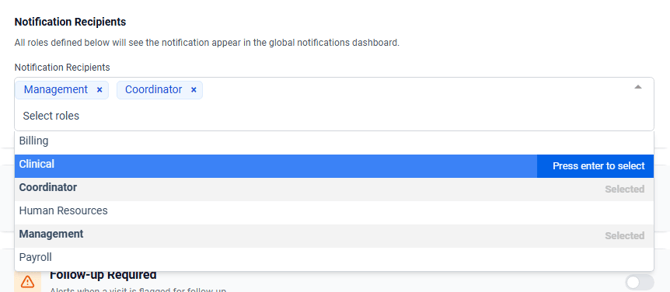
Notification Recipients: Set the roles in which you would like to receive notifications from the global notifications dashboard
Missed Clock-out Configuration
Notify Caregiver
When enabled, the caregiver will receive an SMS notification if they miss their scheduled clock-out time.
Trigger alert after: Set the number of minutes after the scheduled end time before sending the notification. The minimum is 5 minutes.
Example: If set to 5 minutes and a shift ends at 3:00 PM, the caregiver will receive a notification at 3:05 PM if they haven't clocked out.
Notify Administrative Staff
When enabled, designated office staff will receive a notification in their notifications dashboard.
Recipients: Select who should receive notifications:
- Primary Scheduler - The client's assigned primary scheduler
- Primary Nurse - The client's assigned primary nurse
You can select one or both recipients. If a client doesn't have an assigned primary scheduler or nurse, all users with scheduling permissions will receive the notification.
Trigger alert after: Set the number of minutes after the scheduled end time before sending the notification. The minimum is 5 minutes.
Notification Recipients: Set the roles in which you would like to receive notifications from the global notifications dashboard
Follow-up Required Configuration
Notify Administrative Staff
When enabled, designated office staff will receive an immediate notification when a caregiver flags a visit as requiring follow-up.
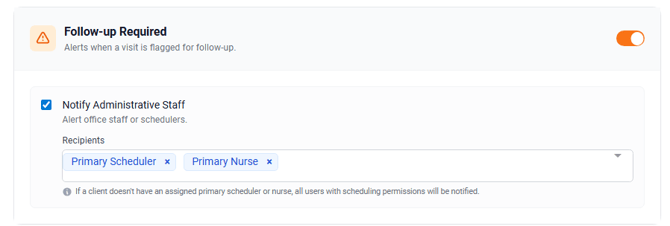
Recipients: Select who should receive notifications:
- Primary Scheduler - The client's assigned primary scheduler
- Primary Nurse - The client's assigned primary nurse
You can select one or both recipients. If a client doesn't have an assigned primary scheduler or nurse, all users with scheduling permissions will receive the notification.
Back-to-Back Visits
The alert system is designed to work intelligently with back-to-back visits:
Missed Clock-in: Only the first visit in a back-to-back sequence will trigger a missed clock-in alert, since subsequent visits inherit the clock-in time from the previous visit.
Missed Clock-out: Only the last visit in a back-to-back sequence will trigger a missed clock-out alert, since earlier visits inherit the clock-out time from the next visit.
SMS Notifications to Caregivers
When "Notify Caregiver" is enabled, caregivers will receive SMS messages to their primary mobile phone number.
Missed Clock-in message:
Missed Clock-in: You have not clocked in for your scheduled visit with [Client Name] at [Scheduled Start Time]. Please clock in now or contact the office.Missed Clock-out message:
Missed Clock-out: You have not clocked out from your visit with [Client Name] scheduled to end at [Scheduled End Time]. Please clock out now or contact the office.Important: SMS notifications are only sent if the caregiver has a primary phone number with type "Mobile" in their profile. If no mobile number exists, the notification is skipped.
Best Practices
- Set appropriate timing delays - Consider your agency's workflow when setting notification delays. A 5-minute delay may be appropriate for strict compliance requirements, while a 15-30 minute delay may reduce unnecessary alerts for caregivers who are typically a few minutes late.
- Assign primary schedulers and nurses - To ensure the right person receives notifications, make sure clients have assigned primary schedulers and/or primary nurses in their profiles.
- Keep phone numbers updated - Ensure caregivers have their mobile phone numbers entered in their profiles with the type set to "Mobile" for SMS notifications to work properly.
- Monitor notification volume - If you're receiving too many notifications, consider adjusting your timing thresholds or reviewing scheduling practices with caregivers.
- Use the SMS feature - The quick SMS button in notifications allows you to immediately contact caregivers or clients when issues arise, helping resolve attendance problems faster.
Troubleshooting
Caregiver not receiving SMS notifications:
- Verify the caregiver has a phone number in their profile
- Ensure the phone number type is set to "Mobile" (not "Home" or "Work")
- Check that "Notify Caregiver" is enabled for the alert type
- Verify on the Profile > Edit page under Special Instructions that "Text Message Opt-out" is set to "No, don't opt-out."
Office staff not receiving notifications:
- Verify the alert type is enabled (toggle switch is on)
- Check that appropriate recipients are selected (Primary Scheduler/Primary Nurse)
- Confirm the client has an assigned primary scheduler or nurse
- If no primary is assigned, verify the user has scheduling permissions
No notification for back-to-back visits:
- This is expected behavior - only the first visit triggers missed clock-in alerts and only the last visit triggers missed clock-out alerts